Best Alternatives to Microsoft Office in 2026: 10 Tools Compared

How we put this together: we compare official feature and pricing pages, app store listings, privacy policies and public user reviews. Prices change, so check the provider's site before you pay.
Key takeaways
- LibreOffice suits offline desktop work with no subscription and strong file support.
- Google Docs, Sheets and Slides suit live collaboration in a browser.
- ONLYOFFICE suits teams that exchange complex Word and Excel files often.
- Apple iWork suits Apple users who want polished, free apps on their devices.
- Microsoft 365 for the web suits occasional Office work with native file formats.
Quick comparison
| Name | Who it suits | Starting price | Free option | |
|---|---|---|---|---|
 LibreOffice | Full offline desktop replacement | Free | Yes | Visit |
 Google Docs, Sheets, Slides | Live collaboration in a browser | Free | Yes | Visit |
 ONLYOFFICE Desktop Editors | Accurate Office file layouts | Free | Yes | Visit |
 Microsoft 365 for the web | Native Office formats for free | Free | Yes | Visit |
 WPS Office | Office-style interface in one app | Free | Yes | Visit |
 Apple iWork | Polished free apps for Apple users | Free | Yes | Visit |
 Zoho Workplace | Small teams that want mail plus docs | See website | Free trial | Visit |
 SoftMaker FreeOffice | Traditional desktop editing on older PCs | Free | Yes | Visit |
 Collabora Office | Self-hosting and data control | See website | Yes | Visit |
 Apache OpenOffice | Simple free desktop editing | Free | Yes | Visit |
The best alternatives to Microsoft Office
This guide compares ten suites and apps that replace Word, Excel and PowerPoint for most daily work. We look at file compatibility, offline use, collaboration and price, so you can pick by how you actually share documents rather than by habit.
LibreOffice suits people who want a full desktop suite without a subscription. Writer, Calc and Impress cover documents, spreadsheets and slides, and the suite opens and saves Word, Excel and PowerPoint formats for sharing. Because it runs offline, you can work on planes, in low-connectivity areas or on older machines without worry. The catch is collaboration and layout. Real-time co-editing is weaker than in Google or Microsoft cloud tools, and very complex Office files may need a check after conversion. For solo work, small teams that share files by email, or users who value privacy, those limits are usually acceptable.
- Writer, Calc and Impress included
- Opens and saves Office formats
- No account needed
- Complex Office layouts can shift
- Collaboration is weaker than cloud suites
- Interface feels dated to some users
Google Docs, Sheets, Slides
Who it suits: Live collaboration in a browser
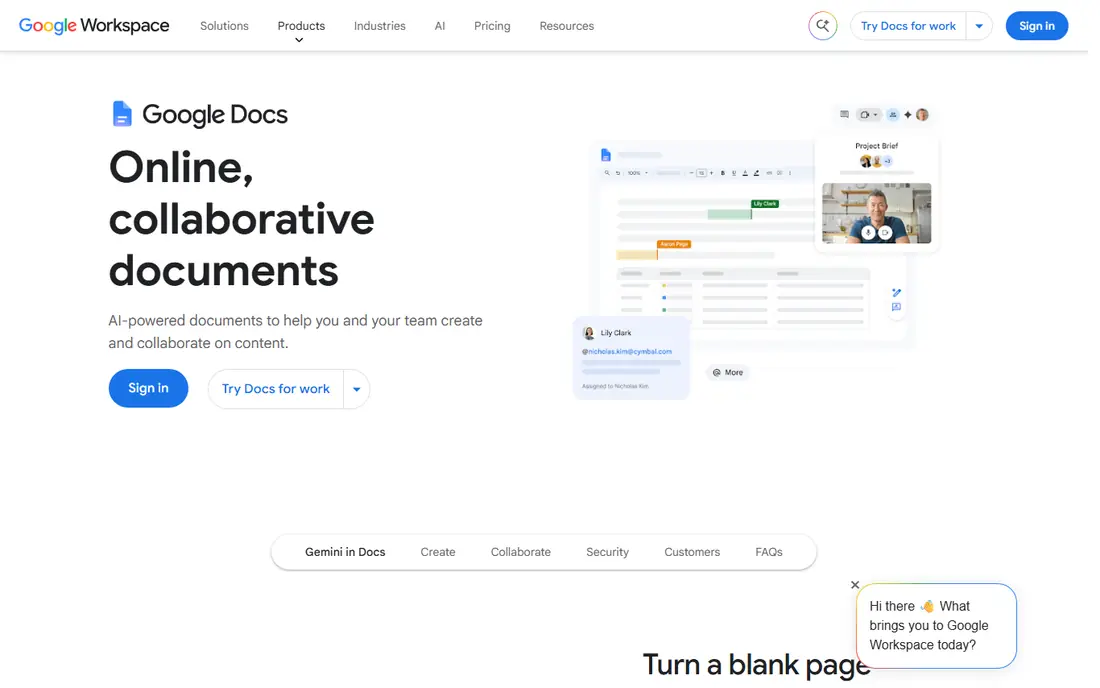
Google Docs, Sheets and Slides suit teams that edit together. Several people can work on the same document at once, comments and version history keep changes clear, and sharing a link is faster than emailing files. For schools, small teams and remote work, that flow is hard to beat. The trade-off is offline and format fidelity. Offline editing in Chrome is limited, and complex Word or Excel layouts may shift on import. If you work offline often or exchange heavily formatted Office files, pair Google tools with a desktop suite for final checks.
- Real-time co-editing
- Strong sharing and comments
- Free personal tier
- Works on any device
- Offline use is limited
- Complex Office layouts can shift
- Needs a Google account for full use
ONLYOFFICE Desktop Editors
Who it suits: Accurate Office file layouts
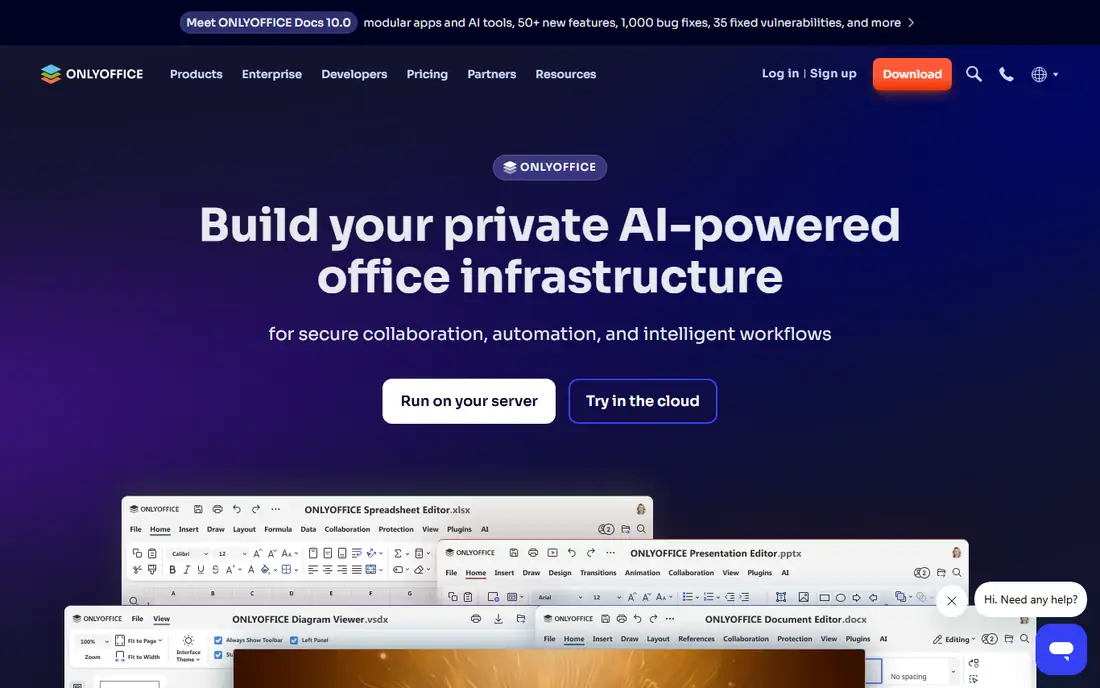
ONLYOFFICE suits people who exchange Office files daily and care about layout staying intact. Its desktop editors handle Word, Excel and PowerPoint formats with high fidelity, and the cloud and self-hosted options suit teams that want control over data. For Office-heavy workflows, it is a close match. The catch is setup for collaboration. Real-time editing needs a server or cloud plan, which adds work for a solo user. The desktop editors are free and strong for solo work, so start there and add collaboration only if your team needs it.
- Strong compatibility with Word, Excel and PowerPoint formats
- Desktop and cloud options
- Open source core
- Collaboration needs a server or cloud setup
- Some advanced features sit in paid plans
- Smaller template range
Microsoft 365 for the web
Who it suits: Native Office formats for free
Microsoft 365 for the web suits occasional Office work where native formats matter most. With a free Microsoft account, you can create and edit Word, Excel and PowerPoint files in a browser without a subscription, and files stay in native formats for sharing. For light use, it removes the need to install anything. The limit is depth and connectivity. Desktop features, larger storage and offline work need a paid plan, and the web apps need internet. If you edit documents daily or work offline, a desktop suite or a paid plan will serve you better.
- Native Word, Excel and PowerPoint formats
- Free web apps with a Microsoft account
- Familiar interface
- Needs internet
- Desktop features need a paid plan
- Storage limits apply on free accounts
WPS Office suits users who want an Office-like feel without a subscription. Writer, Spreadsheets and Presentation sit in one app with tabs, and Office format support is strong for daily documents. Mobile apps are also polished, which helps if you edit on a phone or tablet. The trade-off is the free tier. Some features need payment, and ads can appear in free use. If ads or upsells annoy you, LibreOffice or ONLYOFFICE may feel calmer, even if their interfaces look less like Office.
- Familiar Office-style tabs
- Writer, Spreadsheets and Presentation in one app
- Good Office format support
- Some features need payment
- Ads in the free tier can distract
- Cloud features need an account
Apple iWork suits people who live on Mac, iPhone or iPad. Pages, Numbers and Keynote are free, templates are polished, and iCloud sharing lets Apple users collaborate easily. For letters, school work, simple budgets and slides, iWork is more than enough. The catch is sharing beyond Apple. Exporting to Word, Excel or PowerPoint usually works, but complex layouts need a check. Windows and Android users can use iCloud web versions, but the experience is thinner. If you share Office files daily with non-Apple users, test exports early.
- Pages, Numbers and Keynote free on Apple devices
- Clean templates
- ICloud collaboration
- Office format export needs care
- Windows and Android support is web-only
- Fewer advanced spreadsheet features
Zoho Workplace suits small teams that want documents, mail and chat in one bundle. Writer, Sheet and Show cover the Office trio, while admin tools help a small business manage users and sharing. For a team starting from scratch, the bundle price can beat buying tools separately. The trade-off is ecosystem fit. If your team already uses Google or Microsoft mail, Zoho adds a second system to manage. Office layouts can also shift on import, so check complex files before you commit a whole team to the switch.
- Writer, Sheet and Show plus mail and chat
- Team admin tools
- Good value for small businesses
- Offline use is limited
- Office layout fidelity varies
- Best value inside the Zoho system
SoftMaker FreeOffice
Who it suits: Traditional desktop editing on older PCs
FreeOffice suits users with older or low-spec PCs who want a traditional desktop suite. It is light, fast and familiar, and it handles Word, Excel and PowerPoint formats well for daily work. For a spare laptop or a family PC, that lightness matters. The limit is ecosystem. Collaboration, cloud storage and mobile tools are thinner than in Google or Microsoft suites, and some features need the paid SoftMaker Office. Use FreeOffice for solo desktop work, and pair it with a cloud tool if your team edits together.
- Free for personal use
- Light on system resources
- Good Office format support
- Smaller ecosystem
- Collaboration is limited
- Some features need the paid SoftMaker Office
Collabora Office suits organisations that want data control. The open source core powers desktop and online editing, and self-hosting lets a team keep documents on its own servers. For schools, public bodies and privacy-focused teams, that control is the main reason to choose it. The catch is setup. Self-hosting needs technical skill, and the interface is less polished than commercial rivals. Small teams that do not need self-hosting will find LibreOffice or Google Docs simpler, while larger teams with IT support will get more from Collabora.
- Open source core
- Desktop and online versions
- Strong Office format support
- Self-hosting option
- Setup can be involved
- Interface feels less polished
- Support and hosting need planning for teams
Apache OpenOffice suits users who want a simple, free desktop suite and do not need the latest features. Writer, Calc and Impress cover everyday documents, spreadsheets and slides, and offline use is straightforward. For basic home or school work, it still does the job. The honest limit is pace. Development is slower than LibreOffice, and Office format support is less current, so complex new Office files may not open cleanly. Most new users should try LibreOffice first, and choose OpenOffice only if it already fits a known workflow.
- Free and open source
- Writer, Calc and Impress
- Runs offline on major systems
- Development is slower than LibreOffice
- Office format support is less current
- Fewer new features
How we picked these
We reviewed official feature pages, pricing pages, format support notes and app listings for each suite. We compared document, spreadsheet and slide tools, Office format fidelity, offline use, collaboration and price. Where a price depends on team size or plan, we wrote See website rather than copying a single figure. We did not claim hands-on testing. The best alternative depends on how you share files, whether you work offline, and whether you edit with others in real time, so test your real documents in the free version before you switch a whole team.
How to switch without breaking your documents
Start by listing your real documents, not your ideal ones. Gather a complex Word file, a spreadsheet with formulas and a slide deck with images, then open each in the new suite and check layout, formulas and fonts. A suite that handles your hardest files will handle your easy ones, while a suite that only handles simple files will surprise you later. Next, test sharing with the people you actually work with. Send a file in Office format, ask for edits back, and check that comments and tracked changes survive the round trip. If you collaborate live, test co-editing with two users at once and check version history. A clean round trip matters more than a long feature list. Finally, plan the move in stages. Switch one team or one document type first, keep the old suite installed for a month, and note any files that need special handling. Export a backup of important documents in both native and Office formats, so you can move again if a later update changes compatibility.
Frequently asked questions
What is the best free alternative to Microsoft Office?
LibreOffice is the strongest free desktop alternative for offline work, while Google Docs, Sheets and Slides suit live collaboration. ONLYOFFICE is a good free desktop choice if you exchange complex Office files often. Pick by offline need and collaboration style.
Can I open Word and Excel files without Microsoft Office?
Yes, LibreOffice, ONLYOFFICE, WPS, Google Docs and Apple iWork all open Word, Excel and PowerPoint files, and most can save back to those formats. Complex layouts, macros and unusual fonts may shift, so check important files after conversion.
Is Microsoft 365 for the web really free?
Yes, with a free Microsoft account you can use Word, Excel and PowerPoint in a browser at no charge, with storage limits. Desktop apps, larger storage and advanced features need a paid plan. It suits occasional use rather than heavy daily editing.
Which Office alternative is best for collaboration?
Google Docs, Sheets and Slides suit live collaboration best, with real-time editing, comments and version history. Microsoft 365 for the web also offers co-editing in native formats, while Zoho Workplace suits small teams that want mail plus docs in one bundle.
Should I switch from Microsoft Office to LibreOffice?
Switch if you mainly work offline, want no subscription, and share files that are not heavily formatted. Stay with Microsoft 365 if you rely on macros, complex Excel models or real-time Office co-editing. Test your hardest files in LibreOffice first to decide.
Sources we checked (10)

Online Jobs is an independent blog about careers, online work, learning new skills and the tools that help people earn. More about us.
Keep reading
All posts
Zoom Alternatives
Zoom alternatives compared for 2026: Google Meet, Microsoft Teams, Webex, Jitsi and more for free calls, large meetings and webinars for teams and classrooms.

What Is the Best Free Tool to Rotate a PDF
What is the best free tool to rotate a PDF? We compare eight free rotation tools on per-page control, limits, privacy and saved output quality in detail.

What Is the Best AI Dubbing Tool
We compared the best AI dubbing tools in 2026, from ElevenLabs and HeyGen to Rask AI, Dubverse and Veed, for videos and creators in many languages worldwide.