Alternatives to Adobe Acrobat in 2026: 10 Products Compared

How we put this together: we compare official feature and pricing pages, app store listings, privacy policies and public user reviews. Prices change, so check the provider's site before you pay.
Key takeaways
- PDFgear is the strongest free starting point for everyday editing, merging, signing and conversion without a subscription.
- Foxit PDF Editor and PDFelement give the closest Acrobat-like feature set for most office users at a lower annual cost.
- PDF-XChange Editor suits Windows users who prefer a one-time licence over a subscription.
- PDF Expert is the natural pick for Mac and iPad users who value annotation and a native feel.
- Browser tools such as Smallpdf, Sejda and iLovePDF suit occasional tasks, but check limits on file size and daily use.
Quick comparison
| Name | Who it suits | Starting price | Free option | |
|---|---|---|---|---|
 PDFgear | Free everyday PDF editing | Free | Yes | Visit |
 Foxit PDF Editor | Acrobat-like editing at lower cost | See website | Yes | Visit |
 PDF-XChange Editor | Windows users avoiding subscriptions | See website | Yes | Visit |
 PDF Expert | Mac and iPad annotation | See website | Yes | Visit |
 Smallpdf | Quick browser tasks | See website | Yes | Visit |
 Nitro PDF | Business editing and e-signing | See website | Free trial | Visit |
 UPDF | Editing across many devices | See website | Yes | Visit |
 PDFelement | Full editing with lifetime option | See website | Free trial | Visit |
 Sejda | Local browser-based editing | See website | Yes | Visit |
 iLovePDF | Merging, splitting and converting online | See website | Yes | Visit |
The best alternatives to Adobe Acrobat
Adobe Acrobat sets the standard for PDF work, but many users pay for features they rarely use. The tools below cover the same core jobs, from editing text and signing forms to converting files and reading scanned pages. Pick by platform, by how often you edit, and by whether you need offline work or a browser tool.
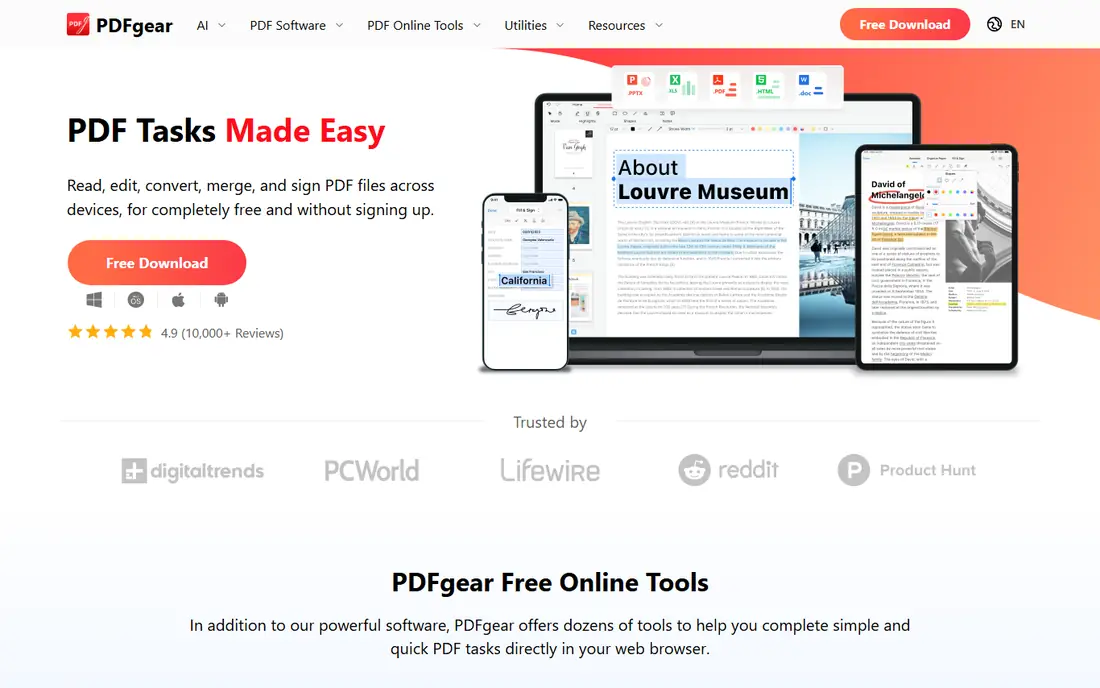
PDFgear is our first stop for anyone who wants to stop paying for Acrobat without losing everyday tools. It edits text, converts files, merges and splits pages, and handles signing, all without a subscription for its core desktop and web tools. That breadth at no cost is rare, and it covers the tasks most people actually do with PDFs. The catch is track record. PDFgear is younger than Foxit or Nitro, and large firms that need central deployment, audit trails and long-term support may want a more established vendor. For a freelancer, student or small team doing normal PDF work, that trade is easy to accept. Start here, and only pay elsewhere if you hit a specific limit.
- Free with no watermark on core tools
- Editing, conversion, merging and signing
- Works on desktop and web
- Younger product than Acrobat
- Enterprise support is thinner
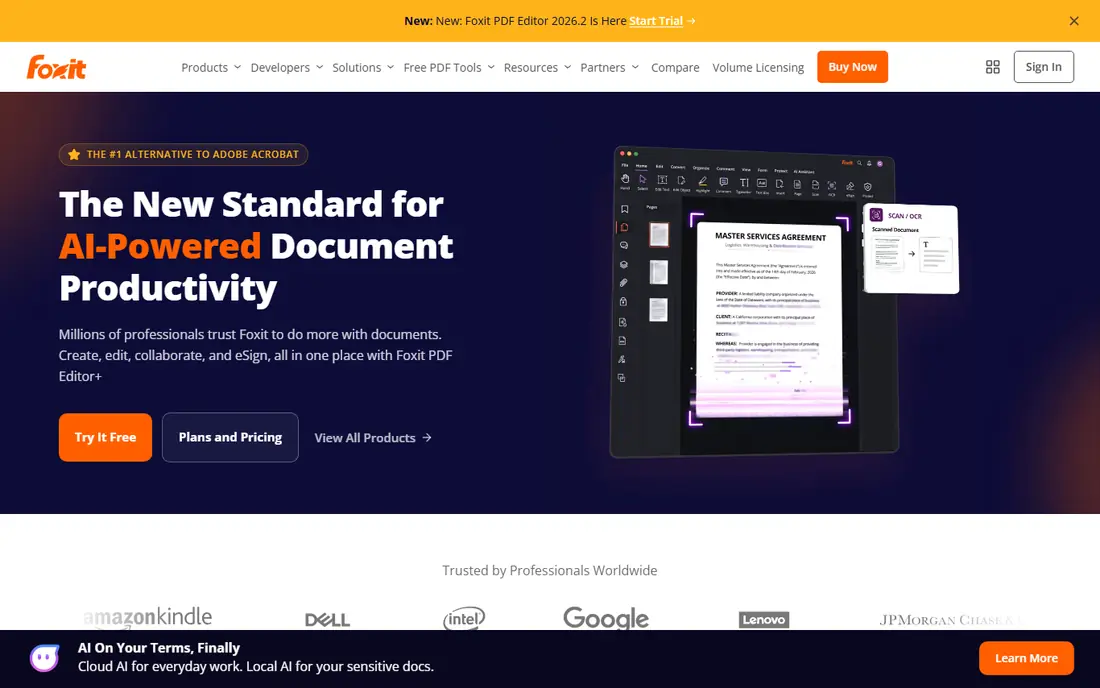
Foxit PDF Editor is the closest like-for-like Acrobat replacement for many office teams. It edits text and images, builds forms, adds signatures, and handles comments and reviews in a layout that feels familiar to Acrobat users. That familiarity shortens training time when a team switches. The free tier covers reading and basic work, but serious editing needs a paid edition, so check the current price and edition on the vendor site before budgeting. Foxit also offers a perpetual option in some editions, which suits buyers who dislike yearly renewals. If your team edits PDFs daily, Foxit is a sound default shortlist pick.
- Broad editing, forms and signing
- Familiar office feel
- Strong for business use
- Full feature set needs a paid plan
- Pricing varies by edition
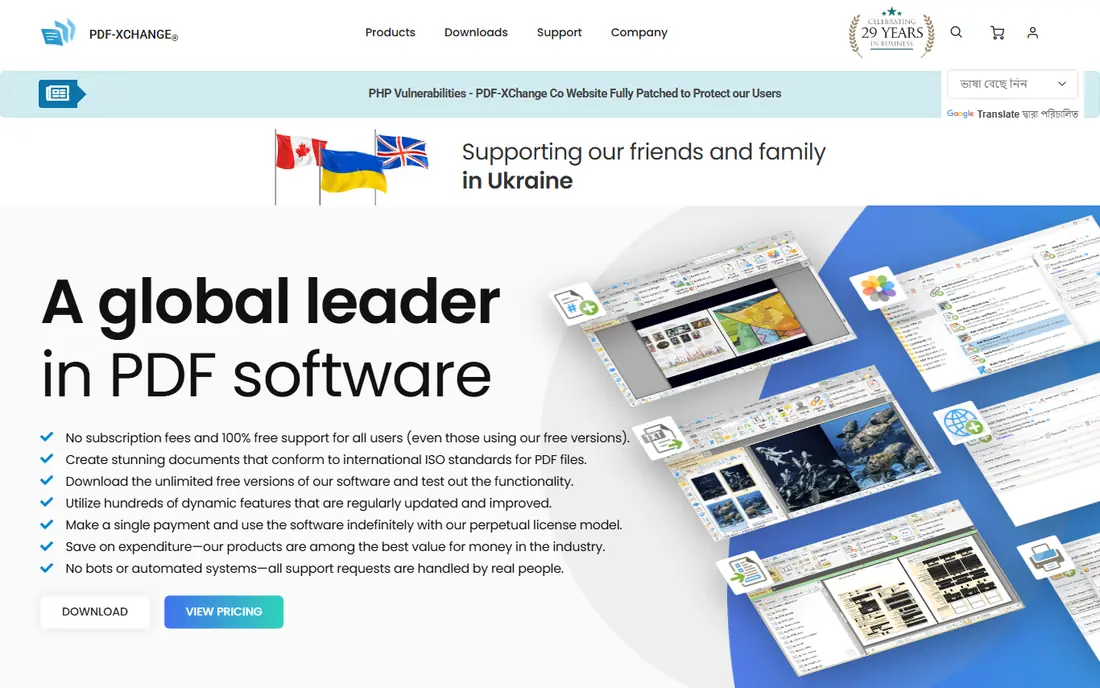
PDF-XChange Editor has long been a favourite for Windows power users. Its free build covers a large share of daily work, including annotation, page handling and basic editing, and the paid Plus edition adds OCR and advanced tools. The app feels fast, even on older machines, and it opens large files without fuss. The main limit is platform. There is no native Mac version, so Mac users should look at PDF Expert instead. Also note that using a paid-only feature in the free build can watermark output, so test the exact feature you need before relying on the free tier. For Windows users who want to buy once, it remains a strong value pick.
- Generous free build
- Fast on Windows
- One-time licence option
- Windows only
- Paid features add a watermark if used in the free build
PDF Expert is built for Apple devices, and it shows. Annotation with an Apple Pencil feels natural, signing is quick, and the interface stays clean even with long documents. It handles reading, form filling, merging and page edits well, which covers most daily work for Mac users. Windows users cannot use it, and the free plan is limited, so check what sits behind the paid plan on the vendor site. For a Mac or iPad owner who mainly annotates, signs and organises PDFs, PDF Expert is the most pleasant tool in this list. It trades broad enterprise features for speed and ease, and for many users that is the right trade.
- Native Mac and iOS feel
- Excellent annotation and signing
- Fast and clean
- No Windows or Android version
- Advanced editing needs a paid plan
Smallpdf suits the occasional PDF job. You open the site, drop in a file, merge pages, compress a large file or convert to Word, and download the result. There is nothing to install, which helps on a borrowed computer or a Chromebook, and the tool names are plain enough for non-technical users. The limits matter for regular use. Free tasks are capped, and paid plans remove those caps. Uploading sensitive documents to any web service also needs thought, so keep contracts and medical files on a desktop editor instead. For quick, low-risk tasks, Smallpdf is fast and hard to beat.
- No install needed
- Clear tools for merge, split, compress and convert
- Works on any device
- Free use is limited
- Sensitive files must be uploaded to the web
Nitro PDF, now part of the Nitro family, aims at business users who need editing plus reliable e-signatures. It edits text, converts files, builds forms and handles signature requests in one package, which suits teams that send contracts and approval documents often. Admin tools help larger teams manage licences. There is no free plan beyond a trial, so budget for a paid licence from the start. Mac support is web-based rather than a full native app in some editions, so Mac-heavy teams should test the workflow first. If signing volume is high and you want one vendor for editing and signatures, Nitro earns a trial.
- Full editing and signing
- Good for teams
- Generous signature handling
- No lasting free plan
- Mainly Windows and web focused
UPDF is a modern editor that runs on Windows, Mac, iOS, Android and the web, with one licence covering multiple devices. That breadth suits people who edit on a laptop at work and a tablet at home. The interface is clean, editing is straightforward, and newer AI features help with summaries and explanations on paid plans. The free version is a trial in practice, because saved files carry a watermark, so do not rely on it for client work. Check the licence terms and price on the vendor site, since UPDF has offered both subscription and lifetime options. For multi-device users who want a current, tidy editor, it is worth a trial.
- One licence covers several devices
- Modern interface
- AI tools on paid plans
- Free version watermarks saved files
- Some features need a paid upgrade
PDFelement from Wondershare gives small businesses much of Acrobat's power at a lower price. It edits text and images, runs OCR on scanned pages, builds forms, and handles batch conversion, which covers office, legal and admin work. A lifetime licence option in some editions appeals to buyers who want to avoid yearly fees. The trial adds a watermark, so test features but do not use trial output for final documents. The interface packs in many tools, which can feel busy at first, but the core editing workflow is clear once you learn where tools live. For teams that edit and convert PDFs daily, PDFelement is a strong value alternative.
- Near-Acrobat feature set
- Forms, OCR and batch work
- Lifetime licence option
- Trial watermarks output
- Interface can feel busy
Sejda is a good middle ground between a web tool and a desktop editor. Its web tools handle merge, split, edit and sign tasks, and its desktop app can process files on your own machine, which helps with privacy. That local option is a real advantage over web-only tools for sensitive work. Free use is limited by time and page count, so heavy users will need a paid plan. Check those limits on the vendor site before you plan a large job around the free tier. For users who want web convenience with a local option for private files, Sejda is a thoughtful pick.
- Desktop app processes files locally
- Clear web tools
- No account for basic tasks
- Free use has hourly and page limits
- Advanced features need a paid plan
iLovePDF is a web suite for the common PDF chores: merge, split, compress, convert, add page numbers and sign. The tools are easy to find, batch handling helps with sets of files, and there is nothing to install. For a student or office worker with occasional tasks, it is a quick, low-friction choice. It is not a replacement for a desktop editor if you edit text daily, run OCR on scans, or need offline work. Free use also has limits, so check the vendor site for current caps. Use iLovePDF for fast web jobs, and keep a desktop editor from this list for deeper work.
- Simple web tools
- Batch handling
- Works on any browser
- Free plan has limits
- Not a full desktop editor
How we picked these
We started with PDF editors that appear in current 2026 comparisons and vendor listings, then kept only tools that are live, work on current systems, and cover at least one core Acrobat job well. We checked each vendor site or app-store listing for platform support, free or trial terms, and the main features claimed. We favoured tools with clear pricing pages and a free or trial route, and we dropped tools that were only readers, only converters, or no longer updated. Where a price was not stated clearly on the vendor site at check time, we wrote See website rather than copying a third-party figure. We did not claim hands-on testing.
How to choose the right Acrobat alternative
Start with your hardest PDF job
List the hardest thing you do with PDFs, not the easiest. If you only fill and sign forms, a free tool or your system viewer may be enough. If you edit text, run OCR on scans, or redact sensitive parts, you need a full editor, and that job should decide the shortlist. Buying for the hardest job avoids paying twice when a simple tool falls short.
Match platform and privacy needs
Check Windows, Mac, web, iOS and Android support before you commit, especially if your team mixes devices. For private files, prefer a desktop editor or a tool with local processing, and check the vendor privacy page for upload and retention rules. For low-risk files on a shared computer, a browser tool is fine and faster to start.
Test with your own files before paying
Run a trial with real files: a scanned form, a long report, and a form you sign often. Check text editing, font handling, signature placement and export quality, since these are where weak editors fail. Also test the exact paid feature you need, because some free versions watermark output when a paid feature is used. A short trial with real work beats a feature list every time.
Frequently asked questions
What is the best free alternative to Adobe Acrobat?
PDFgear is the best free starting point for most users, because its core editing, merging, signing and conversion tools are free without a watermark. PDF-XChange Editor is the best free Windows option, and Sejda suits browser users who want local processing. Try the free tier with your own files first.
Can I edit PDF text for free?
Yes, for basic edits, with PDFgear and PDF-XChange Editor, and with web tools for simple changes. Heavy editing, OCR and batch work usually need a paid plan. If you edit text daily, budget for Foxit, PDFelement or Nitro rather than fighting free limits.
Is it safe to edit PDFs online?
It depends on the file. For low-risk files, reputable web tools are fine, but for contracts, medical records or financial documents, use a desktop editor or a tool that processes files locally. Check the vendor privacy page for retention rules, and avoid uploading files you would not email to a stranger.
Which Acrobat alternative is best for Mac users?
PDF Expert is the best Mac and iPad pick for annotation, signing and daily organisation. Foxit and UPDF also run on Mac and offer broader editing. If you need deep OCR and form work on Mac, compare Foxit and PDFelement before choosing.
Do I need Acrobat for e-signatures?
No, for most signing work. Nitro, Foxit, PDFelement, PDF Expert and web tools all handle signatures and signature requests. Acrobat remains useful for regulated work that needs strict redaction, accessibility checks and audit trails, but most teams can sign without it.
What is the cheapest way to replace Acrobat?
Start with PDFgear for free, or PDF-XChange Editor on Windows. If you need a paid tool, compare Foxit, PDFelement and UPDF on current vendor pricing, and check for lifetime options. A one-time licence can cost less over three years than a yearly subscription.
Sources we checked (10)

Online Jobs is an independent blog about careers, online work, learning new skills and the tools that help people earn. More about us.
Keep reading
All posts
Best Software for Opening PDFs
Compare the best software for opening pdfs, from Adobe Acrobat Reader and Foxit to SumatraPDF, PDF Expert and free browser tools for 2026, before you buy
eBay Alternatives
Looking for ebay alternatives? We compared 9 marketplaces for sellers on fees, buyer reach, categories and ease of listing, to help you sell with confidence.
ZoomInfo Alternatives
The best ZoomInfo alternatives in 2026, compared on price, free plans, data coverage, and which tool fits small teams or large sales teams best in detail.