Best Software for Opening PDFs in 2026: 9 Apps Compared


Reliable everyday PDF opening · Starting price: Free
How we put this together: we compare official feature and pricing pages, app store listings, privacy policies and public user reviews. Prices change, so check the provider's site before you pay.
Key takeaways
- Adobe Acrobat Reader is our pick for most people because it opens complex PDFs, forms and signed documents most reliably.
- SumatraPDF and Okular are the best free, lightweight choices for fast reading on Windows and Linux.
- Foxit PDF Reader and PDF-XChange Editor suit work users who need annotations, forms and heavier daily PDF use.
- PDF Expert is the strongest Mac and iPad choice, while browser tools suit occasional reading without installing software.
Quick comparison
| Name | Who it suits | Starting price | Free option | |
|---|---|---|---|---|
| Adobe Acrobat Reader | Reliable everyday PDF opening | Free | Yes | Visit |
 Foxit PDF Reader Foxit PDF Reader | Fast work PDF reader | Free | Yes | Visit |
 SumatraPDF SumatraPDF | Lightweight Windows reading | Free | Yes | Visit |
 PDF-XChange Editor PDF-XChange Editor | Windows power reading and markup | Free | Yes | Visit |
 PDF Expert PDF Expert | Mac and iPad reading | See website | Free trial | Visit |
 Okular Okular | Linux and open source reading | Free | Yes | Visit |
 PDFgear PDFgear | Free editing alongside reading | Free | Yes | Visit |
 Nitro PDF Pro Nitro PDF Pro | Office PDF workflows | See website | Free trial | Visit |
 Smallpdf Smallpdf | Browser-based PDF reading | Free | Yes | Visit |
The best software for opening PDFs
Opening a PDF sounds simple until a form will not fill, a signed document looks wrong, or a large file takes too long to load. The best reader depends on your device, whether you need annotations and forms, and whether you want editing as well as reading. The nine apps below cover free readers, work readers, Mac tools and browser options, with a mix of large vendors and smaller focused tools.
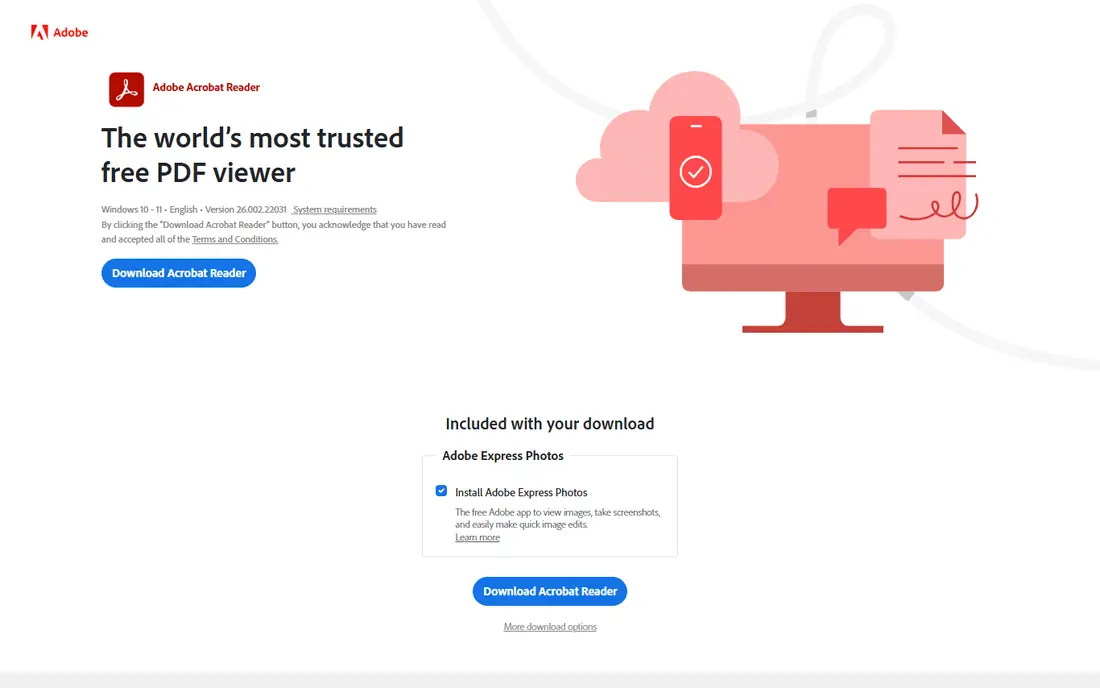
Adobe Acrobat Reader is the default we recommend when compatibility matters. Because Adobe created the PDF format, its reader handles forms, digital signatures, layered documents and unusual fonts more reliably than most rivals. For work documents, contracts, tax forms and academic papers, that reliability saves time that a lighter reader might lose on a broken layout. The trade-off is weight. Acrobat Reader starts slower than SumatraPDF and uses more resources, and the free reader does not include full editing. If you only read simple PDFs, a lighter app is faster. If you open documents from many senders and need forms and signatures to work, Acrobat Reader is the safer first install.
- Best compatibility for complex PDFs, forms and signed files
- Annotation and comment tools
- Mobile apps for iOS and Android
- Heavier than lightweight readers
- Editing and AI features require a paid Acrobat plan
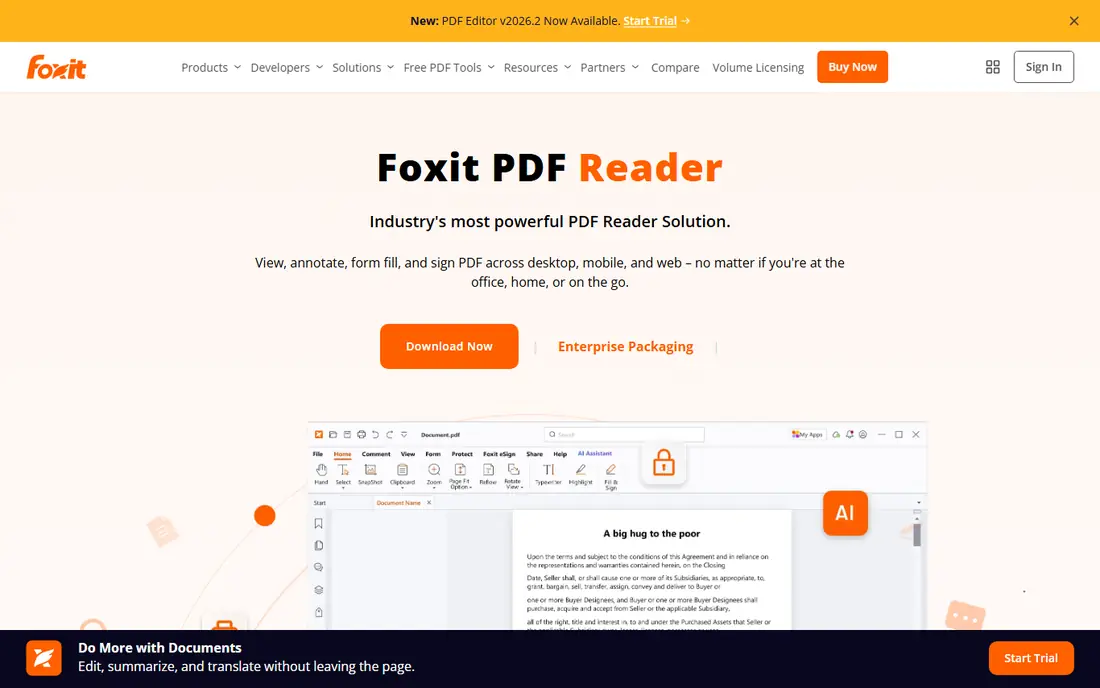
Foxit PDF Reader balances speed and work features better than most free readers. It opens quickly, offers annotation and form filling, and connects to cloud storage for teams that share documents. IT teams also value its deployment tools for managed rollouts, which is one reason Foxit appears in many offices. Casual readers may find the toolbar and feature set larger than needed for simple reading. If you read PDFs all day for work, that depth is useful. If you open one PDF a week, Acrobat Reader or a lightweight reader may feel simpler. Check the current free versus paid feature list on the Foxit site before you assume editing is included.
- Fast startup for a full-featured reader
- Annotation, form and cloud tools
- Enterprise deployment options
- Full editing requires a paid Foxit plan
- Interface can feel busy for casual readers
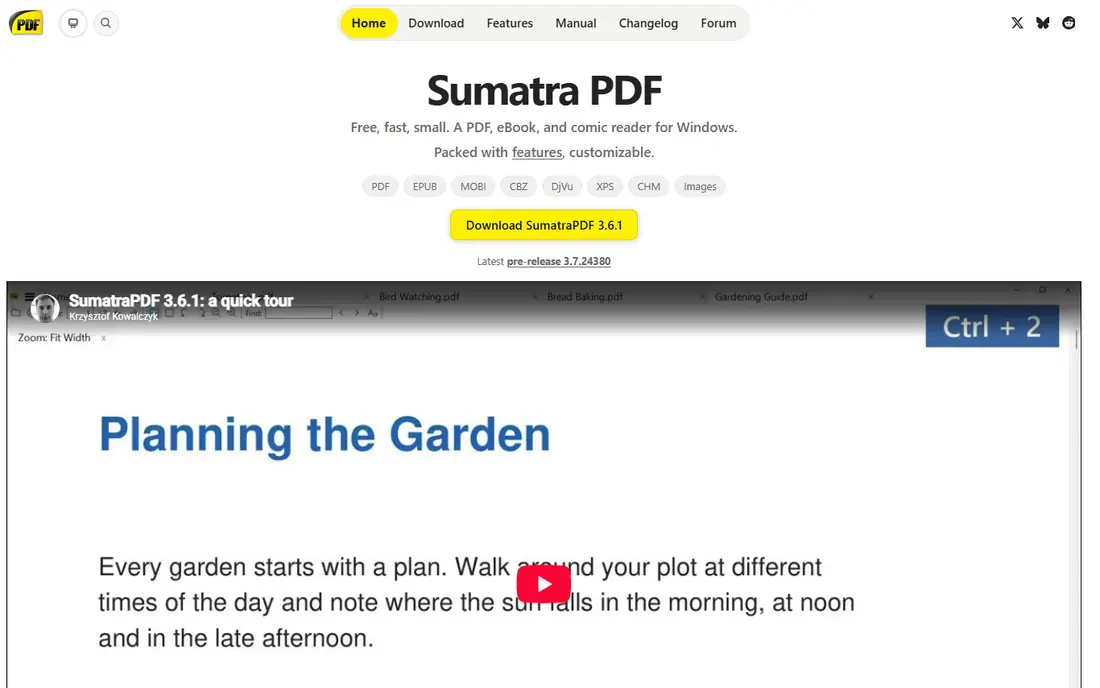
SumatraPDF is the reader to install when speed matters most. It launches almost instantly, uses little memory, and handles large PDFs without the wait that heavier readers impose. A portable version lets you run it from a USB drive without a full install, which helps on shared or locked-down Windows machines. It is not a work editor. Annotation, form filling and advanced PDF features are limited, and it only runs on Windows. Use SumatraPDF for fast reading and reference, and keep Acrobat Reader or Foxit handy for forms, signatures and documents that need comments or edits.
- Very fast and light on Windows
- Portable version available
- Supports e-book formats as well as PDFs
- Windows only
- Annotation and form tools are limited
PDF-XChange Editor suits Windows users who read, mark up and measure PDFs all day. The free tier covers viewing, comments, highlights and basic markup well, and tabbed reading helps when you compare several documents at once. Paid tiers add OCR, stronger editing and removal of watermarks on certain actions, which matters for technical and construction documents. The main limits are platform and free-tier watermarks. It is Windows only, so Mac and Linux users need another pick. If you need clean exports from edited PDFs, check which actions are watermarked on the free tier and whether a paid licence fits your budget before you build a workflow around it.
- Rich free tier for viewing and markup
- Tabbed reading
- OCR and measurement tools on paid tiers
- Windows only
- Some export and editing actions add watermarks on the free tier
PDF Expert is the reader Mac and iPad users most often prefer, because it feels built for those devices rather than ported from Windows. Reading is smooth, annotation with trackpad or Apple Pencil feels natural, and sync between Mac and iPad keeps notes in one place. For students and professionals who read on an iPad, that experience is a real daily benefit. Windows and Android users need a different app, and PDF Expert is a paid product for full features, so casual readers may prefer a free reader. If you live in the Apple ecosystem and you annotate PDFs often, the subscription can be worth it. If you only read occasionally, the free tier or Acrobat Reader may be enough.
- Native Mac and iOS feel
- Fast reading and smooth annotation
- Good iPad sync with Apple Pencil support
- Mac and iOS only
- Full features require a subscription
Okular is the best open source pick for Linux users who want more than a basic viewer. It supports annotations, bookmarks, text selection and accessibility features, and it handles e-book formats alongside PDFs. As a KDE project, it fits well on Linux desktops and is free to install without a subscription or account. Commercial readers still lead on polish and on some complex form and signature handling. If you work with signed business documents daily, test Okular on your actual files before you rely on it alone. For reading, study and annotation on Linux, it is a strong, no-cost default.
- Free and open source
- Annotations, bookmarks and accessibility options
- Works across Linux and other platforms
- Interface feels less polished than commercial readers
- Some complex PDF features vary
PDFgear stands out because it offers reading plus editing without a subscription for many common tasks. You can open a PDF, edit text, add comments, fill forms and use chat features to ask questions about a document, all in one free app. That combination helps students and small teams who need more than a viewer but do not want to pay for Acrobat Pro. As a newer vendor, PDFgear does not have the same long enterprise track record as Adobe or Foxit. Test it on your most complex documents, especially forms and signed files, before you use it for critical work. For everyday reading and light editing, it is one of the best free options available.
- Free reading and editing tools
- Chat with PDF features
- Apps for Windows, Mac, iOS and Android
- Newer vendor than Adobe or Foxit
- Some advanced work features are thinner than paid editors
Nitro PDF Pro is for offices that treat PDFs as daily work documents, not just files to read. It covers creation from Office files, editing, annotation, form filling and e-signing in one app, with an interface that feels familiar to Office users. Teams that convert, combine and sign PDFs every day may find it simpler than juggling a reader plus a separate editor. If you only need to open and read PDFs, Nitro is more product than the job requires, and the price reflects that. Buy it when PDF editing, conversion and signing are part of your weekly work, and use a free reader for simple viewing on other machines.
- Full PDF creation, editing and signing tools
- Familiar Office-style interface
- Good for teams with regular PDF workflows
- Paid product with no permanent free tier
- Heavier than a simple reader
Smallpdf is the best browser choice when you do not want to install software. You can open a PDF in a browser, convert it, compress it, add a signature or merge files, and move to another device without syncing an app. That flexibility helps on shared computers, Chromebooks and phones where installs are limited. Free use has limits, and uploading sensitive documents to any web service needs care. Read the privacy terms before you upload contracts, medical forms or financial documents, and prefer a desktop reader for confidential files. For occasional, non-sensitive PDF tasks, Smallpdf is a convenient backup to a desktop reader.
- No install needed for browser use
- Large toolkit for conversion, compression and signing
- Works across devices
- Free use has limits
- Sensitive documents should not be uploaded without checking privacy terms
How we picked these
We compared official feature pages, pricing pages and platform support for each app, and read public reviews that describe startup speed, form handling and annotation limits. We favoured readers that are widely used, that open standard PDFs reliably, and that cover Windows, Mac, Linux, mobile and browser use. We did not run hands-on trials for this guide, and we did not invent speed scores or compatibility ratings.
Choose by device and by task
Start with your device. Windows users who want speed should try SumatraPDF, Windows power users should try PDF-XChange Editor, Mac and iPad users should try PDF Expert, and Linux users should try Okular. For maximum compatibility across devices, Adobe Acrobat Reader is the safe default, and Foxit is a strong work alternative. Then match the task. Reading only needs a fast viewer. Forms and signatures need a reader with proven form support, which usually means Acrobat Reader, Foxit or Nitro. Annotation needs a reader with comments, highlights and markup that sync to your device. Editing, conversion and signing need a paid editor or a free tool such as PDFgear, with a test on your real documents before you commit.
Keep a second reader handy
No single reader handles every PDF perfectly. Keep a lightweight reader for fast reference and a full reader for forms and signed files. That pair covers most problems without paying for two editors, and it helps you check whether a broken layout is a file problem or a reader problem.
Check privacy for browser tools
Browser PDF tools are convenient, but uploaded files leave your device. Use desktop readers for confidential documents, check retention terms for any web tool, and delete uploaded files when the task is done if the service allows it.
Frequently asked questions
What is the best software for opening pdfs on Windows?
Acrobat Reader is the safest default for compatibility, SumatraPDF is fastest for simple reading, and PDF-XChange Editor is best for heavy markup. Many Windows users keep SumatraPDF for speed and Acrobat Reader for forms.
What is the best free PDF reader?
SumatraPDF is best for fast, free reading on Windows, Okular is best for free reading on Linux, and Acrobat Reader and Foxit PDF Reader offer strong free tiers with form and annotation tools. PDFgear adds free editing for many tasks.
Which PDF reader is best for Mac?
PDF Expert is our pick for Mac and iPad because it feels native, reads smoothly and handles annotation well. Acrobat Reader is a good free alternative for Mac users who need maximum form and signature compatibility.
Can I open PDFs without installing software?
Yes. Smallpdf and other browser tools open PDFs in a browser, and most modern browsers also open PDFs directly. Browser tools suit occasional use, while desktop readers suit confidential files and daily work.
Why does a PDF look different in different readers?
PDFs can use fonts, layers, forms and signatures that readers handle differently. A file may look correct in Acrobat Reader but broken in a lightweight reader, or vice versa. If a document matters, open it in Acrobat Reader or Foxit to check the layout before you sign or share it.
Do I need to pay to edit a PDF?
Not always. PDFgear offers free editing for many tasks, and PDF-XChange Editor offers a rich free tier on Windows. Paid editors such as Acrobat Pro and Nitro PDF Pro are worth it when you edit, convert and sign PDFs every week.
Sources we checked (9)

Online Jobs is an independent blog about careers, online work, learning new skills and the tools that help people earn. More about us.
Keep reading
All posts
Zoom Alternatives
Zoom alternatives compared for 2026: Google Meet, Microsoft Teams, Webex, Jitsi and more for free calls, large meetings and webinars for teams and classrooms.
Top Rated Poster Maker Software
Top rated poster maker software compared for 2026: Canva, Adobe Express, VistaCreate, PosterMyWall and more for events, sales and classrooms for US users.
Surfshark Alternatives
Looking for Surfshark alternatives? We compare 8 VPN services on price, privacy, streaming, and device limits to help you find a VPN that fits your needs.