Best Video Recording Software in 2026: 9 Products Compared

How we put this together: we compare official feature and pricing pages, app store listings, privacy policies and public user reviews. Prices change, so check the provider's site before you pay.
Key takeaways
- OBS Studio is free and more capable than most paid recorders, provided you accept a steeper setup and no built-in editor.
- Camtasia suits tutorial and course creators who want recording plus a real editor in one package.
- Loom wins for quick team videos, where a share link matters more than advanced editing.
- Bandicam and ScreenFlow are specialist picks for high frame rate game capture and for Mac creators respectively.
Quick comparison
| Name | Who it suits | Starting price | Free option | |
|---|---|---|---|---|
 OBS Studio | Free recording and streaming | Free | Yes | Visit |
 Camtasia | Polished tutorials and courses | See website | Free trial | Visit |
 Loom | Quick team video messages | Free | Yes | Visit |
 ScreenPal | Simple everyday recording | See website | Yes | Visit |
 Bandicam | High frame rate game capture | See website | Free trial | Visit |
 ScreenFlow | Mac recording and editing | See website | Free trial | Visit |
 ShareX | Free capture for technical users | Free | Yes | Visit |
 Movavi Screen Recorder | Simple cross-platform recording | See website | Free trial | Visit |
 Icecream Screen Recorder | Casual recording without fuss | Free | Yes | Visit |
The best video recording software
Video recording software covers several jobs that look similar but need different tools. A tutorial creator needs editing, annotations and captions. A gamer needs high frame rates with little impact on play. A team member needs a fast share link, not a timeline. The tools below cover those jobs, plus free options for casual use, and each one is live and working in October 2026.
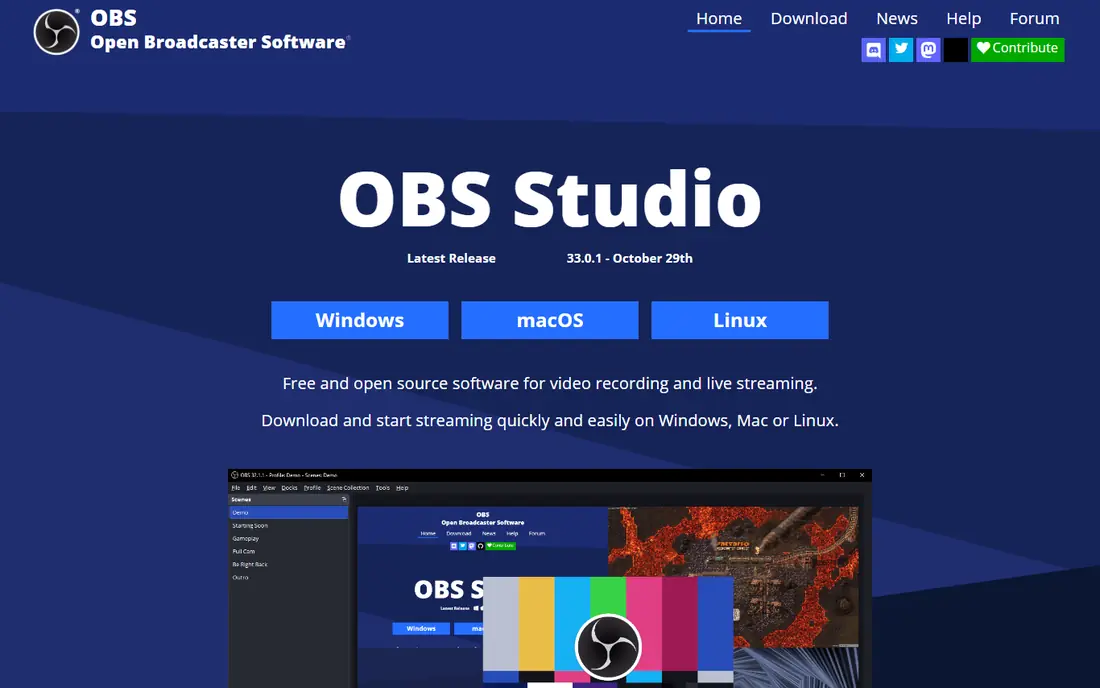
OBS Studio is the free tool that makes many paid recorders look expensive. It records your screen, webcam, microphone and system audio, mixes several sources into scenes, and saves local files with no time limit and no watermark. Streamers use the same tool to go live, while tutorial creators use it to capture long sessions in high quality.
The cost is learning time. OBS uses scenes and sources, audio mixers and encoding settings, and a new user can feel lost in the first hour. There is no editor, so you will need a separate editing app to trim and polish. If you accept those two points, OBS gives you professional level capture for nothing, on Windows, Mac and Linux.
- Free and open source with no recording limits
- Scenes, sources and audio mixing for complex setups
- Streams to major platforms as well as recording locally
- No built-in video editor
- Setup takes time for beginners
Camtasia, from TechSmith, is the complete tutorial suite. You record your screen, camera and microphone, then edit on a timeline in the same app. Add callouts, zoom effects, transitions, quizzes and captions without moving files between apps. That single workflow saves time when you produce training videos regularly, and the result looks more polished than a raw screen capture.
The price reflects that completeness, and casual users who record once a month will not use enough of it to justify the cost. Camtasia also rewards users who learn its editing tools, rather than users who want a one-click record and share flow. For educators, trainers and course creators, it remains the strongest all-in-one pick.
- Recording plus a full editor in one app
- Cursor effects, annotations, quizzes and captions
- Templates and assets for training content
- Price is high for casual users
- Best features need time to learn well
Loom changed how many teams share video, by making the share link the product. Record your screen, camera or both, stop, and you get a link you can paste into a message or ticket. Viewers can comment at a time stamp, react, and watch without downloading a large file. That speed suits walkthroughs, feedback, bug reports and short training clips.
The free plan is usable for short videos, while longer videos and advanced features need a paid plan. Loom is not a video editor, so polished tutorials still belong in Camtasia or ScreenFlow. For everyday team communication, where speed beats polish, Loom is the tool most teams reach for first.
- Record and share with a link in minutes
- Cloud hosting with comments and reactions
- Works in a browser and on desktop
- Free plan limits recording length and features
- Advanced editing is limited
ScreenPal, formerly Screencast-O-Matic, is built for teachers, trainers and office users who want a simple recorder that just works. You pick screen, webcam or both, record, trim the ends, add simple text and shapes, then share a link or download the file. The interface is plain, which is a benefit when you record with students or colleagues who need no training.
Advanced creators will hit limits quickly. ScreenPal has no deep timeline editing, no complex effects and no high-end colour tools. That is fine for how-to clips, lessons and quick demos, which are its main jobs. The low price and gentle learning curve make it a good first recorder for schools and small teams.
- Easy to learn for beginners and teachers
- Recording, simple editing and hosting in one place
- Low monthly price for paid plans
- Advanced editing is limited
- Free plan has limits on length and features
Bandicam is a Windows recorder built for games. It captures DirectX and OpenGL games at high frame rates, uses hardware acceleration to limit the impact on play, and records long sessions without the overhead of a streaming suite. Gamers who want clean gameplay footage for YouTube or for review will find its game mode more focused than a general recorder.
The limits are clear. Bandicam runs on Windows only, and the free version watermarks videos and limits length. It also has no full editor, so you will edit gameplay in a separate app. For Windows gamers, the combination of frame rate, performance and price is strong. Mac gamers should look at OBS Studio or ScreenFlow instead.
- Strong game capture with hardware acceleration
- High frame rate recording with modest performance cost
- Long recording support for gameplay
- Windows only
- Free version adds a watermark and a time limit
ScreenFlow is the Mac creator's answer to Camtasia. It records screen, camera and audio, then lets you edit on a timeline with titles, transitions, annotations and motion effects. Performance on Apple Silicon Macs is smooth, even with high resolution footage, and exports look clean for YouTube and courses.
Mac only is the obvious limit, and Windows users need another tool. The price is also higher than a simple recorder, though lower than some professional editors when you count recording plus editing together. For Mac based YouTubers, educators and product demo makers, ScreenFlow gives a polished result without leaving the Mac ecosystem.
- Smooth Mac performance on Apple Silicon
- Recording plus a capable timeline editor
- High quality motion, titles and effects
- Mac only
- Price is higher than simple recorders
ShareX is a free Windows tool for users who love control. It captures full screen, regions, windows and scrolling pages, records video, annotates images, and uploads to many destinations with custom workflows. Hotkeys, automated naming and after-capture actions let technical users build a fast capture routine that fits their work.
Beginners may find the settings dense, with many options on first launch. ShareX also has no full video editor, so it suits capture and sharing more than polished tutorials. For developers, support staff and power users who capture constantly, it is one of the best free tools available, and it costs nothing to try.
- Free and open source
- Powerful capture, annotation and upload workflows
- Custom hotkeys and automation options
- Windows only
- Interface is dense for beginners
Movavi Screen Recorder aims at everyday users who want a clean recorder without a learning curve. You choose the capture area, turn on webcam and audio if needed, and record. Scheduled recording helps with webinars and timed captures, while basic trimming and annotation cover simple edits. The interface stays out of the way, which suits casual creators.
The trial version watermarks exports, so budget for a licence if you publish regularly. For polished tutorials, Movavi's separate video editor is the next step, rather than the recorder itself. As a straightforward recorder for meetings, lessons and demos, Movavi is easy to recommend to non-technical users.
- Simple interface on Windows and Mac
- Scheduled recording and basic editing tools
- Captures screen, webcam and audio together
- Trial watermarks exports
- Advanced editing needs a separate Movavi editor
Icecream Screen Recorder is a casual tool for users who record occasionally and want no fuss. The controls are clear, the setup is quick, and you can draw and annotate while recording. That suits quick how-to clips, bug reports and short lessons where a simple capture is enough.
The free tier limits recording length and some features, and editing stays basic. Users who record daily, need long sessions or want a full editor should pick OBS Studio, Camtasia or ScreenFlow instead. For occasional recording on Windows or Mac, Icecream is a friendly and low cost starting point.
- Simple setup and clear controls
- Free tier for short recordings
- Annotation tools during recording
- Free tier limits length and features
- Editing tools are basic
How we picked these
We looked for recorders that are live in October 2026, that record screen and audio reliably, and that serve a clear job such as tutorials, gaming, team messages or casual capture. We judged them on capture quality, frame rate, audio handling, editing depth, sharing options, price and learning curve. Tools that only recorded with heavy watermarks on paid plans, or that had no clear export path, did not make the list.
We did not claim lab tests of every frame rate on every machine, since performance depends on hardware. Instead we weighted the factors that decide daily use: how fast you can start, how good the capture looks, how easy sharing is, and what the finished video costs. Check the vendor site for current pricing and trial limits before you buy.
What to check before you buy
Start with your main job. Tutorial creators need editing and captions, gamers need frame rate and low performance cost, and team users need a share link and comments. A tool that excels at one job may be poor at another, so a single best recorder does not exist for every user. List your top three needs, then shortlist tools that meet all three.
Next, check audio and resolution. Separate microphone and system audio tracks make editing far easier, while 1080p is the minimum for published video and 4K suits product demos and courses. Also check file size and export formats. Long recordings in uncompressed formats fill drives fast, so a tool with good compression and MP4 export will save time and storage.
Recording tips that matter more than features
Good lighting and a clear microphone improve a video more than any effect. Record in a quiet room, keep the microphone close, and close apps that show notifications. Record at the resolution you will publish, not higher, unless you plan to crop. Finally, do a 30 second test recording and play it back before a long session, to catch audio, framing or notification problems early.
Free versus paid
Free tools such as OBS Studio and ShareX handle most recording jobs well, while paid tools add editing, hosting and support. Pay when you need editing in the same app, team sharing, or support for a business workflow. For occasional personal recording, a free tool is usually enough, and you can upgrade later if your needs grow.
Frequently asked questions
What is the best free video recording software?
OBS Studio is the best free recorder for most users, with no time limits and high quality capture on Windows, Mac and Linux. ShareX is another strong free choice for Windows users who want fast capture and upload workflows.
What is the best video recording software for tutorials?
Camtasia is the strongest tutorial suite, since it combines recording with a full editor, annotations, quizzes and captions. ScreenFlow is the best Mac alternative, while ScreenPal suits simpler lessons at a lower price.
Can I record games without slowing my PC?
Yes, with a tool that uses hardware acceleration, such as Bandicam or OBS Studio with hardware encoding. Lower the recording resolution or frame rate if you see stutters, and record to a fast drive separate from your game drive when possible.
What is the best screen recording app for teams?
Loom is the best team pick for quick messages, since it gives a share link, comments and reactions without large file transfers. ScreenPal also suits teams that need simple recording plus hosting at a low price.
Do I need a separate editor after recording?
It depends on the tool. Camtasia and ScreenFlow include editors, while OBS Studio, Bandicam and ShareX need a separate editor for trimming and polish. If you only need to trim ends, many recorders include basic trimming, but longer projects benefit from a real editor.
What resolution should I record at?
Record at 1080p for most published videos, since it balances quality and file size. Use 4K for product demos, courses and videos where viewers may zoom in, provided your computer and storage can handle the larger files.
Sources we checked (9)

Online Jobs is an independent blog about careers, online work, learning new skills and the tools that help people earn. More about us.
Keep reading
All posts
Free Alternatives to After Effects
Looking for free alternatives to After Effects? We compared 9 free tools for motion graphics, VFX, compositing and 2D animation in 2026 for creators today.
Best Recording Software for PC
Looking for the best recording software for pc? We compared 9 screen recorders for tutorials, games, work videos and quick sharing for everyone in 2026.

eBay Alternatives
Looking for ebay alternatives? We compared 9 marketplaces for sellers on fees, buyer reach, categories and ease of listing, to help you sell with confidence.