Best Software for Onboarding Training Videos in 2026: 8 Tools Compared

How we put this together: we compare official feature and pricing pages, app store listings, privacy policies and public user reviews. Prices change, so check the provider's site before you pay.
Key takeaways
- Guidde and Loom suit teams that need fast screen-based guides, while Synthesia suits teams that want a presenter without filming.
- Camtasia and Descript give more editing control, but they ask for more time per video than the quicker recording tools.
- Panopto and Trainual fit larger training libraries, where search, permissions, and structured courses matter more than one-off clips.
- Start with the length and update frequency of your training, because a tool that is quick for short tips can feel slow for a full course.
Quick comparison
| Name | Who it suits | Starting price | Free option | |
|---|---|---|---|---|
 Guidde | AI-guided workflow videos | See website | Yes | Visit |
 Loom | Quick team walkthroughs | See website | Yes | Visit |
 Synthesia | AI presenter videos | See website | No | Visit |
 Camtasia | Detailed edited tutorials | See website | Free trial | Visit |
 Descript | Text-based video editing | See website | Yes | Visit |
 Vyond | Animated scenario videos | See website | Free trial | Visit |
 Panopto | Searchable training libraries | See website | No | Visit |
 Trainual | Structured onboarding courses | See website | Free trial | Visit |
The best software for onboarding training videos
Onboarding videos work best when new hires can watch a task done once, then repeat it with confidence. We looked for tools that record clearly, edit without fuss, share easily, and stay simple to update when a process changes.
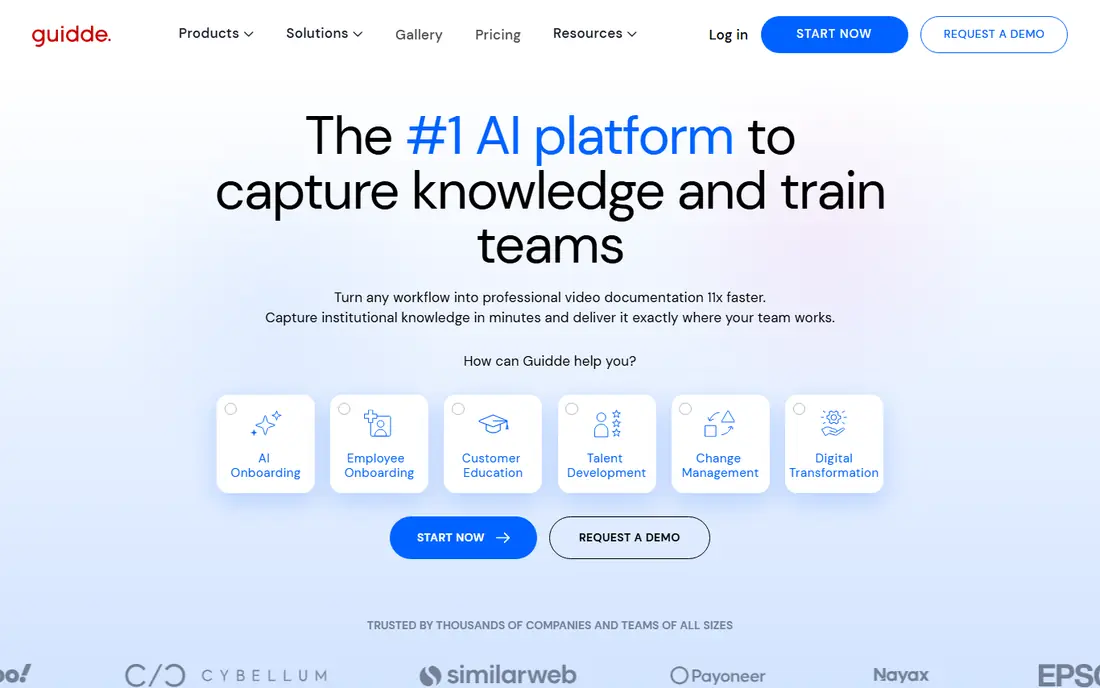
Guidde starts from a different place than a plain recorder. You capture a workflow on screen, and the tool builds a step-by-step video around it, with narration and captions to support the visuals. That structure helps new hires follow a process in order, rather than pausing and rewinding a long recording to find one click. For support and operations teams, that guided format can also double as help content for customers. The honest catch is scope. Guidde shines for software walkthroughs and repeatable tasks, but it is not the first pick for a warm welcome message filmed to camera or a story-led company introduction. If most of your onboarding is process training, that trade feels fair. If you need studio-style presenting, pair it with a simpler camera tool rather than forcing one product to do everything.
- Turns a screen capture into a guided video with steps
- Adds voiceover and branding options
- Shares easily in help centres and chat tools
- Less suited to free-form presenting to camera
- Advanced plans are needed for larger team controls
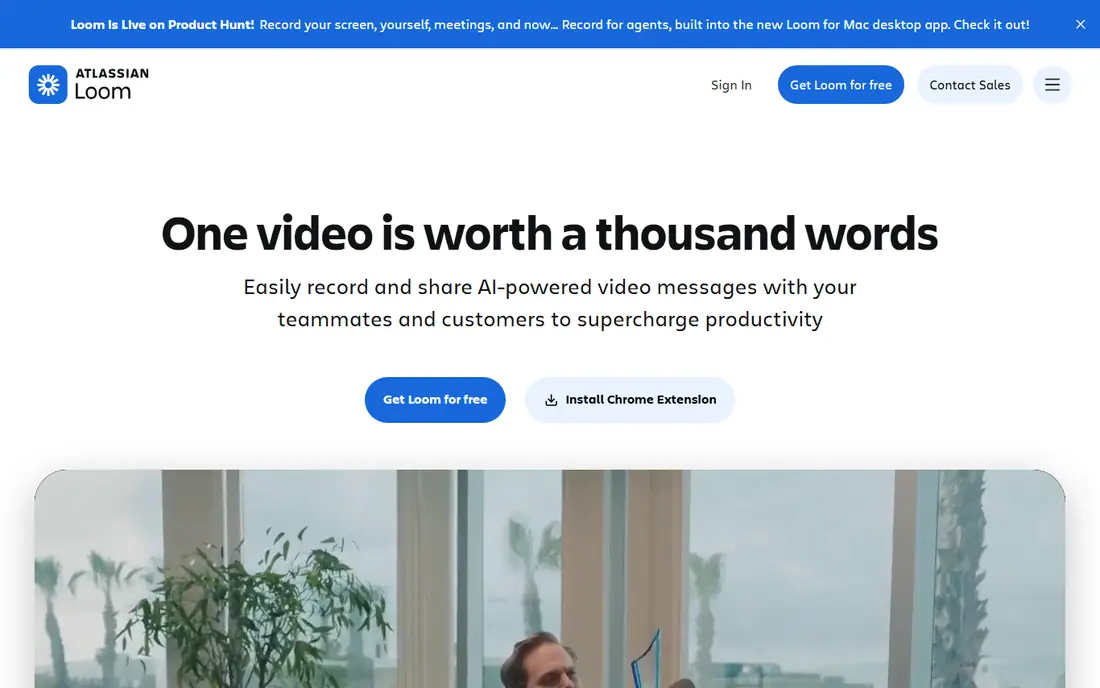
Loom earns its place through speed. A manager can record a five-minute tour of a dashboard, paste the link in a message, and move on, with no export or upload step in between. Viewers can react and comment at a time stamp, which helps when a new hire has a question about one specific step. That low friction is why many teams use it for first-week questions that would otherwise turn into repeated live calls. Where Loom feels thinner is in polished, long-form courses. You can trim and tidy a clip, but you will not get the layered editing of a desktop editor. For onboarding, we would use Loom for quick explainers, welcome notes, and updates, and keep a more structured tool for the core curriculum that every hire must complete.
- Very fast to record and share
- Records screen, camera, or both
- Comments and reactions keep feedback in one place
- Editing is lighter than a full editor
- Long training libraries need care to stay organised
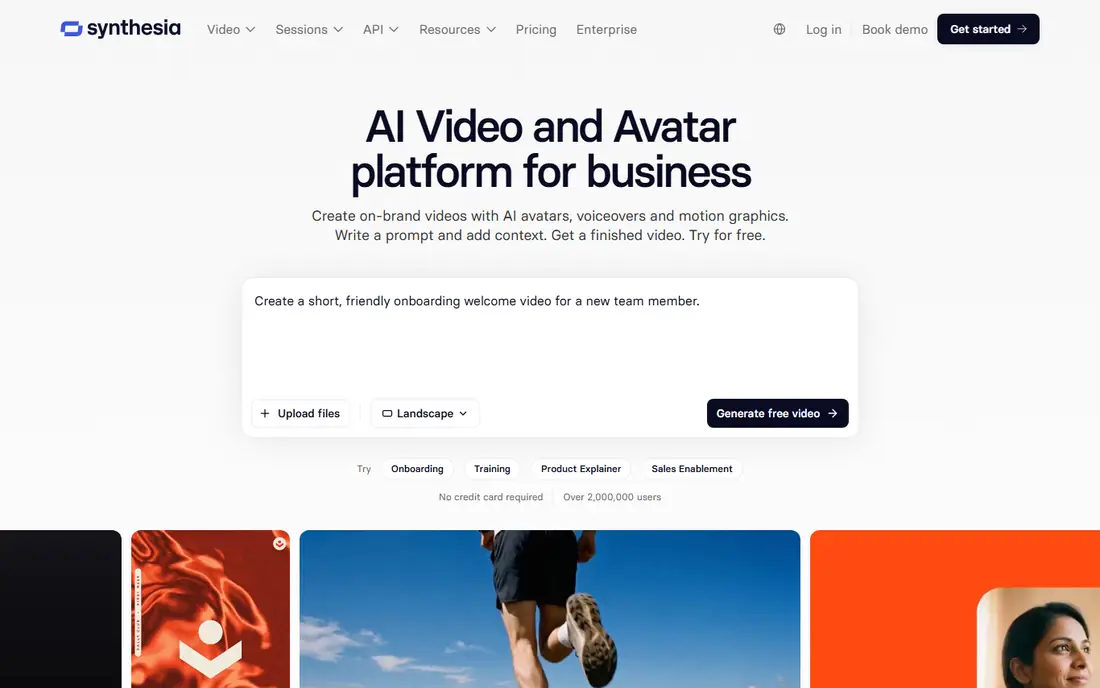
Synthesia appeals to teams that need a consistent presenter across many topics. You write a script, pick an avatar and voice, and generate a video that looks like a person speaking to camera. That approach helps when trainers work in different time zones, when filming is hard to schedule, or when the same welcome and safety content must appear in several languages. Updates are also simpler, because a script change can replace a whole re-shoot. The trade is human warmth. An AI presenter can explain a policy clearly, but it will not replace a real manager welcoming a new hire by name. We would use Synthesia for repeatable lessons, product tours, and compliance-style content, and keep real people on camera for culture, team introductions, and anything where trust matters most.
- Creates presenter-led videos from text
- Supports many languages
- Avoids filming and studio scheduling
- AI presenters can feel less personal than a real colleague
- Costs rise with video minutes and features
Camtasia is the pick when a tutorial must be precise. You can record screen and camera together, zoom to a small button, add a callout, cut a mistake, and add a quiz question at the end. That control matters for software training where one wrong click sends a new hire down the wrong path. The result can feel closer to a short course than a casual clip, which helps for core systems training. That quality comes with time. Camtasia asks for planning, editing, and review, so it is a poor fit for answering a single question on the fly. We would reserve it for evergreen lessons that many hires will watch, and use a faster recorder for short-lived updates. If your team has one person who enjoys editing, Camtasia pays off. If no one does, the backlog can grow quickly.
- Full timeline editing for screen and camera
- Annotations, callouts, and quizzes
- Exports in common video formats
- Takes longer to learn than a quick recorder
- Each video needs more production time
Descript changes editing by letting you work with words first. When you delete a sentence from the transcript, the matching video section goes with it, which makes trimming a rambling recording far less painful. It also helps with captions, short clips for refresher training, and cleaning up a spoken walkthrough without re-recording the whole thing. For trainers who think in scripts, that workflow feels natural. It is not a full replacement for a screen tutorial editor, though. If your video needs detailed zooms, layered callouts, and precise on-screen steps, a tool like Camtasia still gives more control. We see Descript as a strong second tool: record the lesson, tidy the words, publish the captions, and keep the raw structure intact for future updates.
- Edit video by editing a transcript
- Removes filler words and mistakes quickly
- Good for captions and repurposing clips
- Screen recording and animation features are lighter than specialist tools
- Learning the transcript workflow takes a short while
Vyond fits the parts of onboarding that are hard to film. A difficult customer conversation, a safety scenario, or a workplace behaviour example can be shown with animated characters without putting real staff on camera. Templates and ready-made scenes help a small team build a short story, and the visual style stays consistent across a series. For topics where the lesson is about judgement rather than button clicks, animation can hold attention better than slides. The limit is realism. Vyond will not show your actual CRM, payroll system, or internal tool, so it cannot replace screen training. It also rewards patience: a rushed animation with flat dialogue will feel weaker than a simple live recording. Use Vyond for scenarios, values, and safety stories, and keep screen tools for systems training.
- Animated characters and scenes for scenarios
- Useful for soft skills and safety stories
- Templates speed up production
- Animation takes time to build well
- Not ideal for showing real software clicks
Panopto is built for libraries, not single clips. It records lectures and training sessions, adds captions, and makes spoken words searchable, so a new hire can find the exact minute where expenses are explained. Administrators can control who sees what, organise content by team or course, and check viewing patterns to spot lessons that people skip. That structure matters once onboarding grows past a handful of videos. For a five-person startup, Panopto can feel like more system than needed. The value appears when many hires, departments, and compliance topics share one library and updates must reach everyone. If your onboarding already lives in a learning platform, check how Panopto connects to it before committing, because the search and permission benefits depend on good integration.
- Captures, captions, and indexes video for search
- Permissions suit larger organisations
- Analytics show what people actually watch
- Setup and administration are heavier than a simple recorder
- Pricing is aimed at organisations rather than tiny teams
Trainual treats video as one part of a wider onboarding system. You can embed videos inside step-by-step playbooks, add written steps, quizzes, and sign-offs, and track whether each hire has finished a role path. That matters for managers who need proof of completion, not just a shared link. Templates for common roles also help teams that have never written down their processes in one place. On its own, Trainual is not a video editor. You will still record elsewhere for polished tutorials, then place the finished video inside a Trainual course. That is fine if you want structure and accountability, but it adds a second step. We would pick Trainual when the problem is disorganised onboarding, and pick a recording tool first when the problem is simply making better videos.
- Organises videos into roles, courses, and tests
- Tracks completion
- Templates help document processes
- Video editing itself is basic
- Best value comes when you commit to building full playbooks
How we picked these
We compared official feature pages, pricing pages, and app listings for tools that record, edit, present, or organise training video. We favoured products that are actively maintained, that work in a browser or on common desktop systems, and that cover a distinct onboarding need, from a two-minute walkthrough to a searchable library. Where a price could not be confirmed from the vendor site at the time of writing, we listed it as See website rather than guessing. We did not claim hands-on testing, and we weighted clarity, update ease, and sharing options alongside editing power.
How to choose the right option
Start with the job, not the feature list
Write down the five videos every new hire must watch in week one. If four are screen tasks, pick a screen-first tool. If four are culture and behaviour stories, animation or presenter video may serve you better. A short list of real lessons prevents buying a powerful editor for work that only needs a quick recorder.
Plan for updates
Processes change, buttons move, and policies get revised. Ask how you would change one step in a finished video. Tools that let you re-record a section, edit a transcript, or swap a script save far more time over a year than a tool that looks polished on day one but forces a full re-shoot for every small change.
Check sharing and tracking
A great video that no one can find helps no one. Check whether the tool shares by link, embeds in your intranet or learning platform, captions automatically, and shows completion where that matters. For regulated roles, completion tracking may matter more than animation quality, so weigh that early.
Frequently asked questions
What is the best software for onboarding training videos for a small team?
A small team usually does best with a fast recorder like Loom for daily questions, plus one structured home for core lessons. Add a stronger editor only when a lesson will be watched by many hires and must stay accurate for months. Keep the stack small at first, because three half-used tools create more confusion than one well-used tool.
Should onboarding videos show a real person or an AI presenter?
Real people work best for welcome messages, team introductions, and culture. AI presenters work well for repeatable lessons, translations, and topics that change often. Many teams use both, and viewers rarely mind the mix when each video type is used for the right purpose.
How long should an onboarding training video be?
Short videos tend to work better than long ones, because new hires can watch one task, try it, and return for the next. We suggest aiming for two to six minutes for a single task, and breaking a longer process into a short series. A full course can still be long in total, but each part should stand on its own.
Do I need captions on onboarding videos?
Yes, in most cases. Captions help viewers in noisy offices, viewers who prefer reading along, and viewers who watch without sound. They also make video easier to search when the platform supports it. Check caption accuracy before publishing, because auto captions can mishear product names and internal terms.
How often should onboarding videos be updated?
Review core videos when a system, policy, or process changes, and do a full library check at least once or twice a year. Outdated videos damage trust quickly, because a new hire follows the old steps and then blames the training. A short review note on each video, with its owner and last check date, helps teams spot stale content early.
Sources we checked (8)

Online Jobs is an independent blog about careers, online work, learning new skills and the tools that help people earn. More about us.
Keep reading
All posts
n8n Alternatives
n8n alternatives compared for 2026, with Zapier, Make, Activepieces, and more, covering visual builders, code steps, self-hosting, and pricing models.

eBay Alternatives
Looking for ebay alternatives? We compared 9 marketplaces for sellers on fees, buyer reach, categories and ease of listing, to help you sell with confidence.
ZoomInfo Alternatives
The best ZoomInfo alternatives in 2026, compared on price, free plans, data coverage, and which tool fits small teams or large sales teams best in detail.