Best Python Tools for Beginners in 2026: 8 Tools Compared

How we put this together: we compare official feature and pricing pages, app store listings, privacy policies and public user reviews. Prices change, so check the provider's site before you pay.
Key takeaways
- Thonny and Mu Editor are the gentlest first steps, because they hide setup and show code running step by step.
- Visual Studio Code is the best next step for most learners, once basic Python feels comfortable.
- JupyterLab suits learners who want to mix notes, code, and charts in one document.
- PyCharm suits learners who plan to build larger projects, while IDLE remains a useful no-install fallback.
Quick comparison
| Name | Who it suits | Starting price | Free option | |
|---|---|---|---|---|
 Thonny | Absolute beginners | Free | Yes | Visit |
 Mu Editor | Simple first projects | Free | Yes | Visit |
 Visual Studio Code | Most learners after week one | Free | Yes | Visit |
 PyCharm | Larger beginner projects | Free | Yes | Visit |
 JupyterLab | Notebooks and data learning | Free | Yes | Visit |
 IDLE | Bundled quick practice | Free | Yes | Visit |
 Spyder | Scientific Python learning | Free | Yes | Visit |
 Replit | Browser-based Python practice | Free | Yes | Visit |
The best python tools for beginners
Python is friendly, but setup can still trip up a first learner. We picked tools that lower that barrier, show errors clearly, and grow with you from a first print statement to a real project. Each pick below has a different strength, so the best choice depends on how you like to learn.
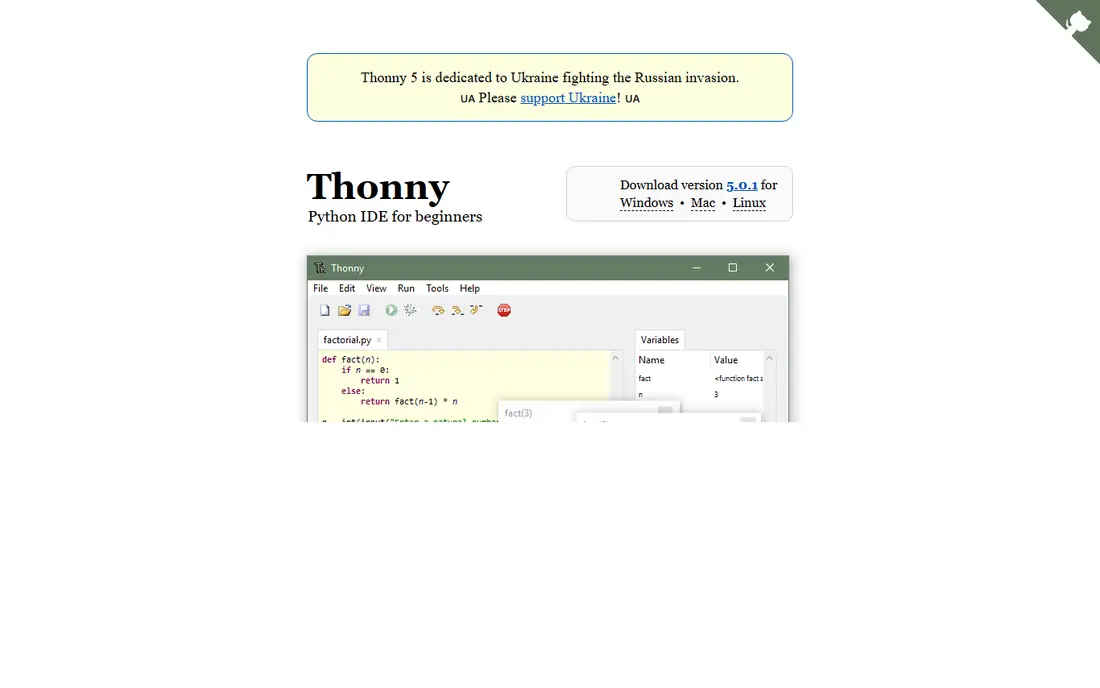
Thonny is built for learning, and that focus shows in every design choice. It ships with Python included, so a beginner can install one app and start writing code without hunting for an interpreter. Its debugger steps through code line by line and shows variable values, which helps when a loop or function behaves in a surprising way. That visibility turns a confusing error into a lesson. The simplicity that helps at first becomes a limit later. Thonny lacks the deep refactoring, plugin library, and project tools of larger IDEs, so most learners will outgrow it after a few months. That is fine. Use Thonny to build confidence, learn debugging habits, and finish first projects, then move on without guilt when a bigger tool feels necessary.
- Bundles Python, so setup is minimal
- Step-by-step debugger shows variables clearly
- Simple interface with few distractions
- Too simple for large projects
- Advanced features are limited compared with full IDEs
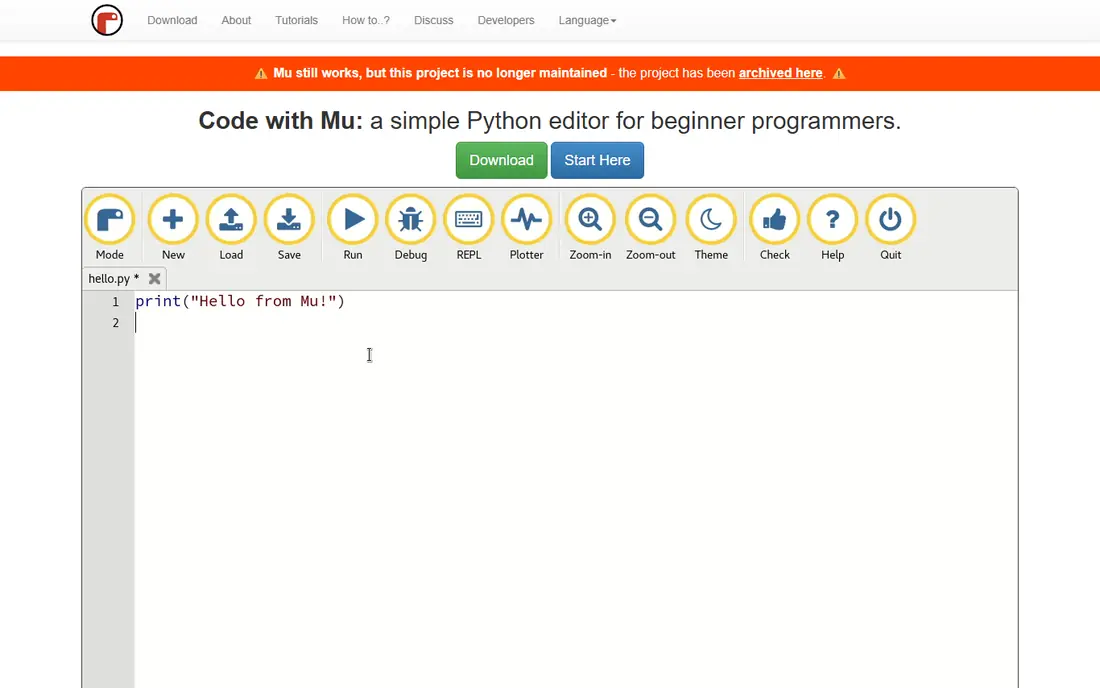
Mu Editor takes a similar gentle approach, with an interface that stays out of the way. It offers modes for standard Python, web work, and small devices, which helps learners who want to try different kinds of projects without switching tools each time. A built-in code checker flags common mistakes, and the simple run button keeps the focus on writing and testing code. Mu is not a long-term IDE for professional work. Its project support is basic, and experienced developers will miss advanced debugging and extension options. For a school course, a first coding club, or a learner who feels overwhelmed by a busy IDE, Mu is a calm and capable starting point that lets early wins come quickly.
- Very clean interface for beginners
- Modes for Python, web, and microcontrollers
- Built-in checker and plotter in some modes
- Fewer features than VS Code or PyCharm
- Less suited to large, multi-file projects
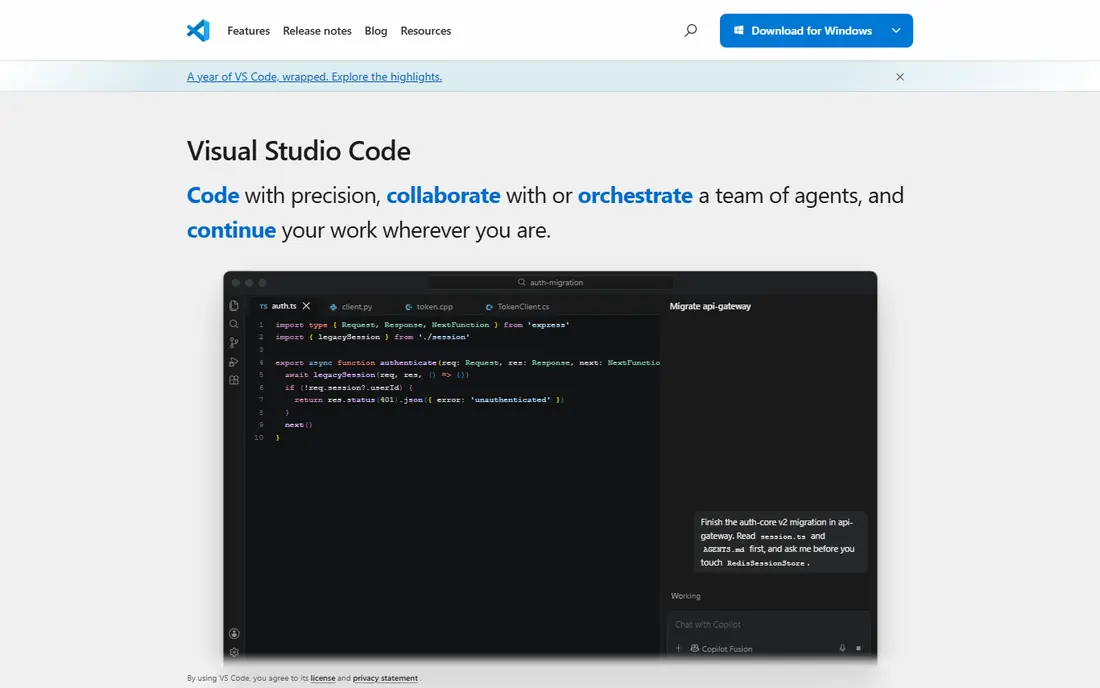
Visual Studio Code, or VS Code, is the tool most beginners graduate to, and many never leave it. With the Python extension installed, it offers syntax highlighting, IntelliSense suggestions, debugging, and test running in a light, fast editor. It also works for other languages, so a learner who later tries JavaScript or HTML does not need a new editor. The extension library adds tools for formatting, Git, and data work as skills grow. Setup is the one hurdle. A beginner must install Python, install the extension, and pick the right interpreter, which can feel fiddly on day one. Once that is done, though, VS Code rewards the effort with a professional workflow used in real jobs. We suggest starting in Thonny or Mu if setup feels daunting, then moving to VS Code when basic Python concepts feel solid.
- Free, fast, and widely used
- Python extension adds debugging, testing, and linting
- Huge extension library for later learning
- Needs the Python extension and interpreter setup
- Choices in settings can confuse absolute beginners
PyCharm is a dedicated Python IDE from JetBrains, and it shows in how well it understands Python code. It can suggest fixes, refactor safely, navigate large projects, and debug with detailed views. Learners who plan to build web apps with Django, work with databases, or grow a project across many files will appreciate that depth. A free core version covers the essentials, with a paid Pro option for advanced web and database tools. That power comes with weight. PyCharm uses more memory than VS Code or Thonny, and its menus can feel busy to a beginner. It also changed its edition structure in recent years, with a unified PyCharm and a free core, so check the current JetBrains page for the exact free and Pro split before installing. For a learner with a clear project goal, PyCharm is a strong investment. For a first-week learner, a simpler editor may feel kinder.
- Deep Python understanding, refactoring, and debugging
- Good for Django and data projects later
- Free core version available
- Heavier than VS Code on older machines
- Full feature set can overwhelm a first-week learner
JupyterLab suits learners who think in experiments. Instead of writing a whole script, you write a small cell of code, run it, see the result, and add notes or a chart beside it. That loop helps for data work, maths, and visualisation, because you can test one idea at a time and keep the story of your work in the same document. Teachers also use notebooks for lessons that mix explanation and runnable examples. Notebooks are not the same as standard Python scripts. Code can run out of order, hidden state can cause confusion, and moving a notebook into a full app takes extra work. Beginners should learn both: use notebooks for exploration and data learning, and practise writing clean scripts in an editor for programs that need to run start to finish. Together, those skills cover most early Python work.
- Mixes notes, code, and charts in one notebook
- Run code in small cells to test ideas
- Strong for data and maths learning
- Notebook workflow differs from writing scripts
- Version control and large apps need extra care
IDLE is the editor that comes with Python itself, and its main virtue is availability. If Python is installed, IDLE is already there, with a shell for trying one-liners and a simple editor for saving scripts. That makes it useful on a school computer, a borrowed laptop, or any machine where installing new software is hard. For quick practice, it does the job with no fuss. IDLE will not compete with modern editors on features. It lacks rich autocomplete, extensions, and project tools, and its interface feels dated next to VS Code or Thonny. We list it because every beginner should know it exists as a fallback, not because it should be a long-term home. If you can install another tool, do so. If you cannot, IDLE still lets you learn real Python.
- Ships with Python, so no extra install
- Simple shell for quick tests
- Useful on shared or school computers
- Very basic editor features
- No modern extension or project support
Spyder is built for scientific Python, and its layout reflects that. A variable explorer shows data frames and arrays as you work, an IPython console supports interactive testing, and plots appear beside code rather than in a separate window. Learners studying data analysis, statistics, or engineering maths will find that setup helpful, because they can watch data change as code runs. For general Python learning, Spyder can feel more specialised than needed. Web developers and script writers may prefer VS Code, while data learners will get more from Spyder. It installs well with scientific Python distributions, which also helps beginners avoid package setup pain. If your Python goal involves numbers, tables, and charts, Spyder deserves a trial early.
- Variable explorer and IPython console for data work
- Good for NumPy, pandas, and plotting
- Clean layout for scientific tasks
- Heavier than a simple editor
- Less suited to general web development than VS Code or PyCharm
Replit is the easiest way to start Python if installing software is a barrier. Open a browser, create a Python workspace, write code, and press run. Sharing a link lets a teacher or friend see the code and help with an error, which is valuable when a beginner feels stuck alone. Replit also handles packages and running without local setup, so the first lesson can focus on code, not configuration. The trade is dependence on the browser and the free plan. Offline practice is not possible, and larger projects may hit resource limits or need a paid plan. Replit is best as a practice and sharing tool, especially for courses and coding clubs, with a local editor as the long-term home. Use it to get started fast, then move code to VS Code or Thonny when you want offline work and deeper control.
- No install, code in a browser
- Easy sharing for help and feedback
- Built-in running and package handling
- Needs internet access
- Free plan limits and performance suit practice more than large projects
How we picked these
We compared official project pages, documentation, and download listings for Python tools aimed at beginners or widely recommended for learning. We favoured tools that are free, actively maintained, and usable on common desktop systems or in a browser, and we spread the list across simple editors, full IDEs, notebooks, and scientific tools. Where pricing or edition details could not be confirmed from the vendor site at the time of writing, we listed them as See website or Free where the core download is free. We did not claim hands-on testing, and we weighted setup ease and error clarity alongside power.
How to choose the right option
Start simple, then graduate on purpose
Do not try to learn Python and a complex IDE at the same time. Start with Thonny or Mu, learn variables, loops, and functions, then move to VS Code when you want better debugging and extensions. A planned move feels like progress, while a forced move on day one often feels like failure.
Practise debugging, not just writing
Beginners improve fastest when they learn to read errors and step through code. Pick a tool with a clear debugger or variable view, and practise fixing small bugs on purpose. Thonny, VS Code, and PyCharm all help here, but only if you use the debugger instead of guessing and re-running the same code.
Keep projects small and finished
A finished small project teaches more than three half-finished large ones. Pick a tool, build a calculator, a quiz game, or a simple data chart, and finish it. Then repeat with a slightly larger idea. Tool choice matters less than finishing, so do not spend a week comparing editors instead of writing code.
Frequently asked questions
What is the best python tool for beginners with no experience?
Thonny is the safest first pick, because it bundles Python and shows code running step by step. Mu Editor is a close alternative for learners who want a very clean interface. After a few weeks, most learners move to Visual Studio Code for a more professional setup.
Should beginners use VS Code or PyCharm?
VS Code suits most beginners after the first week, because it is light, free, and used across many languages. PyCharm suits learners building larger Python projects, especially web or data apps, where its deeper Python tools help. Either is fine, and you can switch later without losing your Python knowledge.
Do I need to pay for a good Python editor?
No. Thonny, Mu, VS Code, JupyterLab, IDLE, Spyder, and Replit all offer free ways to learn Python. PyCharm also offers a free core version. Paid options add advanced features, but they are not needed to learn Python well.
Is JupyterLab good for learning Python?
Yes, for data, maths, and exploration, because notebooks let you test small pieces of code with notes and charts beside them. For learning general programming, also practise writing scripts in an editor, because scripts teach program structure and file organisation in a way notebooks can hide.
How long does it take to outgrow Thonny?
Many learners outgrow Thonny after one to three months of regular practice, when projects grow to several files or need more debugging power. That is normal and not a failure. Move to VS Code or PyCharm at that point, and keep Thonny habits like stepping through code and checking variables.
Sources we checked (8)

Online Jobs is an independent blog about careers, online work, learning new skills and the tools that help people earn. More about us.
Keep reading
All posts
n8n Alternatives
n8n alternatives compared for 2026, with Zapier, Make, Activepieces, and more, covering visual builders, code steps, self-hosting, and pricing models.
eBay Alternatives
Looking for ebay alternatives? We compared 9 marketplaces for sellers on fees, buyer reach, categories and ease of listing, to help you sell with confidence.
ZoomInfo Alternatives
The best ZoomInfo alternatives in 2026, compared on price, free plans, data coverage, and which tool fits small teams or large sales teams best in detail.