Best PC Editing App in 2026: 9 Apps Compared

How we put this together: we compare official feature and pricing pages, app store listings, privacy policies and public user reviews. Prices change, so check the provider's site before you pay.
Key takeaways
- DaVinci Resolve is our pick for most PC users, because its free version includes professional editing, color grading and audio tools with no watermark.
- Adobe Premiere Pro remains the industry standard for editors who collaborate with agencies and freelance teams.
- Filmora, CapCut and Clipchamp suit beginners and social creators who want fast results without a steep learning curve.
- Kdenlive and Shotcut are fully free open-source editors, ideal for users who refuse subscriptions entirely.
- Check your PC specs before choosing: 4K editing needs plenty of RAM, a dedicated graphics card and fast storage.
Quick comparison
| Name | Who it suits | Starting price | Free option | |
|---|---|---|---|---|
 DaVinci Resolve DaVinci Resolve | Free professional editing | Free | Yes | Visit |
 Adobe Premiere Pro Adobe Premiere Pro | Industry-standard workflows | See website | Free trial | Visit |
 Filmora Filmora | Beginner-friendly desktop editing | See website | Yes | Visit |
 CapCut CapCut | Fast social video edits | Free | Yes | Visit |
 Clipchamp Clipchamp | Quick Windows-based editing | Free | Yes | Visit |
 PowerDirector PowerDirector | Enthusiasts who want speed | See website | Free trial | Visit |
 Kdenlive Kdenlive | Free open-source editing | Free | Yes | Visit |
 Shotcut Shotcut | Simple free editing | Free | Yes | Visit |
 Movavi Video Editor Movavi Video Editor | Everyday creators | See website | Free trial | Visit |
The best PC editing apps
PC video editing now spans everything from a free browser-style editor to a full post-production suite, and the right choice depends on your footage, your patience and your budget. We compared official feature pages, pricing pages and app store listings, judging each app on editing tools, color and audio, export options, learning curve and what the free version actually allows. Prices for subscription editors change often, so where a price was not confirmed on the vendor's own page, we list it as See website.
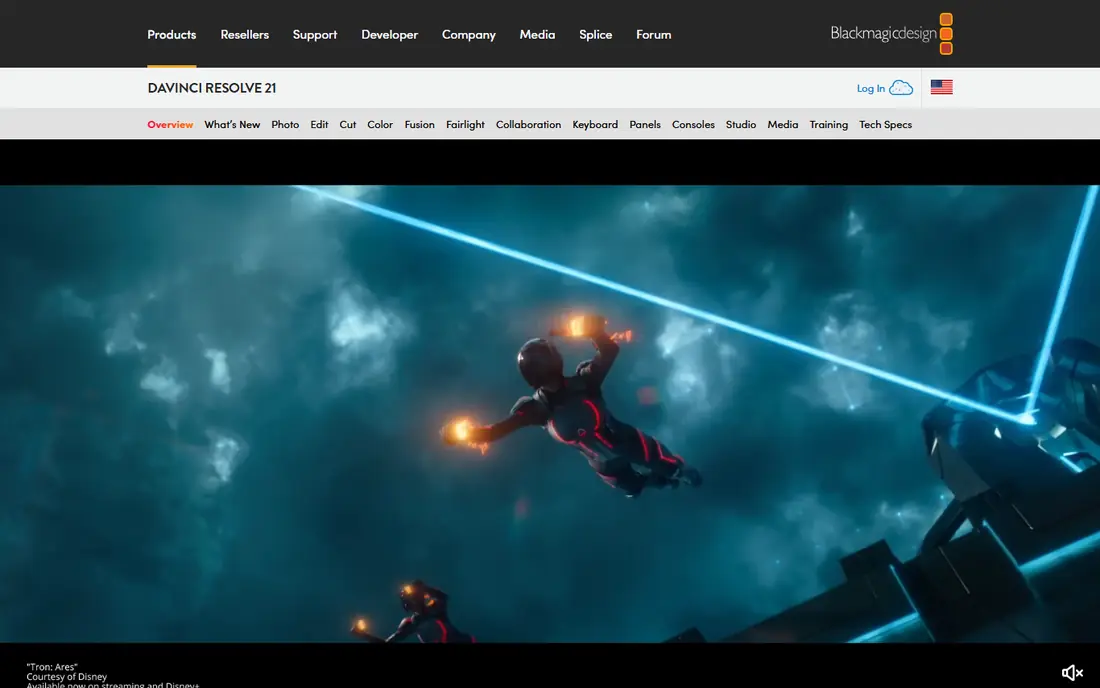
DaVinci Resolve is our pick for most PC users, and the reason is simple: its free version is a professional editor, not a demo. You get a full timeline, industry-leading color tools, visual effects and a complete audio suite, and exports carry no watermark. For YouTube creators, filmmakers and students, that combination is unmatched.
The trade-off is complexity. Resolve has several workspaces, from Cut to Color to Fairlight, and new users can feel lost for the first week. It also wants a strong PC, especially for 4K footage. Stick with it through the learning curve, though, and you may never need to pay for an editor again.
- Full editing, color grading, Fusion effects and Fairlight audio in one app
- Free version exports without a watermark
- No subscription
- Steep learning curve for beginners
- Needs a capable PC for smooth 4K work
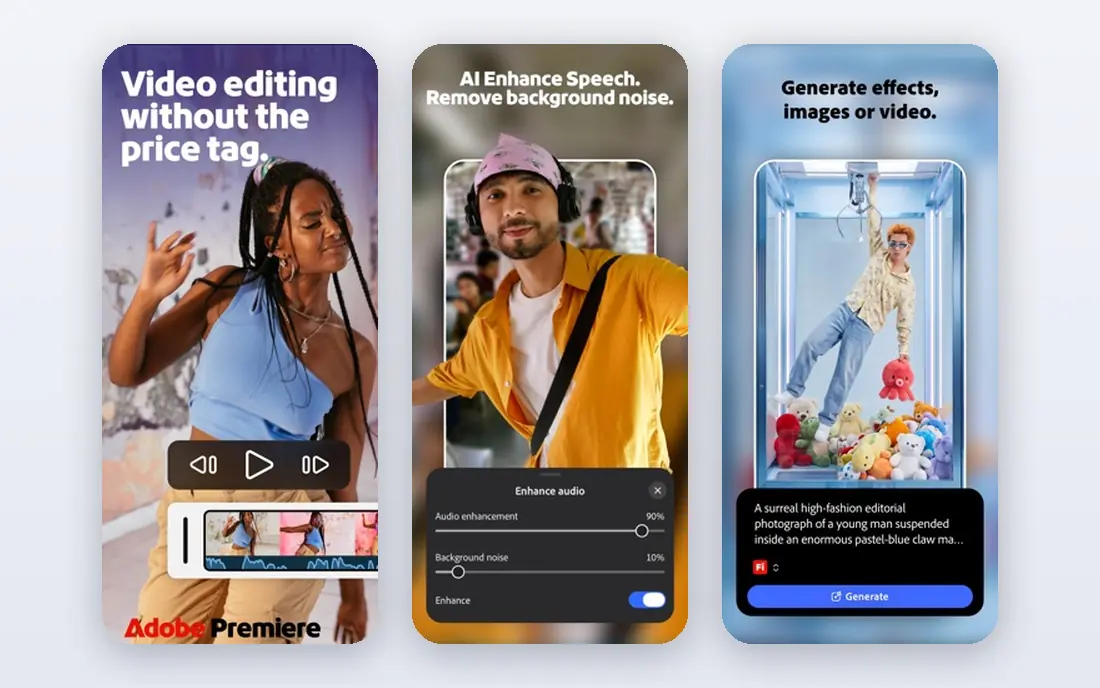
Premiere Pro is the editor most professionals already use, which is its greatest strength. If you hand work to freelance editors, agencies or clients, project files, templates and workflows will usually be Premiere-shaped. Its links to After Effects for motion graphics and Audition for audio keep a whole production inside one ecosystem.
The cost is a subscription with no perpetual licence, and the app can feel heavy on modest PCs. Beginners may also find its depth intimidating. Choose Premiere Pro when collaboration and industry compatibility matter more than price; choose Resolve when they do not.
- Deep integration with After Effects, Photoshop and Audition
- Huge template and plugin ecosystem
- Standard in agencies and studios
- Subscription only, with no one-time purchase
- Heavier system demands than simpler editors
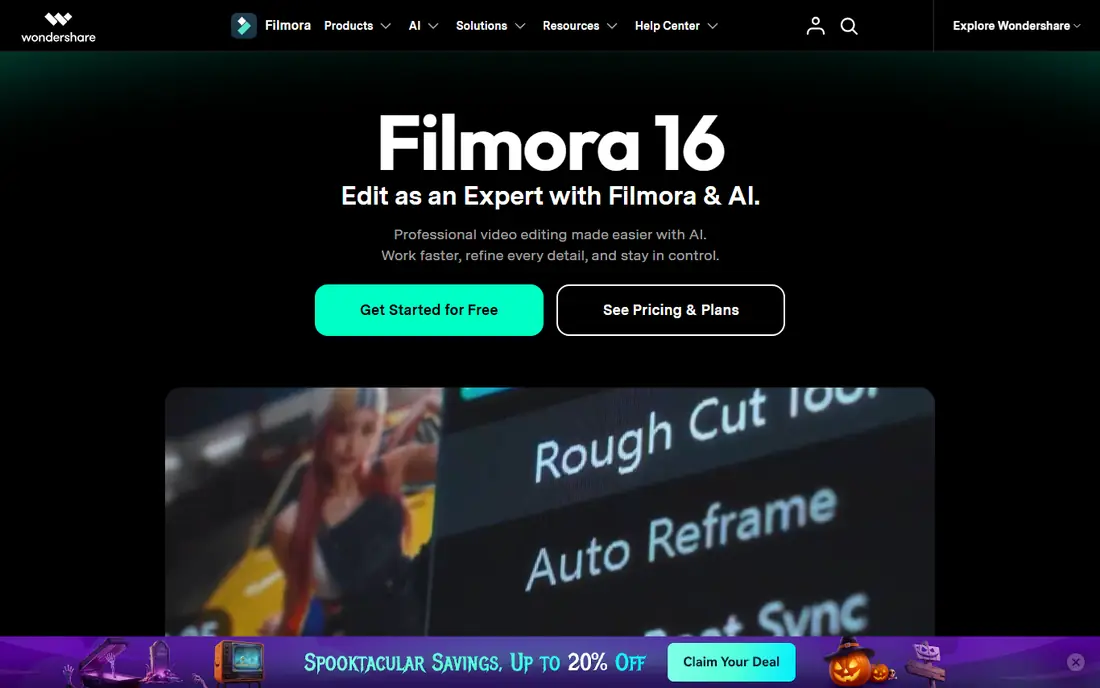
Filmora is built for creators who want polished videos without studying editing theory. Its templates, transitions, titles and effects are easy to apply, and its AI tools handle chores such as captions and cutting silences. A first video can look respectable within an hour of installing it.
The free version watermarks exports, so you will need a paid plan for publishable work. Serious color grading and audio mixing also fall short of the professional tools. For YouTubers and small business owners who value speed over depth, Filmora hits a sweet spot.
- Drag-and-drop timeline with templates and effects
- AI tools for captions and background removal
- Gentle learning curve
- Free exports carry a watermark
- Advanced color tools lag behind Resolve and Premiere
CapCut is the fastest route from raw clips to a finished short video. Its templates, trending effects and auto-captions are made for TikTok, Reels and Shorts, and the desktop app syncs with mobile projects. If your content is vertical and under a few minutes, few editors get you there quicker.
Long-form work is where it strains. Multi-track timelines, detailed color work and complex audio are not its strengths, and some popular templates sit behind the paid plan. Use CapCut for social content and keep a fuller editor for anything longer.
- Fast templates and auto-captions for short-form video
- Works on PC, web and mobile
- Free tier covers basic editing well
- Weaker for long-form or complex projects
- Some templates and effects need a paid plan
Clipchamp is the easiest editor for Windows users who edit occasionally. It is already on many Windows PCs, its timeline is plain and friendly, and its templates cover talking-head videos, promos and social clips. Stock video, audio and graphics are built in, so a simple project needs no outside assets.
It is not a professional suite. Large projects can feel sluggish, and the deeper color and audio tools of Resolve or Premiere are absent. For quick edits, school projects and workplace videos, though, Clipchamp's convenience is hard to beat.
- Free and built into Windows
- Simple timeline with stock media and templates
- Easy sharing to common platforms
- Browser-based roots can feel slower on huge projects
- Advanced features need a paid plan
PowerDirector sits between beginner tools and professional suites. It renders quickly, packs a large library of effects and transitions, and adds AI features such as motion tracking that used to need specialist software. Enthusiasts who have outgrown Filmora often land here.
The full version runs on a subscription, and the interface packs a lot onto one screen, which can overwhelm new users. If you edit often, want speed, and do not need Premiere's agency ecosystem, PowerDirector is a strong middle ground.
- Fast rendering and a wide effect library
- AI motion tracking and masking
- Good balance of ease and depth
- Subscription pricing for the full version
- Interface can feel crowded
Kdenlive is a full-featured open-source editor that asks for nothing: no payment, no watermark, no account. It handles multi-track timelines, keyframed effects, proxy editing for smooth playback, and a wide range of formats. For users on Linux, or anyone who refuses subscriptions on principle, it is the obvious pick.
Polish is the compromise. The interface is functional rather than beautiful, and very large projects can occasionally misbehave. Save often, use proxies for 4K footage, and you get a capable editor for exactly zero cost.
- Fully free with no watermark or subscription
- Multi-track editing, effects and proxies
- Runs on Windows, Mac and Linux
- Interface feels less polished than paid rivals
- Occasional stability quirks on large projects
Shotcut is the simplest serious free editor here. Its timeline is straightforward, it opens almost any video format without conversion, and it exports without a watermark. Beginners who find Resolve intimidating and Kdenlive busy often settle here happily.
The cost of that simplicity is a thinner effects library and no stock media built in. You bring your own footage and music, and you do your own titles. For straightforward cuts, trims, captions and exports, Shotcut does the job with no fuss and no bill.
- Free and open source with no watermark
- Wide format support
- Simple timeline that beginners can learn quickly
- Fewer effects and templates than Filmora or PowerDirector
- No built-in stock library
Movavi targets everyday creators: family videos, YouTube vlogs and small business clips. Its timeline is among the easiest here, with drag-and-drop effects, titles and transitions, plus AI tools that speed up routine jobs. A beginner can finish a decent video on the first sitting.
The free version is a trial in practice, with export limits that push you toward paying. Power users will also miss the depth of Resolve or Premiere. For casual creators who want results fast and do not mind a paid plan, Movavi is a friendly choice.
- Very easy timeline with one-click tools
- Templates and AI features for quick videos
- Good for family and YouTube content
- Free version limits exports
- Advanced color and audio tools are limited
How we picked these
We compared official feature pages, pricing pages and app store listings for PC editors that are actively maintained in 2026, and we judged them on editing depth, color and audio tools, export freedom, learning curve and system demands. We included free, one-time and subscription options, because the best editor for a student and the best editor for an agency are rarely the same product. Where a paid price was not confirmed on the vendor's own page, we list it as See website. We did not claim hands-on testing, and we did not invent ratings or user counts.
What your PC needs for video editing
Editing software is only half the equation; your hardware decides how pleasant it feels. For 1080p work, a modern multi-core processor, 16GB of RAM and an SSD will carry most editors comfortably. For 4K, aim for 32GB of RAM, a dedicated graphics card and plenty of fast storage, since 4K files are large and demanding.
If your PC is modest, use proxy editing, which cuts low-resolution stand-ins for smooth playback and swaps in full quality at export. Kdenlive, Resolve and Premiere all support this, and it can turn a stuttering timeline into a usable one. Also close other heavy apps while editing, and keep project files on an SSD rather than an old spinning drive.
Picking by project type
Short social videos favour CapCut or Clipchamp for speed. YouTube and documentary work favour Resolve or Filmora, depending on your experience. Client and agency work favours Premiere Pro for compatibility. Refusing subscriptions points to Resolve, Kdenlive or Shotcut. Match the app to the project first, and let price follow, not lead.
Frequently asked questions
What is the best PC editing app for beginners?
Filmora is the easiest desktop editor for beginners, with templates and drag-and-drop tools. Clipchamp is simpler still for quick Windows edits, while Shotcut is a good free starting point if you want no watermark and no payment.
What is the best free PC editing app?
DaVinci Resolve has the strongest free version, with professional editing and color tools and no watermark on exports. Kdenlive and Shotcut are also fully free and open source, with no subscription or watermark at all.
Is Premiere Pro worth the subscription?
Premiere Pro is worth it if you collaborate with agencies, clients or freelance editors, since it is the industry standard and its ecosystem is unmatched. If you edit alone and want professional tools without a subscription, DaVinci Resolve is the better value.
Can a normal laptop edit video?
Yes, for 1080p work, most modern laptops with 16GB of RAM and an SSD can edit comfortably. For 4K, a dedicated graphics card, 32GB of RAM and proxy editing make a large difference, and a desktop usually offers better value for heavy work.
Do free video editors add watermarks?
Some do and some do not. DaVinci Resolve, Kdenlive and Shotcut export without watermarks. Filmora's free version and some other trial versions watermark exports, so check the free plan details before starting a project you plan to publish.
What is the best PC editing app for YouTube?
DaVinci Resolve suits YouTubers who want professional quality for free, while Filmora suits those who want speed and templates. Premiere Pro suits YouTubers who work with editors or agencies, and CapCut suits creators focused on short-form video.
Sources we checked (9)
- https://www.blackmagicdesign.com/products/davinciresolve
- https://www.adobe.com/products/premiere.html
- https://filmora.wondershare.com
- https://www.capcut.com
- https://clipchamp.com
- https://www.cyberlink.com/products/powerdirector-video-editing-software
- https://kdenlive.org
- https://shotcut.org
- https://www.movavi.com/video-editor/

Online Jobs is an independent blog about careers, online work, learning new skills and the tools that help people earn. More about us.
Keep reading
All posts
Zoom Alternatives
Zoom alternatives compared for 2026: Google Meet, Microsoft Teams, Webex, Jitsi and more for free calls, large meetings and webinars for teams and classrooms.
Workday Alternatives
We compared the best workday alternatives for HR, payroll, and global hiring, from BambooHR and Gusto to Rippling, Deel, and HiBob for growing teams in 2026.

WordPress Alternatives
WordPress alternatives guide: we compare 8 platforms for builders, designers, stores, and publishers to leave WordPress without losing your full site content.