Best Parental Control App in 2026: 10 Apps Compared

How we put this together: we compare official feature and pricing pages, app store listings, privacy policies and public user reviews. Prices change, so check the provider's site before you pay.
Key takeaways
- Start with the free built-in tools: Google Family Link and Apple Screen Time cover the basics for younger children at no cost.
- Bark is the strongest choice for teens on social media, since it flags concerning messages rather than showing parents every conversation.
- Qustodio gives the most detailed activity reports, while Net Nanny leads on real-time web filtering.
- Prices range from free to about $14 per month, and most paid plans cover unlimited children or several devices.
- No app replaces a conversation with your child about what is allowed online and why.
Quick comparison
| Name | Who it suits | Starting price | Free option | |
|---|---|---|---|---|
 Qustodio Qustodio | Detailed activity reports | $59.95 per year | Yes | Visit |
 Bark Bark | Teen social media monitoring | $14 per month | Free trial | Visit |
 Net Nanny Net Nanny | Real-time web filtering | $39.99 per year | No | Visit |
 Norton Family Norton Family | Budget controls for big families | $49.99 per year | Free trial | Visit |
 Aura Aura | Family safety bundle | $10 per month | Free trial | Visit |
 Google Family Link Google Family Link | Free Android controls | Free | Yes | Visit |
 Apple Screen Time Apple Screen Time | Free Apple controls | Free | Yes | Visit |
 Mobicip Mobicip | Low-cost multi-device filtering | $2.99 per month | Free trial | Visit |
 OurPact OurPact | Schedules on iPhone | $6.99 per month | Yes | Visit |
 MMGuardian MMGuardian | Message reports on Android | $4.99 per month | Free trial | Visit |
The best parental control apps
We compared official feature pages, pricing pages, app store listings, privacy policies and public reviews, focusing on what each app actually controls, which devices it covers and what it costs per year. Here are the ten that stood out.
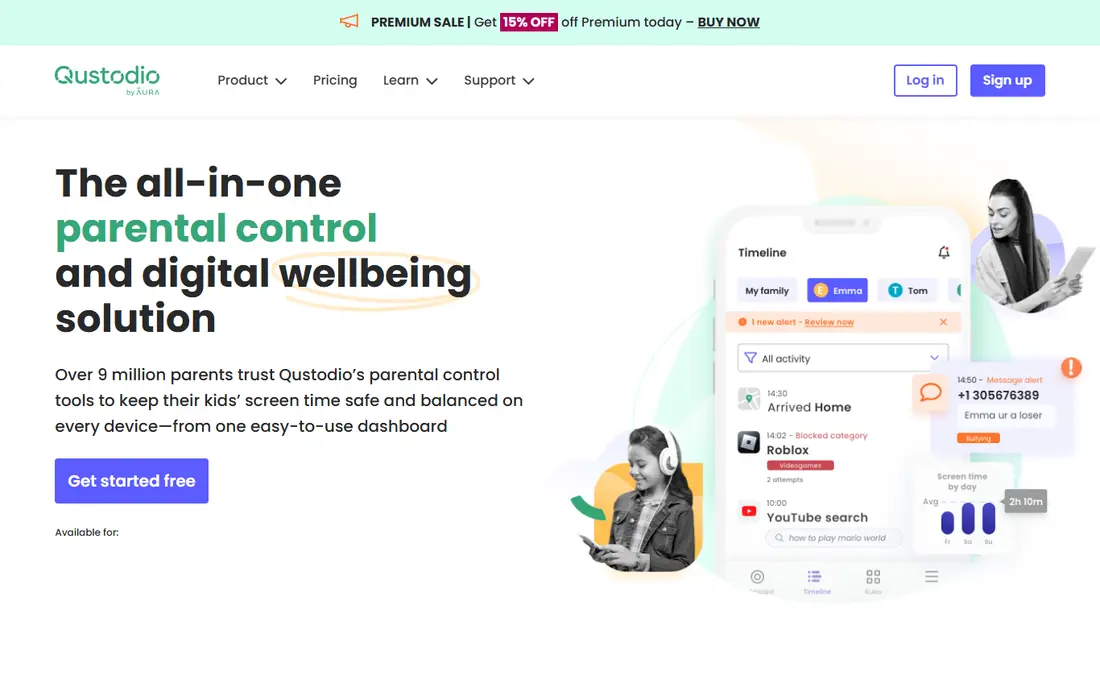
Qustodio is the choice for parents who want to see the full picture. Its dashboard breaks down each child's activity app by app and site by site, with daily and weekly reports, and it covers Windows, Mac, Android, iOS, Chromebook and Kindle. The Basic plan covers five devices, while Complete removes the device cap and adds per-app time limits, custom routines and call and text monitoring.
The free plan covers web filtering, time limits and location on a single device. The honest catch is platform unevenness: the deepest monitoring lives on Android, and monitoring calls and messages on iOS needs a paired computer. Qustodio also includes a panic button that sends parents an alert with the child's location, a feature worth knowing about for children starting to travel on their own.
- Detailed app and web activity dashboard
- Free plan for one device
- Panic button with location
- Deepest monitoring is on Android
- IOS message monitoring needs a paired computer
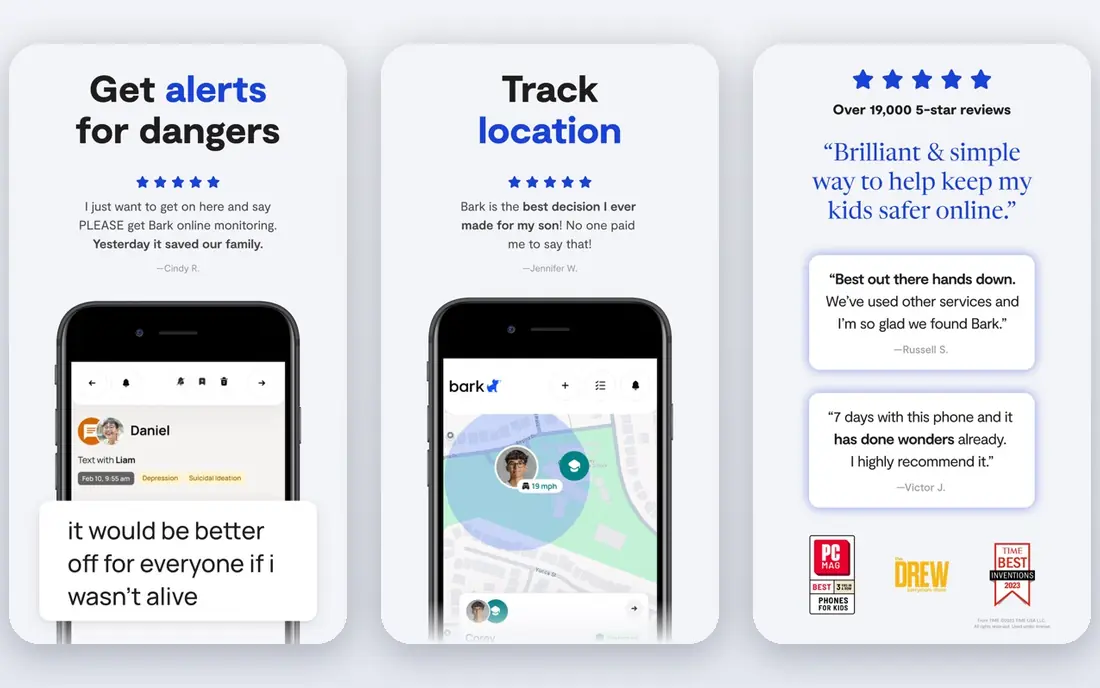
Bark takes a different approach from most apps here: instead of showing parents everything, it scans texts, email and more than 30 apps and alerts parents only when it spots concerns such as bullying, predatory contact or signs of self-harm. That design protects a teen's privacy while still catching serious problems, and it is why Bark is our pick for families with teenagers. Premium costs $14 per month or $99 per year and covers unlimited children and devices, while the cheaper Jr tier covers screen time, filtering and location.
Setup on iPhone takes more steps than on Android, since monitoring there uses a desktop app or a sync device, and alerts are not instant. For a teen's first years on social media, Bark's alert-only model is the best balance of safety and trust in this list.
- Monitors texts, email and 30 plus apps
- Alerts only on flagged concerns
- Unlimited children and devices
- No full message access by design
- IPhone setup takes more steps
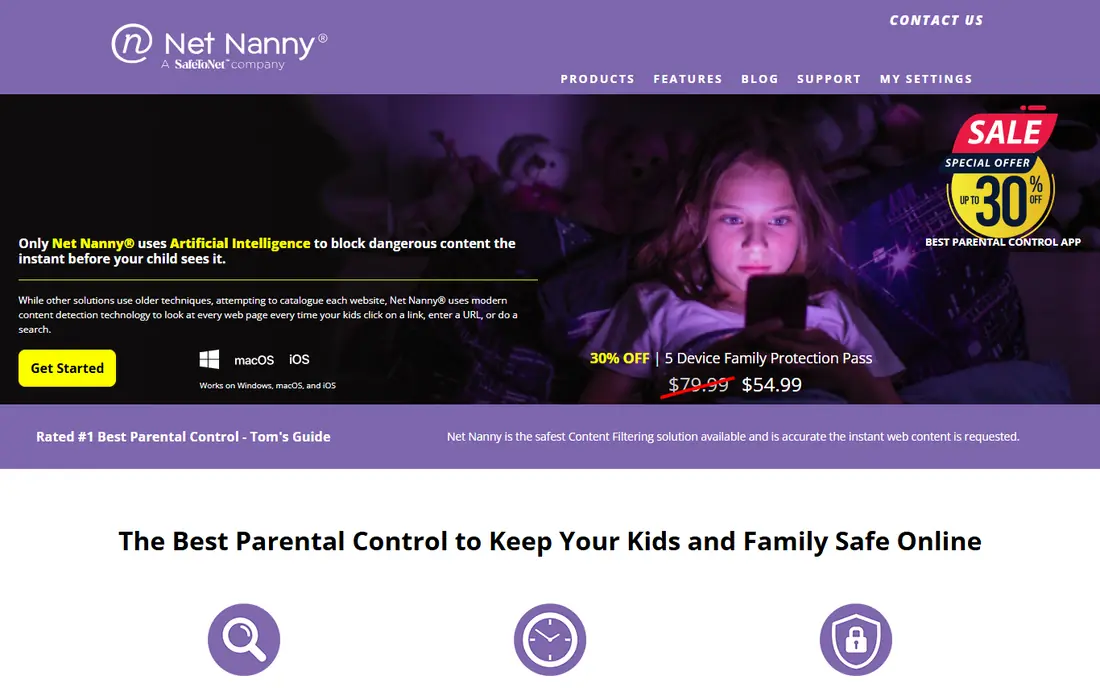
Net Nanny has built its name on web filtering that reads page content in real time rather than relying only on block lists, so it can catch newly published pages that list-based filters miss. Its family feed shows parents what children tried to view, and its screen time tools and app blocking cover the daily routine well. Plans start at $39.99 per year for one desktop device, with higher tiers covering more devices.
There is no free plan, and platform support has gaps on some newer operating system versions, so confirm your child's devices are covered before you buy. Net Nanny is the pick for younger children whose main risk is stumbling onto unsuitable websites, rather than for teens whose risk sits in private messages.
- Real-time page content analysis
- Family feed dashboard
- Strong app blocking
- No free plan
- Some platform limits on newer systems
Norton Family is the value pick for larger households. One subscription covers many children, and its school time feature blocks distracting apps during school hours while still allowing schoolwork tools. Web filtering, search supervision and location features round out a solid package, and the service is also included with Norton 360 Deluxe and higher plans, which can make it effectively free for families already using Norton security software.
There is no child app for macOS, and location tracking is simpler than Qustodio's timeline view. For a Windows and Android household with several children, it is hard to beat on price per child.
- Covers many children
- School time scheduling
- Included with Norton 360 Deluxe and higher
- No macOS child app
- Location tracking is basic
Aura bundles parental controls with wider family digital safety, which makes it attractive for households already thinking about identity theft and device security. Its kids plan covers content filtering across many categories, screen time limits, safe search and monitoring of gaming chats, and it flags patterns such as cyberbullying and predatory contact. The standalone kids plan starts at $10 per month billed annually, while the full family plan adds identity protection, VPN and antivirus for adults.
Aura does not monitor text messages, and some features run only on certain platforms. Aura fits families with younger children who game and browse, and adults who want one subscription covering the whole household's digital safety.
- Content filtering across many categories
- Gaming chat monitoring
- Identity protection for adults
- No text message monitoring
- Some features are platform specific
Google Family Link is the free starting point for Android families, and for children under 13 it is often all you need. Parents approve app downloads, set daily limits and bedtimes, lock the device remotely and see location, all from a parent app that also runs on iPhone. Setup is quick, and because it is built into Android, it does not fight the operating system the way some third-party apps do.
It only manages Android and Chromebook child devices, and its web filtering is basic compared with Net Nanny or Qustodio. Try Family Link first, and only pay for something else when you hit a limit that matters to your family.
- Free
- App approvals and bedtime schedules
- Location sharing
- Android child devices only
- Limited web filtering depth
Apple Screen Time is the free equivalent for households that run on iPhone, iPad and Mac. Parents set downtime, app limits and content restrictions, approve purchases and downloads, and use communication safety features that warn children about sensitive images. Because it is built into the operating system, it is stable across updates in a way third-party apps sometimes are not.
It only manages Apple devices. Its controls are broad rather than detailed: time budgets and category blocks, not the message alerts or activity timelines of Bark or Qustodio. For an Apple-only family with younger children, Screen Time plus a conversation about online rules is a strong, free setup.
- Free and built in
- Downtime and app limits
- Communication safety features
- Apple devices only
- Controls can frustrate older children
Mobicip is the cheapest paid option in this list, starting at $2.99 per month billed annually for its Lite plan, and it covers iOS, Android, Windows, Mac, Chromebook and Kindle. Setup is quick, with profiles per child, schedules, location and browser filtering that works in Chrome and Safari. For a family that mainly needs filtering and schedules across many devices, Mobicip does the job for less than a streaming subscription.
The trade is depth: activity reports are simpler than Qustodio's, and there is no message monitoring to match Bark. Higher tiers add features, so check which tier you actually need before comparing prices. Mobicip is our pick for a large family on a budget that wants solid filtering everywhere without paying for monitoring it will not use.
- Lowest paid price here
- Covers many platforms
- Simple setup
- Fewer monitoring features than Bark or Qustodio
- Reports are basic
OurPact shines at routines: parents build schedules for homework, dinner and bedtime, block apps on demand and set time allowances, with a free tier for trying the basics. Premium starts at $6.99 per month and covers 20 devices, while Premium Plus adds a live screen view of the child's device. It works on iPhone and Android, and its schedule tools are the most flexible in this list for families that run on routines.
The free tier caps web filtering and app blocking at five each and allows only one schedule, so most families will need Premium. There is no money-back guarantee, though a 14-day trial lets you test the paid features first. OurPact is the pick for an iPhone household that cares most about when devices can be used, rather than deep monitoring of what happens on them.
- Strong schedule and routine tools
- Free tier
- Screen view on top tier
- Web filtering caps on free tier
- No money-back guarantee
MMGuardian gives parents fuller message reports than alert-only apps, with analysis of texts and images for concerning content, plus app management, web filtering, screen time limits and location. The app costs $4.99 per month for one phone, with a family plan covering up to five devices, and a 14-day free trial. There is also a dedicated Samsung phone with built-in controls that cannot be removed by a factory reset, aimed at a child's first phone.
On iPhone, message reports need a computer sync app on the same Wi-Fi network, and there is no iPhone call or SMS blocking. The company states no refunds, so use the trial properly before paying. MMGuardian suits an Android household that wants detailed message visibility at a low monthly price and is comfortable with that level of oversight.
- Message and image analysis
- Tamper-resistant phone option
- Low monthly price
- IPhone message reports need a sync app
- No refunds stated
How we picked these
We compared official feature pages, pricing pages, app store listings, privacy policies and public reviews for each app, and we checked that each app's homepage loads and belongs to that app. We weighed what each app controls, which devices it covers, how it handles a child's privacy, and what it costs per year. Where a vendor's current price could not be verified on its own site, we used the most recent published price and said so in the comparison table notes. We left out apps that no longer sell to new buyers in the US, since they cannot help most readers.
No app is impossible for a determined teenager to work around, and monitoring that a child does not know about can damage trust. Tell your children what you monitor and why, and treat the app as a backstop, not a replacement for conversation. This article is general information, not professional advice about your family's situation.
What to set up first
Start with the device your child uses most. Turn on the built-in controls first, since they are free and stable, then add a paid app only for the gaps you actually hit, such as message alerts for a teen or filtering on a shared family computer. Set bedtime and homework schedules before you argue about total hours, since a predictable routine causes fewer daily battles than a shrinking time budget.
Agree the rules together
Write down three or four rules with your child: which apps are allowed, what hours devices switch off, and what happens when a rule is broken. Children follow rules they helped write far more willingly than rules that appear overnight with an app install. Revisit the rules every few months as your child grows, and loosen controls gradually to match the responsibility they show.
Check the reports weekly, not hourly
Pick one time each week to review activity reports and flagged alerts, and talk about anything concerning rather than punishing from the report alone. If an app flags self-harm, bullying or predatory contact, take it seriously and seek help from the school or a professional promptly.
Frequently asked questions
What is the best parental control app for teenagers?
Bark is our pick for teenagers, since it monitors texts, email and social apps and alerts parents only to flagged concerns, which respects a teen's privacy while catching serious risks. Qustodio suits parents who want full activity reports, but its deeper monitoring can strain trust with older children. For most teen households, start with Bark Premium and keep the conversation about online safety going alongside it.
What is the best free parental control app?
Google Family Link is the best free option for Android families, and Apple Screen Time is the best free option for Apple families. Both cover app approvals, time limits, bedtimes and location at no cost. Qustodio's free plan for one device is the best free third-party option if your household mixes platforms and you want filtering and reports on one device.
Can my child bypass a parental control app?
A determined teenager can work around most controls, using a friend's device, a web proxy or a factory reset on some phones. Tamper-resistant options such as MMGuardian's dedicated phone raise the bar, but no app is fully bypass-proof. That is why agreed rules, regular conversations and checking reports matter more than any single technical control.
Do parental control apps work on both iPhone and Android?
Most paid apps in this list cover both, including Qustodio, Bark, Net Nanny, Aura, Mobicip, OurPact and MMGuardian, though features differ by platform. Message monitoring is usually deeper on Android, while iPhone monitoring often needs extra setup steps. Google Family Link manages Android child devices only, and Apple Screen Time manages Apple devices only, so mixed households need a paid cross-platform app.
How much should I pay for a parental control app?
Most families pay between $0 and $14 per month. Free built-ins cover younger children well, Mobicip at $2.99 per month billed annually is the cheapest paid plan here, and Bark Premium at $14 per month is the top of this list for teen monitoring. Pay for message alerts or deep reports only if your child's age and online life make those features necessary.
Is it legal to monitor my child's phone?
Parents can generally monitor devices they own and pay for and that their minor children use, but laws vary by state and by the child's age, and monitoring another adult's device without consent is a different matter. Be open with your child about what you monitor, avoid reading every private conversation unless you have a safety reason, and check your local rules if you are unsure.
Sources we checked (10)

Online Jobs is an independent blog about careers, online work, learning new skills and the tools that help people earn. More about us.
Keep reading
All posts
Surfshark Alternatives
Looking for Surfshark alternatives? We compare 8 VPN services on price, privacy, streaming, and device limits to help you find a VPN that fits your needs.
NordPass Alternatives
We compared NordPass alternatives for families, solo users and teams, checking pricing, free plans, passkeys and sharing, so you can switch safely today.
Best VPN Service
We compared the best VPN service options for privacy, streaming and value, checking official pricing, free plans and honest limits before ranking them.