NordPass Alternatives in 2026: 8 Password Managers Compared

How we put this together: we compare official feature and pricing pages, app store listings, privacy policies and public user reviews. Prices change, so check the provider's site before you pay.
Key takeaways
- Bitwarden is our pick for value, because its free plan covers unlimited passwords and devices for one person.
- 1Password suits families who want guided sharing and recovery, though it has no permanent free plan.
- Dashlane and Keeper suit people who want extra tools, such as a VPN or secure file storage, beside password storage.
- Before you switch, export your vault, turn on two-factor authentication and check that passkeys work on your main devices.
Quick comparison
| Name | Who it suits | Starting price | Free option | |
|---|---|---|---|---|
 Bitwarden Bitwarden | Best value overall | Free | Yes | Visit |
 1Password 1Password | Families and sharing | $3.99 per month | Free trial | Visit |
 Dashlane Dashlane | Extra security tools | See website | Yes | Visit |
 LastPass LastPass | Simple family sharing | $3 per month | Yes | Visit |
 Keeper Keeper | Secure storage and teams | See website | Free trial | Visit |
 Proton Pass Proton Pass | Privacy focused users | See website | Yes | Visit |
 RoboForm RoboForm | Form filling and families | See website | Yes | Visit |
 Enpass Enpass | One-time purchase fans | See website | Yes | Visit |
The best NordPass alternatives
If you are looking for NordPass alternatives, you are probably weighing price, free plans or how a manager handles passkeys and family sharing. We compared official pricing pages, feature pages and app store listings, and we kept only managers that work today on phones, browsers and computers. The eight options below cover free, low-cost and family plans.

Bitwarden is the easiest recommendation when cost matters most. The free plan lets one person store unlimited passwords across unlimited devices, which is rare among major managers. Paid plans add an integrated authenticator, file attachments, emergency access and security reports, starting at $1.65 per month billed annually for Premium.
The trade-off is polish. Bitwarden looks more plain than 1Password or Dashlane, and new users may need a few minutes to learn vault organisation. For readers who want solid security without a monthly bill, that plain look is a small price to pay, and the option to self-host appeals to technical users who want more control.
- Free plan with unlimited passwords and devices
- Open source code
- Passkey support
- Interface feels plain beside paid rivals
- Some advanced reports need a paid plan
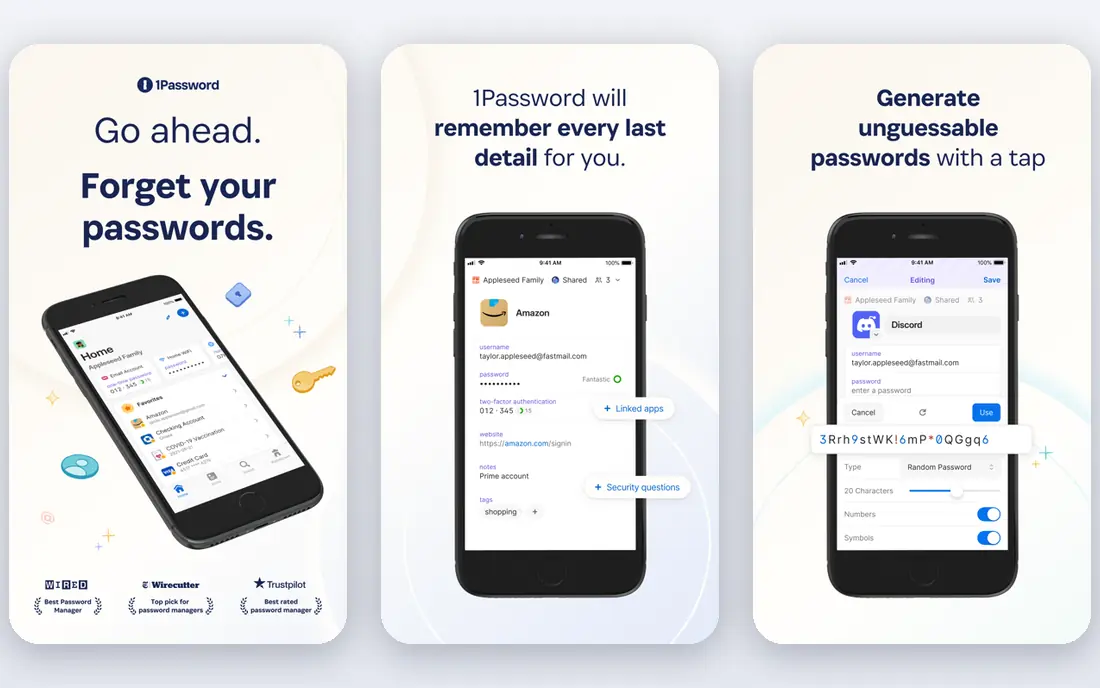
1Password suits households that share logins and want help when someone gets locked out. Shared vaults let a family organiser help recover another member, and Watchtower flags weak, reused or exposed passwords so you can fix them in order. The Individual plan starts at $3.99 per month billed annually, with a lower first-year offer for new customers, and Families starts at $5.99 per month for up to five people.
The main drawback is cost. There is no free tier to test long term, only a 14-day trial, so budget readers should start with Bitwarden. If guided family recovery and a polished set of apps matter more than a free plan, 1Password remains a strong choice.
- Clear family sharing and recovery
- Watchtower security alerts
- Travel Mode
- No permanent free plan
- Price rises for larger teams
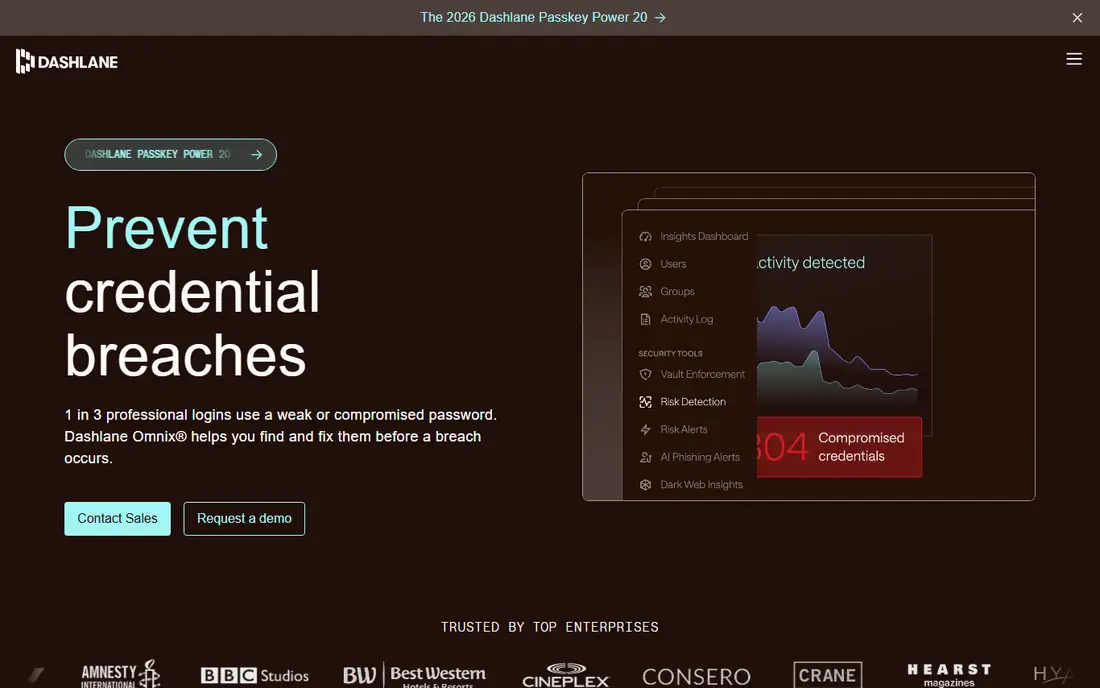
Dashlane bundles password management with extra security tools, which appeals to people who want one account for several jobs. Paid plans include dark web monitoring, and some plans add a VPN, so you can check for exposed data and protect traffic on public Wi-Fi from the same app. Autofill stays quick across browsers and phones.
The catch is price and plan detail. Extra tools sound useful, but not every plan includes every tool, and the monthly cost sits above Bitwarden and LastPass for many users. Read the plan page carefully before you pay, and check which VPN and monitoring features are included in the tier you pick.
- Built-in VPN on some plans
- Dark web monitoring
- Simple autofill
- Higher paid prices than Bitwarden
- Some tools vary by plan and region
LastPass remains a practical option for people who want a free tier and a simple family plan. Premium starts at $3 per month, and Families starts at $4 per month for up to six people, which keeps household costs low. The apps cover browsers, phones and computers, and shared folders make it easy to pass logins to a partner or child without sending passwords in chat.
Some readers will weigh past security incidents when choosing LastPass, and that concern is fair to note. If that history puts you off, Bitwarden or 1Password offer similar features with different track records. If price and simplicity matter most, LastPass still does the core job well.
- Free individual tier
- Family plan for up to six people
- Wide device support
- Past security incidents concern some readers
- Free plan limits device types
Keeper suits people who want password storage plus a safe place for files and records. You can store documents, photos and notes in encrypted vaults, and business plans add admin controls, sharing policies and audit tools for teams. That mix helps small firms that handle client records and need clear rules about who can see what.
New users may find the interface busy, because Keeper packs many features into one app. Personal users who only need passwords may prefer a simpler manager. For teams and households with documents to protect, the extra storage and controls justify the learning time.
- Secure file storage
- Strong business controls
- Emergency access options
- Interface can feel busy at first
- Full features need paid plans
Proton Pass fits readers who already trust Proton Mail or Proton VPN and want a manager from the same privacy-focused company. Vaults are encrypted, and email aliases let you create a different address for each site, which limits spam and tracking when a site leaks data. The free plan covers basic password and alias use.
The limit is breadth for business use. Proton Pass is newer than 1Password and Keeper, so team controls and integrations are still growing. For personal use and privacy, it is a solid pick. For a large team with complex admin needs, a more established business manager may fit better.
- Encrypted vaults and aliases
- Works with Proton Mail
- Clean apps
- Fewer business features than 1Password or Keeper
- Some tools need a paid plan
RoboForm has long focused on filling forms as well as passwords, which helps people who order, book and register online often. It saves addresses, payment details and identities, then fills them with a click, and family plans let several people share vaults without sharing a single login. Support covers Windows, Mac, phones and major browsers.
The design feels older than 1Password or Proton Pass, and that may matter if you judge an app by its look. Functionally, though, RoboForm covers the basics well and often costs less than premium rivals. It suits practical users who care more about filling forms fast than about a modern interface.
- Strong form filling
- Family plan options
- Works on many platforms
- Design feels dated beside newer rivals
- Some features need a paid plan
Enpass appeals to readers who dislike subscriptions. You can keep a vault on your own device, sync it through your own cloud storage and buy a one-time licence for premium features instead of paying every month. That model gives you more control over where data lives, and it suits people who already use Dropbox, iCloud or another storage service.
The trade-off is setup. Sync is not automatic in the same way as cloud managers, because you choose and manage the storage yourself. Team sharing is also more limited. If you want a simple cloud manager that just works, pick Bitwarden or 1Password. If you want offline control and a one-time purchase, Enpass is worth a close look.
- Offline vault option
- One-time purchase available
- No account needed for local vaults
- Sync needs your own cloud storage
- Team features are limited
How we picked these
We compared official pricing pages, feature pages and app store listings, and we checked free plans, passkey support, family sharing and platform coverage. We kept only managers that work today in the US on phones and computers, and we wrote See website where a vendor price was not confirmed at the time of writing. We did not claim hands-on testing, and we based strengths and weaknesses on published features and plan limits.
How to switch password managers safely
Start by exporting your current vault and saving that file somewhere safe, then delete the export once the move is done. Import into the new manager, check that logins, notes and passkeys arrived, and then change your master password to a long phrase you have not used elsewhere. Turn on two-factor authentication for the manager itself, because that account guards every other login.
Next, review sharing. Remove old shared items, set up family vaults only for people who need them, and check emergency access settings so a trusted person can help if you lose access. Finally, run the security report in your new manager and change reused or weak passwords first, starting with email, banking and main social accounts.
Passkeys and recovery
Passkeys can replace passwords on many sites, but they work best when you know where they are stored. Check whether your new manager syncs passkeys across your phone and computer, and keep a backup method for your main accounts. Write down recovery codes for email and banking on paper, store that paper safely, and test recovery before you need it in a crisis.
Frequently asked questions
What is the best NordPass alternative?
Bitwarden is the best value alternative, and 1Password is the best family alternative in this list. Bitwarden gives a strong free plan, while 1Password gives guided sharing and recovery for households. Pick Bitwarden if cost matters most, and 1Password if family help and polish matter more.
Are there free NordPass alternatives?
Yes. Bitwarden, Dashlane, LastPass, Proton Pass, RoboForm and Enpass all offer free plans or free tiers with limits. Bitwarden has the most generous free plan for one person, because it allows unlimited passwords and devices. Check device limits and sharing limits before you rely on a free plan for a household.
How do I switch from NordPass to another password manager?
Export your vault from NordPass, import that file into the new manager, and check that items arrived correctly. Then change your master password, turn on two-factor authentication and delete the export file. Update the most important logins first, such as email and banking, and remove NordPass only after you confirm the new vault works on all devices.
Do these alternatives support passkeys?
Most major managers in this list support passkeys, including Bitwarden, 1Password, Dashlane and Proton Pass. Support varies by device and browser, so check the vendor page for your phone and computer before you switch. Keep a backup login method for sites where passkey support is still limited.
Which password manager is best for families?
1Password Families and LastPass Families both suit households, with shared vaults for up to five or six people. Bitwarden Families also covers up to six people at a lower price. Choose based on recovery help, because a family manager should make it easy for an organiser to help a member who loses access.
Is a paid password manager worth it?
A paid plan is worth it if you need family sharing, emergency access, file storage, security reports or business controls. For one person with basic needs, a free plan from Bitwarden or Proton Pass may be enough. Pay when the extra features solve a real problem, such as sharing with family or managing team access.
Sources we checked (8)

Online Jobs is an independent blog about careers, online work, learning new skills and the tools that help people earn. More about us.
Keep reading
All posts
Surfshark Alternatives
Looking for Surfshark alternatives? We compare 8 VPN services on price, privacy, streaming, and device limits to help you find a VPN that fits your needs.
Best VPN Service
We compared the best VPN service options for privacy, streaming and value, checking official pricing, free plans and honest limits before ranking them.
Best Password Manager Apps
Compare the best password manager apps in 2026 for families, teams, and privacy, with pricing, free plans, passkeys, and honest trade-offs for US users today.