Best Game Recording Software in 2026: 9 Tools Compared

How we put this together: we compare official feature and pricing pages, app store listings, privacy policies and public user reviews. Prices change, so check the provider's site before you pay.
Key takeaways
- OBS Studio is our pick for most creators, because it is free, open source, and covers recording and streaming in one tool.
- NVIDIA ShadowPlay suits GeForce owners who want instant replay with low performance cost.
- Xbox Game Bar is the fastest option for casual Windows clips, since it is already built into Windows.
- Bandicam and Camtasia suit users who want a simpler paid recorder, with Camtasia adding a full editor.
- Medal and Streamlabs suit social creators who want clips and highlights without a long editing workflow.
Quick comparison
| Name | Who it suits | Starting price | Free option | |
|---|---|---|---|---|
 OBS Studio | Free recording and streaming | Free | Yes | Visit |
 NVIDIA ShadowPlay | GeForce instant replay | Free | Yes | Visit |
 Xbox Game Bar | Casual Windows clips | Free | Yes | Visit |
 Bandicam | Lightweight paid recording | See website | No | Visit |
 Medal | Social clips and highlights | Free | Yes | Visit |
 Streamlabs Desktop | Streamer-friendly recording | Free | Yes | Visit |
 Camtasia | Recording plus editing | See website | No | Visit |
 AMD Software | AMD instant replay | Free | Yes | Visit |
 DemoCreator | Guided recording and editing | See website | No | Visit |
The best game recording software
We compared capture quality, performance cost, instant replay, audio controls, streaming support, and editing depth. A good recorder should not ruin frame rates, and it should save a clip before a great moment is lost.
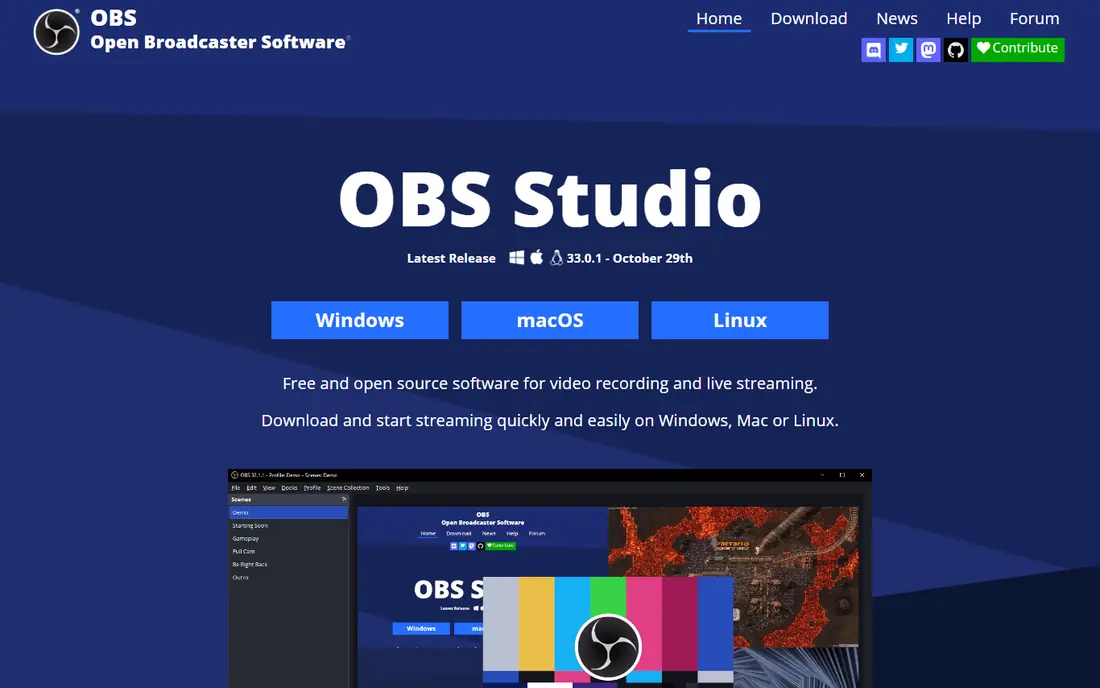
OBS Studio fits creators who want full control without paying for it. You can build scenes from game capture, webcam, browser windows, and images, then record or stream with detailed encoder settings. Audio filters such as noise suppression and gain help clean up a microphone without extra software.
The honest catch is setup time. A first-time user will need to choose an encoder, set a bitrate, and test a short recording before a long session. Once that setup is saved, though, OBS is hard to beat for flexibility, and it works on hardware from any GPU maker.
- Free and open source with no watermark
- Scenes, sources, and audio filters
- Windows, Mac, and Linux support
- Learning curve for new users
- No built-in instant replay buffer in the same way as GPU tools
ShadowPlay, inside the NVIDIA app, suits GeForce owners who want clips without thinking about recording. Instant replay keeps a rolling buffer, so a great play can be saved after it happens. Manual recording is also available for full sessions, with hardware encoding that keeps the performance cost low.
The limit is hardware. If you do not own a compatible GeForce card, ShadowPlay is not an option at all. It also lacks the scene mixing and plugin depth of OBS, so streamers often pair the two: OBS for the broadcast, ShadowPlay for the safety buffer.
- Instant replay saves recent gameplay
- Low performance cost on GeForce hardware
- High-resolution capture
- Needs a compatible GeForce GPU
- Fewer scene and audio controls than OBS
Xbox Game Bar fits casual players who want a clip now, without installing anything. Pressing Windows plus G opens the overlay, and recording starts in a few clicks. Clips save to a standard folder, ready to share or trim in a separate editor.
The trade-off is control. Bitrate, resolution, and audio routing options are basic compared with OBS or Bandicam, and some games handle overlay capture less well. For short highlights and bug reports, that simplicity is a strength. For a polished channel, it is only a starting point.
- Built into Windows
- Quick clips and screenshots
- Simple widget layout
- Limited encoder and editing controls
- Windows only
- Capture limits vary by game
Bandicam suits Windows users who want a stable, low-fuss recorder that stays out of the way. Game capture mode targets the game window directly, while screen and device modes cover desktop and webcam capture. The interface is far simpler than OBS, which helps new users start quickly.
The catch is price and platform. The full version is paid, and Mac and Linux users need another tool. Editing is also basic, so most creators will still open clips in a separate editor. For pure capture on Windows, Bandicam remains a reliable choice.
- Lightweight Windows recorder
- Game, screen, and device capture modes
- Long recording support
- Windows only
- Free version limits and watermark apply
- Editing is basic
Medal fits social-first creators who post clips the same day they play. The tool captures highlights, organises them in a library, and makes sharing to social platforms quick. That loop matters when a clip is only valuable for a short window after a match.
The honest catch is scope. Medal is built for clips, not for long-form editing or complex streams. Paid plans add more cloud storage and features, so heavy users should check the current plan limits. For short highlights, it is one of the fastest routes from play to post.
- Instant clipping and highlights
- Social sharing and clip library
- Low-friction setup
- Cloud and premium features sit behind paid plans
- Editing depth is limited
Streamlabs Desktop suits streamers who want OBS power with a guided setup and ready-made themes. Alerts, chat widgets, and overlays can be added without hunting for plugins, and recording uses the same engine as OBS. That balance helps new streamers look polished quickly.
The trade-off is weight and upselling. The app is heavier than plain OBS, and some themes and features require a paid plan. If you only record and never stream, OBS Studio is the cleaner choice. If you stream often, Streamlabs can save setup time.
- Built on OBS with a friendlier setup
- Themes, alerts, and widgets
- Recording and streaming in one app
- Some features sit behind a paid subscription
- Heavier than plain OBS for simple recording
Camtasia fits creators who record gameplay and then turn it into a tutorial, review, or polished video. The recorder captures screen, webcam, and audio, and the editor adds cuts, callouts, zoom, and captions on a timeline. That single workflow avoids round-tripping between separate apps.
The catch is cost and focus. Camtasia is a paid editor first, not a lightweight capture tool or a live streaming app. For pure clips, a free tool is enough. For edited guides and reviews, the editor can justify the price.
- Screen and game recording with a full timeline editor
- Annotations and effects
- Polished export options
- Paid software with a higher price
- Heavier on older machines
- Not built for live streaming
AMD Software suits Radeon owners who want the AMD equivalent of ShadowPlay. Instant replay, instant GIF capture, and manual recording live inside the driver suite, so there is no separate recorder to install. Hardware encoding keeps the performance cost reasonable on modern cards.
The limit mirrors ShadowPlay: it only works with compatible AMD hardware, and feature availability varies by card and driver version. It also lacks the scene control of OBS. Pair it with OBS for a stream, and use AMD capture for the safety buffer.
- Instant replay and recording for AMD GPUs
- Built into AMD driver software
- Low extra install burden
- Needs a compatible AMD GPU
- Feature set varies by driver and card
DemoCreator fits creators who want recording and editing in one Wondershare workflow. Game capture, webcam overlay, and audio tracks are built in, and the editor adds effects, transitions, and captions. Templates can speed up a first edited video.
The honest catch is the free tier. Watermarks and export limits apply until a paid plan is bought, so testers should check those limits before a long project. For edited gameplay guides, it is a workable middle ground between OBS and Camtasia.
- Game and screen recording with an editor
- Webcam and audio tracks
- Templates and effects
- Free version limits apply
- Paid plans needed for full export
- Heavier than a pure recorder
How we picked these
We compared official feature pages, pricing pages, app store listings, and public reviews, and we kept only tools that are live and can record PC gameplay in 2026. We favoured low performance cost, clear capture modes, audio control, and honest free-tier limits. We left out discontinued recorders and tools that only capture a phone screen.
We also weighed the difference between a clip tool, a recorder, and an editor. A great clip app is not automatically a great long-form recorder, and a great editor is not automatically a lightweight capture tool. Where a price could not be verified on the vendor page for a general reader, we used See website.
What to check before you choose
Test a short recording at your target resolution and frame rate before a long session. A setting that looks fine in a menu can still drop frames in a busy game scene.
Performance and encoder
Choose hardware encoding when your GPU supports it, and test 1080p60 before jumping to 4K. Lower the recording resolution or bitrate if frame rates fall. Keep the recording drive separate from the game drive when possible, since a full drive can stop a capture mid-session.
Instant replay and audio
Turn on instant replay if your GPU tool offers it, and set a buffer length that matches your play style. Check microphone, game audio, and chat audio as separate tracks where the tool allows it. Separate tracks make editing far easier later.
Editing and sharing
Decide whether you need a clip, a full session, or an edited video. Clip tools suit social posts, OBS suits streams and sessions, and Camtasia or DemoCreator suit edited guides. Export a short test clip and check it on the platform where it will be watched.
Frequently asked questions
What is the best recording software for gaming on PC?
OBS Studio is the best recording software for gaming on PC for most creators, because it is free, open source, and covers recording and streaming. NVIDIA ShadowPlay is better for GeForce owners who want instant replay with low cost. Xbox Game Bar is best for quick casual clips on Windows.
What is the best software to record gameplay without lag?
Hardware encoding gives the lowest performance cost in most cases, so NVIDIA ShadowPlay for GeForce cards and AMD Software for Radeon cards are strong choices. OBS Studio with hardware encoding is also low cost once it is set up correctly. Test at 1080p60 first, and lower settings if frame rates drop.
What is the best game capture software for streaming?
OBS Studio and Streamlabs Desktop are the best game capture tools for streaming, since both support scenes, overlays, alerts, and multi-platform output. OBS is lighter and more flexible, while Streamlabs adds themes and widgets for new streamers. ShadowPlay and Game Bar are capture tools first, not streaming suites.
Is there a best app to record gameplay on PC for free?
Yes, OBS Studio, NVIDIA ShadowPlay, Xbox Game Bar, AMD Software, and Medal all offer free recording. OBS covers the widest range of hardware, while ShadowPlay and AMD Software are tied to their GPU brands. Medal is best when the goal is short social clips rather than full sessions.
What is the best recording software for PC gaming with editing included?
Camtasia is the best choice when recording and full editing matter in one tool, with a timeline, annotations, and captions. DemoCreator is a lower-cost middle ground with recording and editing in one app. OBS and ShadowPlay need a separate editor for polished videos.
Does game recording software affect FPS?
All recording software uses some CPU or GPU resources, so some frame rate cost is normal. Hardware encoding keeps that cost low on modern cards, while software encoding can cost more. Lowering resolution, frame rate, or bitrate usually restores smooth play without a visible loss in a social clip.
Sources we checked (9)

Online Jobs is an independent blog about careers, online work, learning new skills and the tools that help people earn. More about us.
Keep reading
All posts
Best Game Apps
We compared the best game apps for phones in 2026, from free open worlds to paid classics, and flagged the costs, storage needs and catches for each pick.

Best Cross Platform Multiplayer Games
Looking for the best cross platform multiplayer games? We compare 8 games you can play with friends on PC, PlayStation, Xbox, Switch, and mobile today.

Best Cross Platform Games
Looking for the best cross platform games in 2026? We compared 9 crossplay games you can play with friends on PC, console and mobile. Prices verified.