Best Free Drawing Apps for Beginners in 2026: 9 Apps Compared
 Online Jobs·Updated Oct 26, 2026·12 min read
How we put this together: we compare official feature and pricing pages, app store listings, privacy policies and public user reviews. Prices change, so check the provider's site before you pay.
Key takeaways
- Krita is the strongest fully free option on a computer. It is open source, runs on Windows, macOS and Linux, and its latest stable release (5.3.4.1) came out on October 7, 2026.
- Adobe Fresco is now completely free on iPad, iPhone and Windows, with no paid Fresco tier listed on Adobe's product page.
- ibis Paint X is the most feature-packed free phone app we found (its App Store listing claims over 130,000 brushes), but the free version shows ads. Ad removal costs $15.99 once on iOS.
- Several "free" apps lock their best tools behind small one-time purchases: Sketchbook's Premium Bundle is $2.99 and Tayasui Sketches Pro is $7.99 on the US App Store.
- If you only have a phone, start with ibis Paint X, Sketchbook or MediBang Paint. If you have a computer and a cheap pen tablet, start with Krita.
Quick comparison
| Name | Who it suits | Starting price | Free option | |
|---|---|---|---|---|
 Krita Krita | Free painting on a computer | Free | Yes | Visit |
 Adobe Fresco Adobe Fresco | iPad and Windows pen users | Free | Yes | Visit |
 ibis Paint X ibis Paint X | Drawing on a phone | Free | Yes | Visit |
 Sketchbook Sketchbook | Clean, distraction-free sketching | Free | Yes | Visit |
 MediBang Paint MediBang Paint | Comics and manga on mobile | Free | Yes | Visit |
 FireAlpaca FireAlpaca | Lightweight desktop painting | Free | Yes | Visit |
 Infinite Painter Infinite Painter | Android and iPad painters who want depth | Free | Free trial (7 days) | Visit |
 Tayasui Sketches Tayasui Sketches | Very simple, low-pressure sketching | Free | Yes | Visit |
 Concepts Concepts | Sketching ideas on an infinite canvas | Free | Yes | Visit |
The best free drawing apps for beginners
These are the apps we would hand to someone who has never drawn digitally before. Each one is genuinely usable without paying, and we flag exactly where the free version stops.
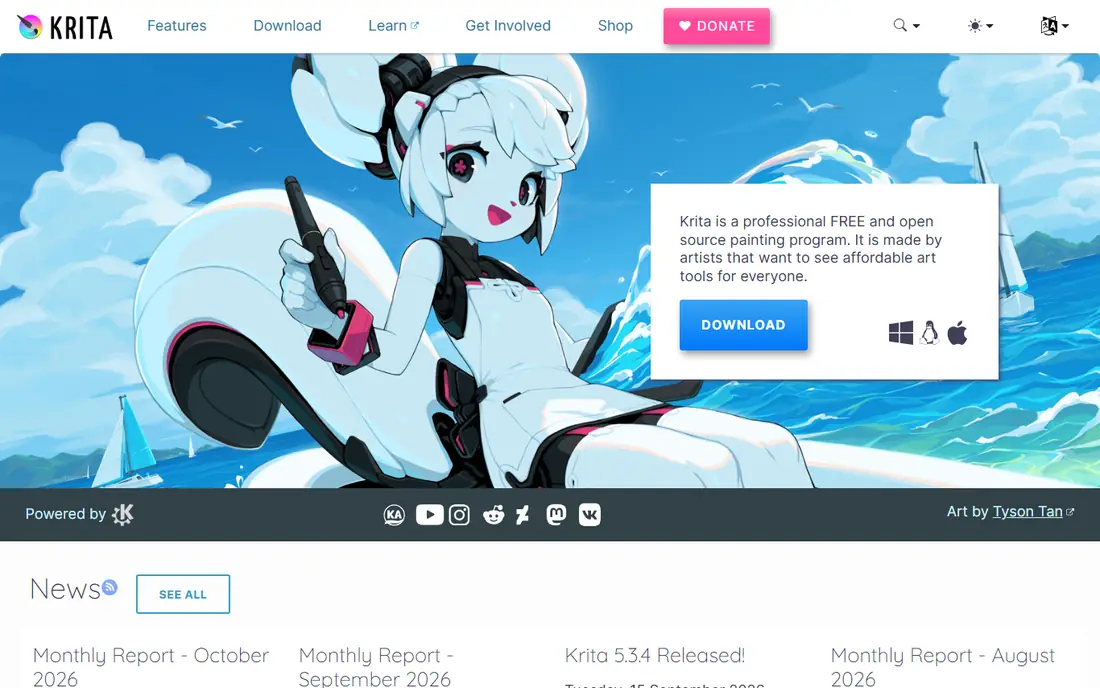
Krita is the app we point beginners to first if they have a laptop or desktop. It is a full painting program made by the nonprofit Krita Foundation, and there is no paid tier hiding the good tools. The download page lists installers for Windows, macOS and Linux, and the latest release, 5.3.4.1, is dated October 7, 2026.
What makes it friendly to new artists is the brush stabilizer, which smooths out wobbly strokes, plus drawing assistants for perspective and a distraction-free canvas mode.
The honest catch is the learning curve. Krita has dozens of dockers and menus, and the default layout can feel like a cockpit. The Google Play version also describes itself as a beta that is "not suitable for real work yet", and Krita's own download page says iPads and iPhones are not supported. Paid copies exist in the Steam, Epic, Microsoft and Mac App stores, but they are the same program, sold to fund development.
- Free and open source with no feature limits
- Runs on Windows, macOS and Linux
- Brush stabilizers help shaky beginner lines
- Interface is crowded for a first-time user
- Android version is labeled beta and there is no iPad or iPhone version
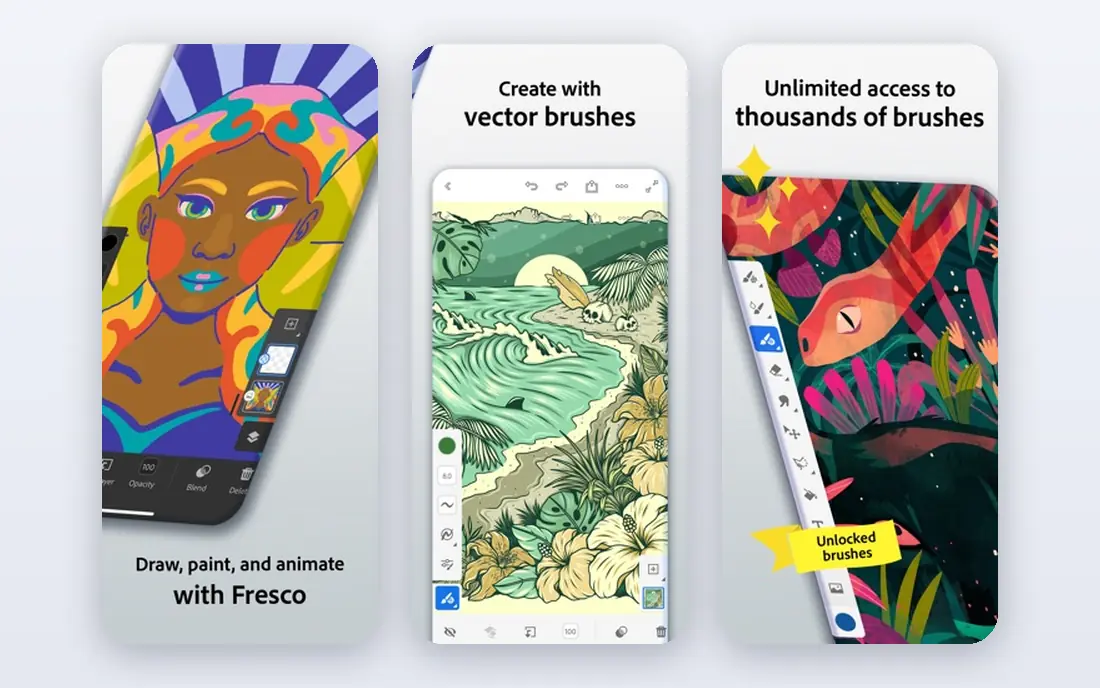
Fresco used to have a premium tier, but Adobe's product page now calls it "Free for all" and describes unlimited layers and thousands of brushes at no cost. It runs on iPad, iPhone and Windows touch devices, which makes it a natural fit for anyone with an Apple Pencil or a Surface pen.
The standout feature for beginners is the live brushes. Watercolor bleeds and oil paint smears in a way that feels close to the real thing, so you can learn color mixing without buying supplies. Vector brushes are also included for clean line art that you can scale without blur.
You will need an Adobe account, and the app does advertise add-ons. The US App Store listing shows a "Photoshop on iPad with Fresco" purchase at $7.99, which you do not need. There is no Android build, so Samsung tablet owners should look at Infinite Painter or ibis Paint X instead.
- Completely free according to Adobe
- Live brushes that blend like real watercolor and oil
- Unlimited layers and thousands of brushes
- No Android version
- Pushes you toward Adobe accounts and other paid Adobe apps
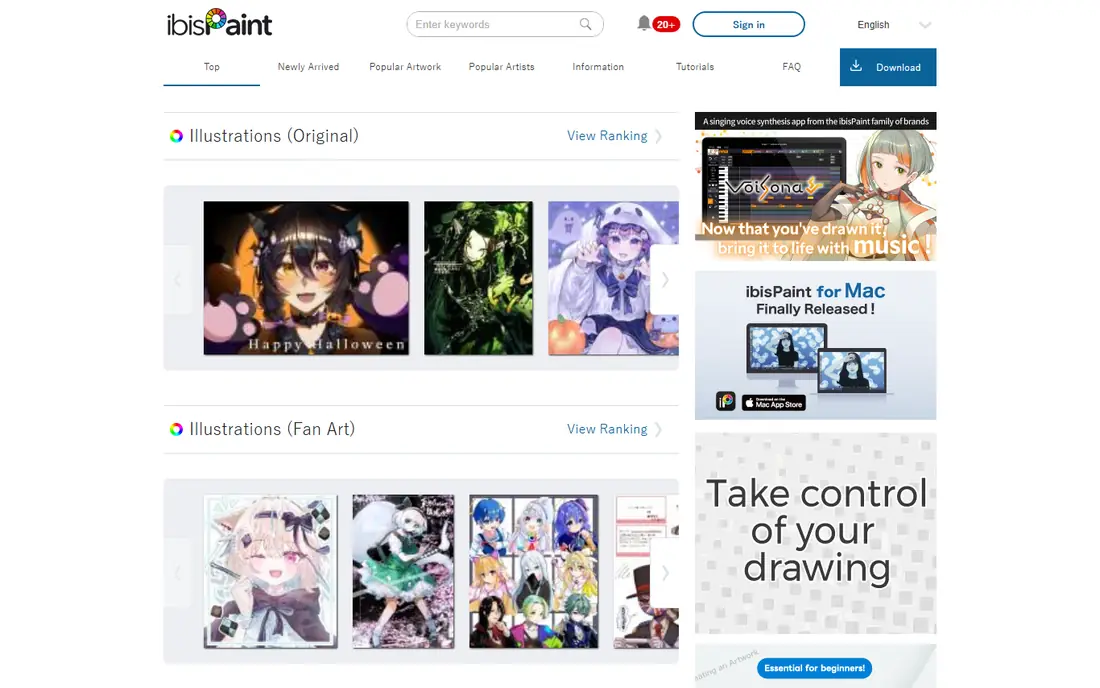
If you want to start drawing on the phone you already own, ibis Paint X is hard to beat. The App Store listing advertises over 130,000 brushes, more than 30,000 materials, more than 3,000 fonts, and 27 layer blend modes. It also has rulers, a stabilizer, frame-by-frame animation and a time-lapse recorder that many beginners use to share progress.
The app is rated 4.7 out of 5 from roughly 301,000 ratings on the US App Store, which tells you how widely it is used.
The free version shows ads, and they can interrupt your flow. The US App Store lists an Ad Removal Upgrade at $15.99 and Premium Membership at $4.49 per month or $27.99 per year, which adds more brushes and features. For a beginner, the free tier is plenty for months.
- Huge built-in library of brushes, materials and fonts
- Records a time-lapse of your drawing
- Large tutorial community
- Ads in the free version
- Some brushes and features need Premium Membership
Sketchbook started life at Autodesk and has been run by the independent company Sketchbook Inc. since 2021. The mobile app for Android and iOS is free to download, and its Google Play listing shows more than 100 million downloads and an update dated May 30, 2026.
Its biggest strength for beginners is calm. The canvas fills the screen, the tools tuck away, and the brush set covers pencil, ink, marker and airbrush without overwhelming you. Guides, rulers and stroke tools help tidy shaky lines, and layers come with a full set of blend modes.
The free app is solid, but Sketchbook's blog notes that newer features such as extra layer adjustments live in the Premium Bundle, which costs $2.99 on the US App Store. The desktop version, Sketchbook Pro for Windows and macOS, is sold separately through the Microsoft Store and Mac App Store, so check those stores for current pricing.
- Very clean interface that stays out of your way
- Guides, rulers and stroke tools for neat lines
- Over 100 million installs on Google Play
- Advanced tools sit in a paid Premium Bundle
- Desktop Sketchbook Pro is a separate paid app
MediBang Paint is built around comics. Panel tools, screentones and a large set of fonts make it easy to lay out a page, which is something most general drawing apps make awkward. The iPhone listing shows a recent update (version 28.27, October 2026), so the app is still maintained.
New users can save work to MediBang's cloud for free after signing up, which is handy if you switch between a phone and a tablet. MediBang Premium on the US App Store starts at $2.99, with higher tiers at $4.99 and $9.99 that mainly add storage and remove ads.
The catch is some brand confusion. MediBang's website now leads with MediBang Paletta, a separate newer app aimed at iPad artists, so beginners can end up downloading the wrong one. If you want the classic free comic tool, look for "MediBang Paint" by name in your app store.
- Comic panel and screentone tools included free
- Free cloud saving with a MediBang account
- Still updated regularly (version 28.27 in October 2026 on iOS)
- Shows ads in the free version
- Brand now also promotes a separate app, MediBang Paletta, which can be confusing
FireAlpaca is a free painting program for Windows and Mac from the Japanese company PGN. Its homepage reports more than 23 million downloads worldwide, and the current version is 2.16.3. It is a good choice when your computer is old or low on memory, because it is far lighter than Krita.
The interface is plain, which helps beginners. You get layers, brush correction, a 3D perspective grid, comic frame tools, a text tool and filters like speed lines.
FireAlpaca has a paid sibling called FireAlpaca SE, a one-time purchase of $39.99 with a newer brush engine and filter system. You do not need it to learn, but it shows where the free version's ceiling is: if you want advanced brushes and filters, Krita gives you more without paying.
- Free for Windows and Mac
- Runs well on older, slower computers
- Simple layout with comic-friendly tools
- Fewer features than Krita
- The improved SE edition costs $39.99
Infinite Painter is one of the best painting apps on Android, which has fewer strong choices than iPad. Its site promises nearly 200 brushes, from natural media to textures, and a customizable interface where you can dock the tools you use most.
You get a 7-day trial of everything. After that the app stays usable, but certain features lock until you buy the full version. On the US App Store the "Get Everything" purchase is listed at $9.99, as a one-time purchase rather than a subscription.
For a beginner this is a fair deal: try everything for a week, keep drawing for free, and pay once if you get serious. The catch is that purchases are tied to each store, so buying on Android does not cover the iPad version.
- Nearly 200 brushes with realistic blending
- One-time purchase instead of a subscription
- Strong option for Android tablets
- Some tools lock after the 7-day trial
- Licenses do not transfer between iOS and Android
Tayasui Sketches feels like opening a paper notebook. The tool tray looks like real pens and brushes, and there are very few menus, so a nervous beginner can just start drawing. It is best known on iPad and iPhone, and the developer also links to Android and Mac versions.
The free version covers the main tools. On the US App Store the Pro Version is a $7.99 in-app purchase, and the listing says the Pro bundle makes the free app identical to the paid Sketches Pro app. The listing also shows weekly, monthly ($9.99) and yearly ($49.99) premium options, so read carefully before tapping buy: the one-time Pro purchase is the better value for most people.
If you outgrow it, Fresco is a natural next step on an iPad.
- One of the simplest, least intimidating drawing interfaces
- Realistic pencil, watercolor and brush tools
- Pro upgrade is a one-time $7.99 on the US App Store
- Not built for complex illustration
- Store listing also shows recurring premium subscriptions, which can confuse buyers
Concepts is less of a painting app and more of a digital sketchbook for ideas. You draw on an infinite canvas, and because strokes are vector-based you can select, move and resize them later instead of erasing. That is useful for beginners who want to sketch product ideas, room layouts or doodle pages.
According to Concepts' own site, the free version includes hand-crafted brushes, Copic, HSL and RGB color wheels, five layers, the infinite canvas and basic JPG exports. Pro costs $4.99 per month or $29.99 per year after a 7-day trial, and there are also one-time "Essentials" purchases.
The catch is that the free tier is clearly a starter. Five layers is enough for sketching, but not for finished illustrations, and the company notes that some features are still iOS-only while other platforms catch up.
- Infinite canvas for idea sketching and doodling
- Free version available on the App Store, Play Store and Microsoft Store
- Vector strokes can be moved and edited after drawing
- Free tier is limited to five layers and basic JPG export
- Pro is a subscription at $4.99 per month or $29.99 per year
How we picked these
We started with the drawing apps that beginners actually search for and use, then checked each one against its official website and its US App Store or Google Play listing in October 2026. We confirmed that the app is still available and updated, which platforms it runs on, what the free version includes, and the exact prices of any upgrades.
We did not include apps that are only trials with no usable free version, such as Procreate (a paid app) or Clip Studio Paint on iPad, which requires a plan to save and export. Prices are US store prices at the time of writing and can change by region.
How to choose your first drawing app
Start with the device you already own
The best free app is the one that runs well on what you have. On a Windows or Mac computer, Krita or FireAlpaca. On an iPad with a pencil, Adobe Fresco or Tayasui Sketches. On an Android phone or tablet, ibis Paint X, Sketchbook or Infinite Painter.
A cheap stylus matters more than the app
Drawing with a finger is fine for doodles, but pressure sensitivity changes everything. An entry-level drawing tablet for a computer, or any pressure-sensitive pen supported by your tablet, will improve your lines more than switching apps.
Watch for "free" that is really freemium
Most apps here are free to start but sell upgrades. Look for a one-time purchase (Sketchbook, Infinite Painter, Tayasui Sketches) over a subscription if you want to pay once and forget it. Krita, Fresco and FireAlpaca are the only ones on this list with no paid tier needed for core drawing.
Frequently asked questions
What is the best free drawing app for beginners?
For a computer, our pick is Krita because it is fully free, open source and has no locked features. For a phone, ibis Paint X gives you the most tools for free, as long as you can live with ads. On an iPad, Adobe Fresco is free and very approachable.
Are free drawing apps good enough to learn on?
Yes. Krita, Fresco and ibis Paint X all include layers, pressure-sensitive brushes, stabilizers and blend modes, which is everything you need to learn the fundamentals. Paid apps mostly add convenience, extra brushes or advanced animation.
What is the best drawing app for beginners that is free on Android?
ibis Paint X, Sketchbook, MediBang Paint and Infinite Painter all run on Android. Sketchbook is the cleanest, ibis Paint X has the most tools, and Infinite Painter is the best for realistic painting if you are willing to pay once later.
Is Procreate free?
No. Procreate is a paid iPad app with no free version, which is why it is not on this list. Adobe Fresco and Tayasui Sketches are the closest free alternatives on iPad.
Do I need a drawing tablet to use these apps?
Not to start. Phone and tablet apps work with your finger, and desktop apps work with a mouse. A pressure-sensitive pen or drawing tablet makes a big difference once you want smoother lines and varied stroke width.
Which free drawing app is best for kids?
Tayasui Sketches and Sketchbook have the simplest interfaces, which suits younger beginners. If a child uses ibis Paint X or MediBang Paint, note that the free versions show ads and include in-app purchases, so set up parental controls on the device.
Sources we checked (21)
- https://krita.org/en/
- https://krita.org/en/download/
- https://play.google.com/store/apps/details?id=org.krita
- https://www.adobe.com/products/fresco.html
- https://apps.apple.com/us/app/adobe-fresco-draw-paint-app/id1458660369
- https://ibispaint.com/
- https://apps.apple.com/us/app/ibis-paint-x/id450722833
- https://www.sketchbook.com/
- https://www.sketchbook.com/blog/
- https://apps.apple.com/us/app/sketchbook/id883738213
- https://play.google.com/store/apps/details?id=com.adsk.sketchbook
- https://medibangpaint.com/en/
- https://apps.apple.com/us/app/medibang-paint-for-iphone/id1031158715
- https://firealpaca.com/
- https://firealpaca.com/fase/
- https://www.infinitestudio.art/painter.php
- https://apps.apple.com/us/app/infinite-painter/id1146543227
- https://apps.apple.com/us/app/tayasui-sketches/id641900855
- https://concepts.app/en/
- https://www.clipstudio.net/en/purchase/
- https://apps.apple.com/us/app/clip-studio-paint/id1262985592
Online Jobs is an independent blog about careers, online work, learning new skills and the tools that help people earn. More about us.
Keep reading
All posts
Best Free 3D Modeling Software
Compare the best free 3D modeling software in 2026, from Blender and FreeCAD to Tinkercad and Onshape, with real limits for rendering, CAD and 3D printing.
Best Web Scraping Tools
Compare the best web scraping tools in 2026, from no-code Octoparse and Browse AI to Apify, Firecrawl, Bright Data, Zyte, ScraperAPI and free Scrapy, with prices.

Best Tools to Find Company Decision Makers
The best tools to find company decision makers in 2026: LinkedIn Sales Navigator, Apollo, ZoomInfo, Lusha, Hunter and more, with real prices and free plans.