Best Free AI Video Generator Apps in 2026: 8 Apps Compared

How we put this together: we compare official feature and pricing pages, app store listings, privacy policies and public user reviews. Prices change, so check the provider's site before you pay.
Key takeaways
- Free AI video plans are best for testing ideas, because credits, clip length, and watermarks limit regular use.
- CapCut and Canva are the most useful free starting points for editing and social video, while Runway and Pika suit short generative clips.
- Check commercial rights before posting client or ad work, since many free plans allow personal use only.
- Credit systems drain at different rates, so a plan that sounds generous may cover only a few short clips.
- Keep a second editor in your workflow, because generative tools rarely produce a finished, captioned video on their own.
Quick comparison
| Name | Who it suits | Starting price | Free option | |
|---|---|---|---|---|
 CapCut CapCut | Free editing with AI tools | Free | Yes | Visit |
 Canva Canva | Template video for social posts | Free | Yes | Visit |
 Runway Runway | Short cinematic generative clips | Free | Yes | Visit |
 Pika Pika | Fast playful text-to-video clips | Free | Free trial | Visit |
 Kling AI Kling AI | Text and image-to-video tests | Free | Yes | Visit |
 InVideo AI InVideo AI | Script-to-video drafts | Free | Yes | Visit |
 Kapwing Kapwing | Browser editing and captions | Free | Yes | Visit |
 VEED VEED | Subtitles and simple online edits | Free | Yes | Visit |
The best free AI video generator apps
Free AI video tools fall into two groups: editors that add AI features to footage you already have, and generators that create new clips from text or images. We compared official feature pages, pricing pages, app store listings, privacy policies, and public reviews to separate a usable free tier from a short trial.

CapCut is the most practical free starting point for most people, because it is an editor first and an AI tool second. You can trim clips, add captions, apply templates, and export for social platforms without paying, and free exports are widely reported as watermark-free for standard editing. That makes it a better daily tool than a generator that gives you only a few seconds of footage.
The catch is that the strongest AI effects and larger asset libraries require Pro. If your goal is to create a clip from a text prompt alone, CapCut is not the best fit. Use it to finish, caption, and polish clips made elsewhere, or to build social videos from your own footage.
- Full editor with watermark-free exports on the free tier
- AI tools for captions, background removal, and templates
- Works on web, phone, and desktop
- Best AI features sit behind Pro
- Template-heavy results can look generic
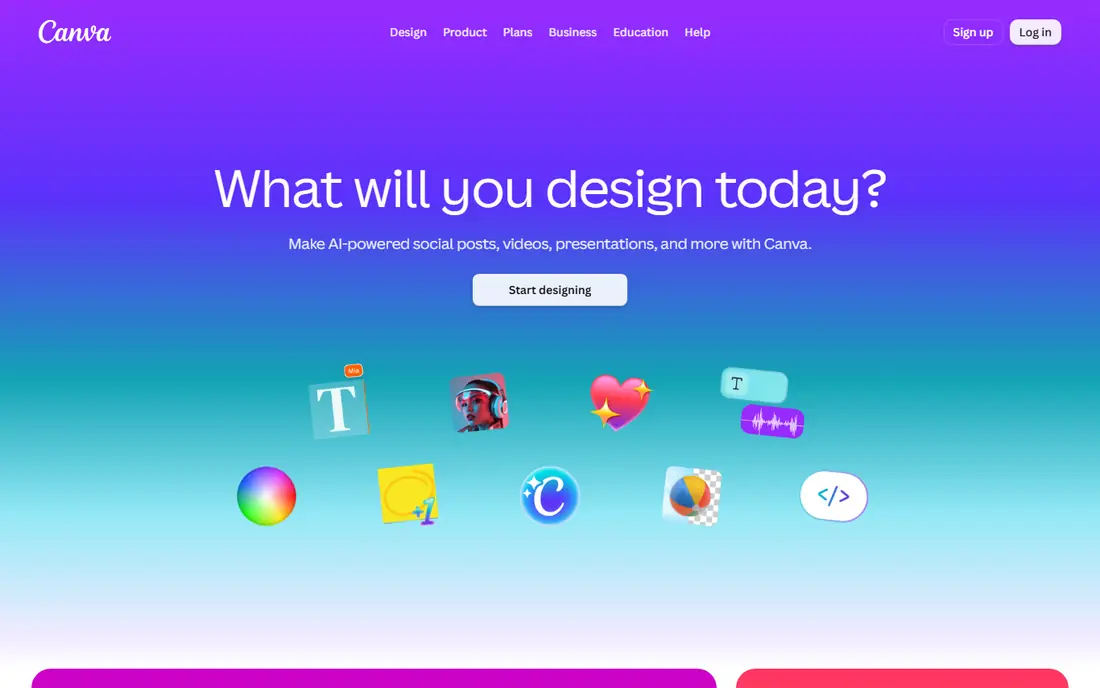
Canva suits small business owners and social managers who already make graphics in the same tool. You can start from a template, add text and music, resize for each platform, and keep a consistent look across posts. AI video generation sits inside that wider design workflow, rather than as a separate studio.
The free allowance is shared across AI tools, so heavy use can run out quickly. Text-to-video clips also tend to work best for simple, short scenes rather than detailed stories. Canva is a strong choice for branded social video, but not for long generative films.
- Easy templates and brand styles
- Video generation shares an AI allowance with other Magic Studio tools
- Simple resizing for each platform
- Free AI video allowance is limited
- Generative clips are short and best for simple scenes
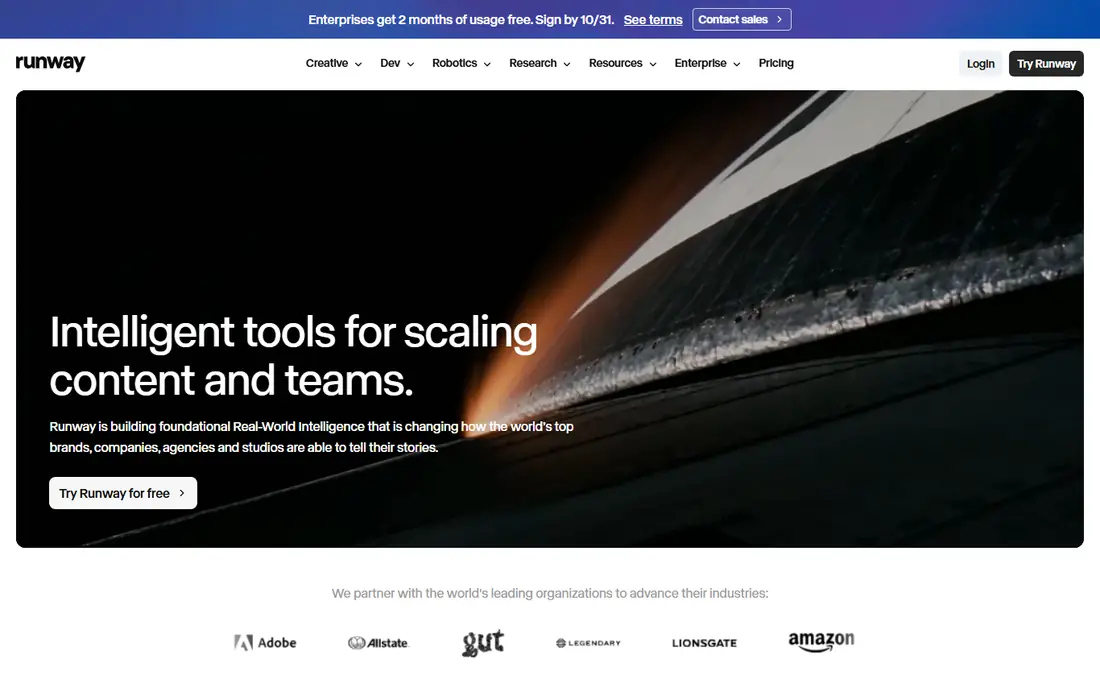
Runway is the pick for creators who care most about the look of a short generated clip. Its models are aimed at cinematic B-roll, stylized scenes, and experimental footage, and the platform also offers editing tools to shape the result. For a portfolio piece or a short visual idea, the quality stands out among free options.
The free plan is a trial in practice, because the starting credits are one-time rather than monthly. Once they are used, you need a paid plan to keep generating, and free output is watermarked. Treat Runway as a way to test quality, then budget for credits if you plan to use it regularly.
- High-quality generative models for short clips
- Editing tools for generated footage
- Clear paid tiers for more credits
- Free credits are one-time and do not refill monthly
- Free output carries a watermark
Pika is best for quick, playful clips where speed matters more than cinematic polish. You can turn a prompt or an image into a short moving scene, try effects, and iterate fast. That makes it useful for memes, social tests, and storyboard-style ideas.
The free position has tightened, with recent comparisons noting that new accounts do not get a monthly credit refill and that commercial use starts on a paid tier. Check the current free offer in the app before planning a project around it. For casual personal tests, Pika remains fun, but it is not a free workhorse.
- Fast text and image-to-video generation
- Fun effects and editing tools for short clips
- No watermark on some outputs in published comparisons
- No regular monthly free credits for new accounts in recent checks
- Commercial rights require a paid tier
Kling AI is a useful test tool for people who want to compare text-to-video and image-to-video results without paying first. It handles short clips from a written prompt or a still image, which helps when you want to animate a product shot or a scene concept. The interface is straightforward enough for a first test.
Free access is limited, and the exact credit and watermark rules have changed across offers, so confirm them in your account before you rely on the tool. Prompt quality also matters a great deal, and vague prompts tend to produce vague motion. Use Kling to learn what works, then move to a paid tier for consistent output.
- Text and image-to-video generation in one tool
- Free access for testing ideas
- Paid tiers add more credits
- Free limits and watermarks vary by offer
- Output quality depends heavily on the prompt
InVideo AI suits creators who want a draft fast rather than a single generated clip. You enter a topic or script, and the tool assembles scenes, stock footage, text, and voiceover into an editable video. That structure helps for ads, explainers, and social posts where a clear message matters more than a novel visual.
The free tier is a starting point, not a production plan, because exports carry a watermark and weekly limits apply. Voiceover and stock choices also need a human review, since auto-generated narration can misread names and emphasis. Use the free plan to test the workflow, and pay when you need clean exports.
- Turns a script or prompt into a structured video draft
- Stock footage and voiceover options
- Editing tools to revise the draft
- Free exports are watermarked
- Weekly limits restrict regular free use
Kapwing is a browser editor that works well for teams and solo creators who need captions, cuts, and repurposed clips. You can upload footage, generate subtitles, resize for each platform, and share a link for feedback. Because it runs in a browser, it is easy to use on a shared or borrowed computer.
Free exports carry a watermark and are limited in resolution, which makes the free tier better for drafts and internal review than for client delivery. AI video generation is also a smaller part of Kapwing than its editing tools. Pair it with a generator for footage, then use Kapwing to finish the edit.
- Browser editor with no install
- Auto-subtitles and repurposing tools
- Team-friendly sharing and comments
- Free exports are watermarked and limited to lower resolution
- AI generation is not its main strength
VEED is a good choice for creators who need readable subtitles and a clean online edit without learning a desktop editor. Its subtitle tools, translation options, and templates help turn a raw recording into a social-ready clip. You can also host and share the result from the same platform.
The free tier is limited, with watermarked exports and a lower resolution cap, so it suits testing and personal posts more than paid client work. AI generation is useful for short ideas, but VEED is stronger as an editor than as a clip generator. If subtitles are your main need, it is one of the easiest tools here.
- Clear subtitle and dubbing tools
- Browser editing with templates
- Hosting and sharing options for finished videos
- Free exports are watermarked and capped in resolution
- AI generation limits are tight on the free tier
How we picked these
We compared official feature pages, pricing pages, app store listings, privacy policies, and public reviews for each product. We kept only tools that offer a free tier or free trial in October 2026 and that can actually produce or edit video today. We gave extra weight to free export rules, credit refills, clip limits, and commercial rights, because those details decide whether a free tool is usable.
We also looked for a mix of editors and generators, so readers can build a workflow rather than rely on one tool for every job. A tool that only makes a five-second clip is useful, but it is not a complete video solution. Prices and free limits change often in this category, so check the vendor page before you commit to a project.
How to use free AI video tools without wasting credits
Write a tighter prompt and test in small batches
Start with one clear subject, one action, and one setting, then generate a single short clip before you spend more credits. Vague prompts waste credits on motion you will not use, while a specific prompt gives you a result you can judge fast. Save prompts that work, and reuse their structure for the next clip.
Check rights, watermarks, and resolution before you post
Read the free plan terms for commercial use, watermark rules, and export resolution. A clip that looks fine in preview may carry a watermark or a personal-use-only license. If you plan to use video for a business, an ad, or a client, choose a paid tier or a tool whose free terms clearly allow that use.
Build a simple two-tool workflow
Use a generator for short footage or a draft, then finish in an editor such as CapCut, Canva, Kapwing, or VEED for captions, cuts, and platform sizes. This split keeps your credit use low and your final video more consistent. Download and back up finished exports, since free accounts can change limits without much notice.
Frequently asked questions
What is the best free AI video generator app?
There is no single winner, because editors and generators do different jobs. CapCut is best for free editing, Canva is best for template social video, and Runway is best for short cinematic clips on a trial basis. Start with the job you need most, then test the free tier for that job before you pay.
What are the best AI video generation tools for story video?
For a story-style video, a script-to-video tool such as InVideo AI gives you a clearer structure than a single-clip generator. You still need to edit the draft, check narration, and replace weak scenes with stock or your own footage. Single-clip generators such as Runway, Pika, and Kling work better for individual scenes inside a larger edit.
What is the best free AI video generator app for social posts?
Canva and CapCut are the strongest free choices for social posts, because they handle templates, captions, resizing, and exports in one place. Generative tools can supply a short eye-catching clip, but they rarely produce a finished post with text, captions, and a call to action. Finish social posts in an editor, even when the footage starts in a generator.
Are free AI video generator tools really free?
They are free within limits, such as credits, clip length, resolution, and watermarks. Some free credits refill, some are one-time, and some free plans allow personal use only. Read the current plan terms in the app, and treat any tool with a one-time credit grant as a trial rather than a free service.
Which free AI video creation platform is best for beginners?
CapCut and Canva are the easiest for beginners, because templates and guided editing reduce the learning curve. Runway, Pika, and Kling are also easy to try, but prompt writing and credit management take practice. Beginners should start with one editor and one generator, rather than opening accounts on every tool at once.
Can I use free AI video for commercial work?
Sometimes, but not always. Check the license for the exact plan you use, since free plans often restrict commercial use or require attribution. If you need video for ads, client work, or a business channel, choose a paid plan with clear commercial rights and keep a copy of the terms for your records.
Sources we checked (10)

Online Jobs is an independent blog about careers, online work, learning new skills and the tools that help people earn. More about us.
Keep reading
All posts
Surfshark Alternatives
Looking for Surfshark alternatives? We compare 8 VPN services on price, privacy, streaming, and device limits to help you find a VPN that fits your needs.
Spotify Alternatives
Looking for Spotify alternatives? We compare 8 music services on price, sound quality, free tiers, and catalogs to help you find a good alternative to Spotify.
NordPass Alternatives
We compared NordPass alternatives for families, solo users and teams, checking pricing, free plans, passkeys and sharing, so you can switch safely today.