Home / Screen Recording Software
Best Screen Record Apps in 2026: 10 Products Compared


Free multi-source recording and streaming · Starting price: Free
How we put this together: we compare official feature and pricing pages, app store listings, privacy policies and public user reviews. Prices change, so check the provider's site before you pay.
Key takeaways
- OBS Studio is the best free recorder for complex capture and streaming, with no watermark and no subscription.
- Loom is the best pick for fast team messages, because the share link matters more than editing depth.
- Camtasia and ScreenFlow suit polished tutorials, with full editing timelines built into the recorder.
- Snagit and Screencastify suit quick captures, short how-to clips and browser-based teaching.
- ScreenPal, Bandicam, ShareX and Movavi cover budget, game, lightweight and simple recording needs respectively.
Quick comparison
| Name | Who it suits | Starting price | Free option | |
|---|---|---|---|---|
| OBS Studio | Free multi-source recording and streaming | Free | Yes | Visit |
 Loom | Fast screen and webcam messages | Free | Yes | Visit |
 Camtasia | Polished tutorials with editing | See website | Free trial | Visit |
 ScreenFlow | Mac tutorials with editing | See website | Free trial | Visit |
 Snagit | Quick captures and short clips | See website | Free trial | Visit |
 Screencastify | Browser and Chromebook tutorials | See website | Yes | Visit |
 ScreenPal | Budget recording and editing | See website | Yes | Visit |
 Bandicam | Game and high-frame-rate capture | See website | Free trial | Visit |
 ShareX | Lightweight Windows capture | Free | Yes | Visit |
 Movavi Screen Recorder | Simple one-off recordings | See website | Free trial | Visit |
The best screen record apps
A screen recorder should match the job: a quick message, a polished course, a game clip, or a bug report. The apps below cover those jobs, from free open-source capture to full tutorial editors. Pick by whether you need editing, sharing, game performance, or a browser tool, and test the free route first.
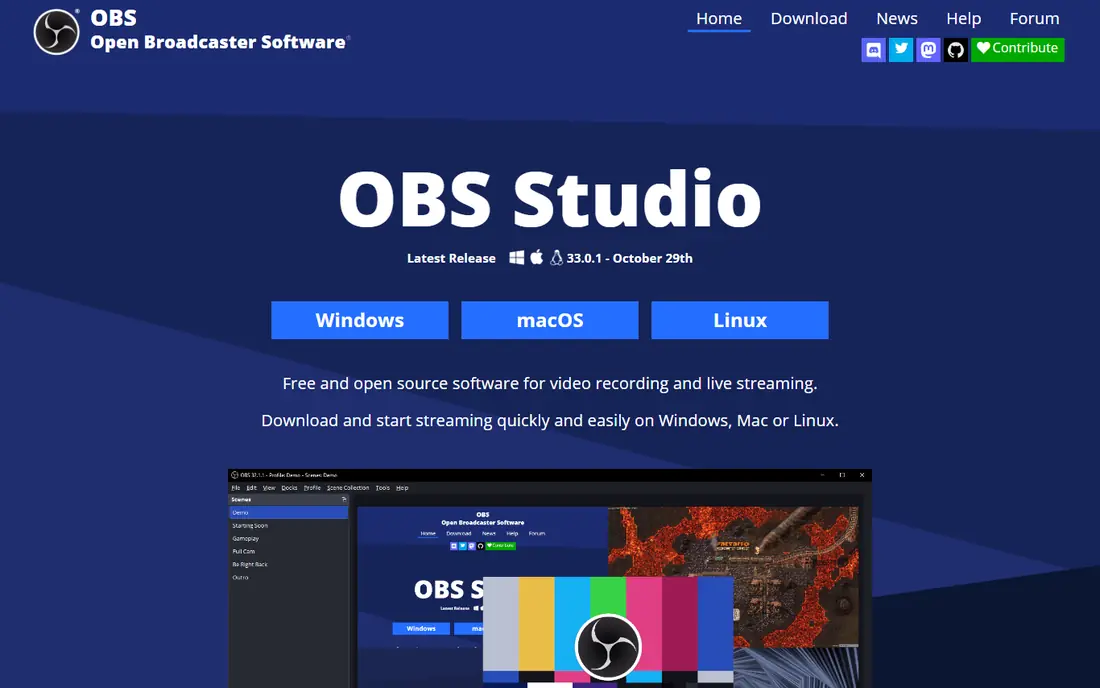
OBS Studio is our pick for anyone who wants powerful recording for free. You can capture screen, webcam, mic and system audio as separate sources, arrange them in scenes, and stream live or record locally with no watermark and no subscription. That flexibility suits streamers, presenters and advanced tutorial makers. The learning curve is real. Setting up scenes, audio tracks and output settings takes time, and there is no built-in editor, so you will edit in a second app. If you want a simple record-and-share button, Loom is easier. If you want free, unlimited, high-quality capture, OBS Studio is unmatched.
- Fully free and open source
- Scenes and multiple sources
- No watermark
- Streaming built in
- Learning curve for new users
- No built-in video editor
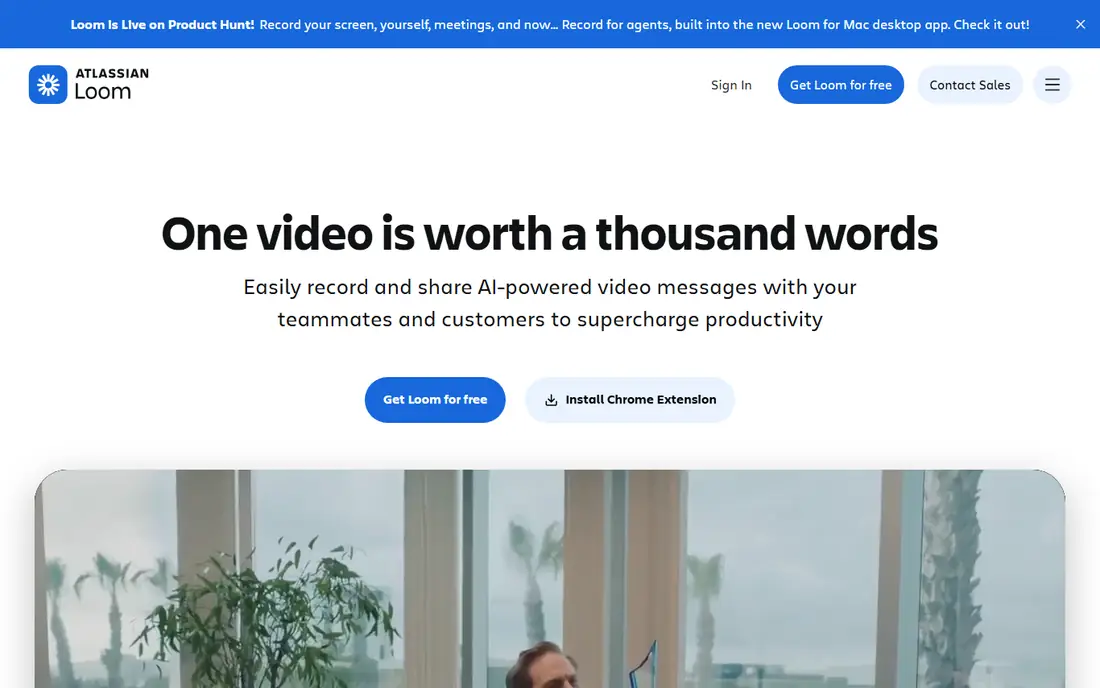
Loom is built for async team messages, not film production. Record your screen and webcam, stop, and share a link that colleagues can watch, comment on and react to, without uploading a file. That loop saves the back-and-forth of meetings for updates, walkthroughs and feedback. The free plan limits video length and total videos, so check current limits on the vendor site. Editing is basic, with trimming and simple tools rather than a full timeline. If your goal is a quick, clear message, Loom is the fastest tool here. If you need a polished course, Camtasia will serve you better.
- Record and share by link in minutes
- Webcam bubble
- Viewer analytics and AI summaries on paid plans
- Free plan limits video length and count
- Editing is basic
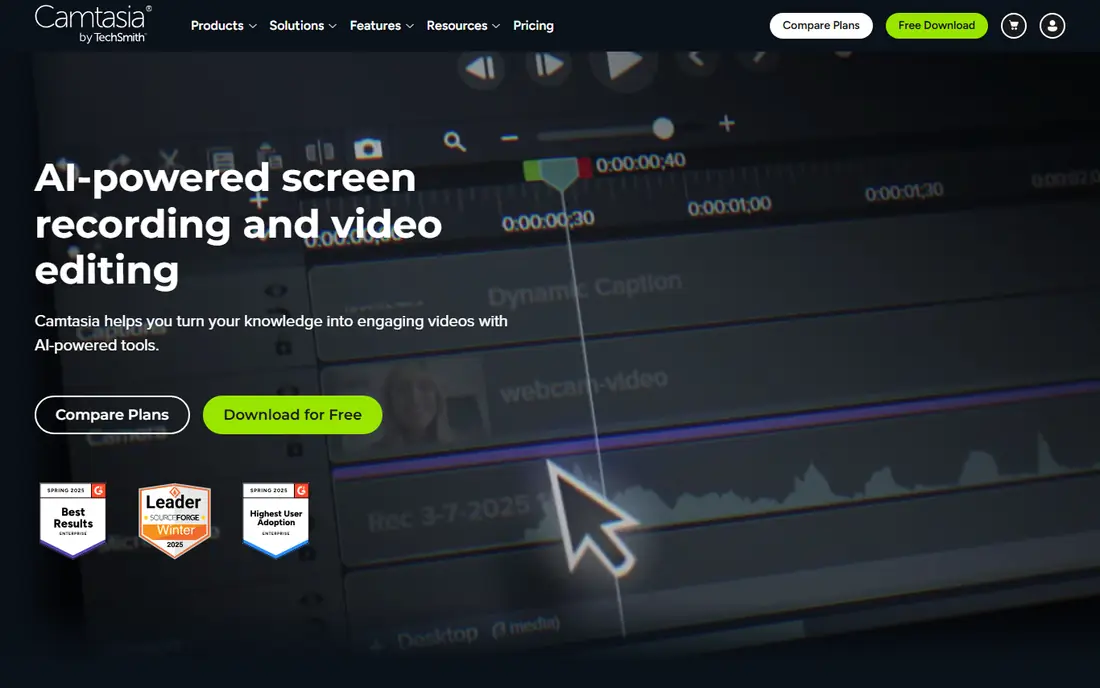
Camtasia combines a capable recorder with a full editing timeline, so you can record a tutorial, cut mistakes, add zooms, callouts and captions, and export directly, without moving files between apps. Separate tracks for screen, webcam and narration make fixing a slip later much simpler. The free version exports with a watermark, so treat it as a trial, not a permanent free tool. It also needs decent hardware for smooth editing. Check the current annual price on the vendor site. For teams that produce training videos weekly, Camtasia is the most complete tutorial tool in this list.
- Recorder plus multi-track editor
- Cursor effects and callouts
- Quizzes and captions for training
- Paid plans needed to remove watermark
- Heavier system needs than light recorders
ScreenFlow is the Mac equivalent of Camtasia, with deep system integration and fast performance on Apple hardware. It records screen, webcam and audio, then lets you edit on a multi-track timeline with templates, titles and motion effects. For Mac creators who edit their own lessons, that native feel matters. It is Mac only, so Windows teams need Camtasia or another cross-platform tool. Full exports need a paid licence, so check the current price on the vendor site. If you work on a Mac and want polished tutorials without leaving one app, ScreenFlow is a strong, well-regarded pick.
- Native Mac performance
- Recorder plus editor
- Templates and motion graphics
- Mac only
- Paid licence needed for full exports
Snagit is the tool support teams and technical writers reach for first. It captures screenshots and short videos, annotates them with arrows, text and steps, and shares them quickly. That screenshot-plus-video mix is ideal for bug reports, how-to steps and short feedback clips. It is not a full tutorial editor, so long courses with multi-track editing belong in Camtasia. The trial period is limited, so check terms on the vendor site. If most of your captures are quick and annotated, Snagit is faster and cheaper than a full video editor.
- Best-in-class screenshot annotation
- Short video clips
- Fast sharing for support teams
- Not a full video editor
- Paid licence needed after trial
Screencastify runs as a Chrome extension, which makes it ideal for teachers, students and Chromebook teams. You record a tab, desktop or webcam from the browser, trim the result, and share by link or to Drive. There is nothing heavy to install, and classroom use is straightforward. Browser capture has limits for high-frame-rate games or complex multi-source recording, where OBS or Bandicam do better. The free plan covers short recordings, while paid plans add longer videos and more features. Check current limits on the vendor site. For browser teaching, Screencastify is the simplest route.
- Runs in Chrome
- No install on Chromebooks
- Simple trimming and sharing
- Browser-based limits for heavy capture
- Paid plans for longer videos and full features
ScreenPal, formerly Screencast-O-Matic, is the budget all-rounder. It records screen and webcam, edits with a simple timeline, hosts videos, and adds AI captions, all at a lower price than Camtasia. That mix suits educators and small teams who need a complete workflow without a large budget. The free plan limits recording length, so check current limits on the vendor site. Editing is simpler than Camtasia, which is a strength for quick videos and a limit for complex courses. For a low-cost, complete recorder, ScreenPal gives strong value.
- Recording, editing, hosting and captions in one low-cost package
- Works on many platforms
- Free plan limits recording length
- Interface is plainer than Camtasia
Bandicam is built for game and high-performance capture, where frame rate and system load matter. It records games, apps and external devices at high frame rates with low overhead, which keeps gameplay smooth while recording. That focus makes it a favourite for game creators and demo makers. It is Windows focused, and the free trial caps length and watermarks output, so check terms on the vendor site. For meetings or tutorials, Loom or Camtasia are simpler. For game capture on Windows, Bandicam is a practical, performance-first pick.
- High-frame-rate game capture
- Low performance impact
- Long recording support
- Windows focused
- Free trial caps recording length and adds watermark
ShareX is a free, open-source capture tool for Windows power users. It handles screenshots, screen video, GIFs, scrolling capture and OCR, with custom workflows and upload destinations that automate sharing. For quick captures and bug reports on Windows, it is fast and free forever. The interface is dense, and there is no built-in video editor, so polished tutorials need a second app. Mac and Linux users cannot use it. If you want a free, lightweight Windows capture tool with deep customisation, ShareX is hard to beat.
- Free and open source
- Screenshots, GIFs and video
- Custom workflows and uploaders
- Windows only
- Interface is dense for new users
- No built-in editor
Movavi Screen Recorder suits users who want a simple, one-off recording without learning OBS. The interface is clear, you can schedule a recording, capture screen and webcam, and do basic edits before sharing. That simplicity helps occasional creators who record a demo or a lesson a few times a month. Trial exports carry a watermark, so check terms on the vendor site before using trial output. It does not match Camtasia for editing depth or OBS for free capture. For simple, occasional recordings on Windows or Mac, Movavi is an easy, low-friction choice.
- Simple interface
- Scheduled recording
- Basic editing and sharing
- Trial exports are watermarked
- Paid plan needed for full use
How we picked these
We started with screen recorders that appear in current 2026 comparisons and vendor listings, then kept only tools that are live, work on current systems, and record screen video with audio. We checked each vendor site or store listing for free or trial terms, platform support, and main features such as editing, sharing and game capture. We favoured tools with a free or trial route and clear pricing, and we dropped tools that were only screenshot apps or no longer updated. Where a price was not stated clearly, we wrote See website. We did not claim hands-on testing.
How to choose a screen recorder
Decide whether editing or sharing matters more
If the share link matters most, pick Loom or Screencastify and keep videos short. If the final edited video matters most, pick Camtasia or ScreenFlow and budget editing time. A tool that does both poorly will slow you down, so choose the workflow you use weekly, not the feature list that looks longest.
Check audio, webcam and system sound before you record
Test mic, webcam and system audio in a 30-second trial before a real recording. Many failed tutorials come from muted system sound or a mic set to the wrong input, not from the recorder itself. Record a short test, play it back with headphones, and fix levels before you record a full lesson.
Test game capture on your own hardware
Game recorders behave differently on different graphics cards and settings. Run a five-minute test at your usual resolution and frame rate, and check for dropped frames and audio sync. A recorder that works well on one machine may stutter on another, so a hardware test beats any review claim.
Frequently asked questions
What is the best free screen recorder?
OBS Studio is the best free recorder for full capture and streaming, with no watermark. ShareX is the best free lightweight Windows tool, and Loom and Screencastify offer useful free plans for quick messages and browser teaching. Pick by whether you need streaming, lightweight capture, or fast sharing.
What is the best screen recorder for tutorials?
Camtasia is the best tutorial pick on Windows and Mac, with a full editor built in. ScreenFlow is the best Mac-only tutorial pick. ScreenPal is the best budget tutorial pick. Choose Camtasia or ScreenFlow if you edit weekly, and ScreenPal if you edit occasionally.
Can I record my screen and webcam at the same time?
Yes, with OBS Studio, Loom, Camtasia, ScreenFlow, ScreenPal and Movavi, among others. Most tools let you place a webcam bubble over the screen recording. Test the layout in a short trial, since bubble size and position affect how readable your slides remain.
Do free screen recorders add a watermark?
Some do, and some do not. OBS Studio and ShareX have no watermark. Camtasia, Bandicam and Movavi trials watermark exports, and Loom and Screencastify free plans limit length instead. Check trial terms on the vendor site before using a recording for client work.
What is the best screen recorder for games?
Bandicam and OBS Studio handle game capture best in this list, with high frame rates and low overhead. OBS is free and more flexible, while Bandicam is simpler for Windows game capture. Test both on your hardware at your usual settings before choosing.
Is Loom good for team updates?
Yes, for short async updates, walkthroughs and feedback. Loom records and shares by link in minutes, which suits teams that want to cut meetings. For long, edited training courses, use Camtasia or ScreenFlow instead, since Loom editing is basic.
Sources we checked (10)

Online Jobs is an independent blog about careers, online work, learning new skills and the tools that help people earn. More about us.
Keep reading
All posts
eBay Alternatives
Looking for ebay alternatives? We compared 9 marketplaces for sellers on fees, buyer reach, categories and ease of listing, to help you sell with confidence.
ZoomInfo Alternatives
The best ZoomInfo alternatives in 2026, compared on price, free plans, data coverage, and which tool fits small teams or large sales teams best in detail.
Zoom Alternatives
Zoom alternatives compared for 2026: Google Meet, Microsoft Teams, Webex, Jitsi and more for free calls, large meetings and webinars for teams and classrooms.