Best Encryption Software in 2026: 8 Tools Compared

How we put this together: we compare official feature and pricing pages, app store listings, privacy policies and public user reviews. Prices change, so check the provider's site before you pay.
Key takeaways
- VeraCrypt is our pick for free, cross-platform drive and container encryption with no subscription.
- BitLocker and FileVault are the best starting points, since both are built into Windows and macOS and cost nothing extra on supported editions.
- Cryptomator leads for encrypting files before they reach cloud storage, while AxCrypt and NordLocker lead for simple file sharing.
- Folder encryption and full-disk encryption solve different problems, so pick by whether you protect single files or a whole device.
- No encryption tool helps if you lose the password or recovery key, so store backups of keys separately from the encrypted data.
Quick comparison
| Name | Who it suits | Starting price | Free option | |
|---|---|---|---|---|
 VeraCrypt | Free drive and container encryption | Free | Yes | Visit |
 BitLocker | Windows full-disk encryption | Free | Yes | Visit |
 FileVault | Mac full-disk encryption | Free | Yes | Visit |
 Cryptomator | Cloud file encryption | Free | Yes | Visit |
 AxCrypt | Simple file and folder encryption | See website | Yes | Visit |
 NordLocker | Encrypted files plus cloud storage | See website | Yes | Visit |
 7-Zip | Free file encryption in archives | Free | Yes | Visit |
 Folder Lock | Password-protected folders on Windows | See website | Free trial | Visit |
The best encryption software
Encryption software scrambles files or drives so they cannot be read without the right password or key. The tools below cover different jobs: full-disk protection for a lost laptop, folder protection for shared computers, and cloud vaults for files stored online. Pick the layer that matches your risk first, then add a second layer if needed.
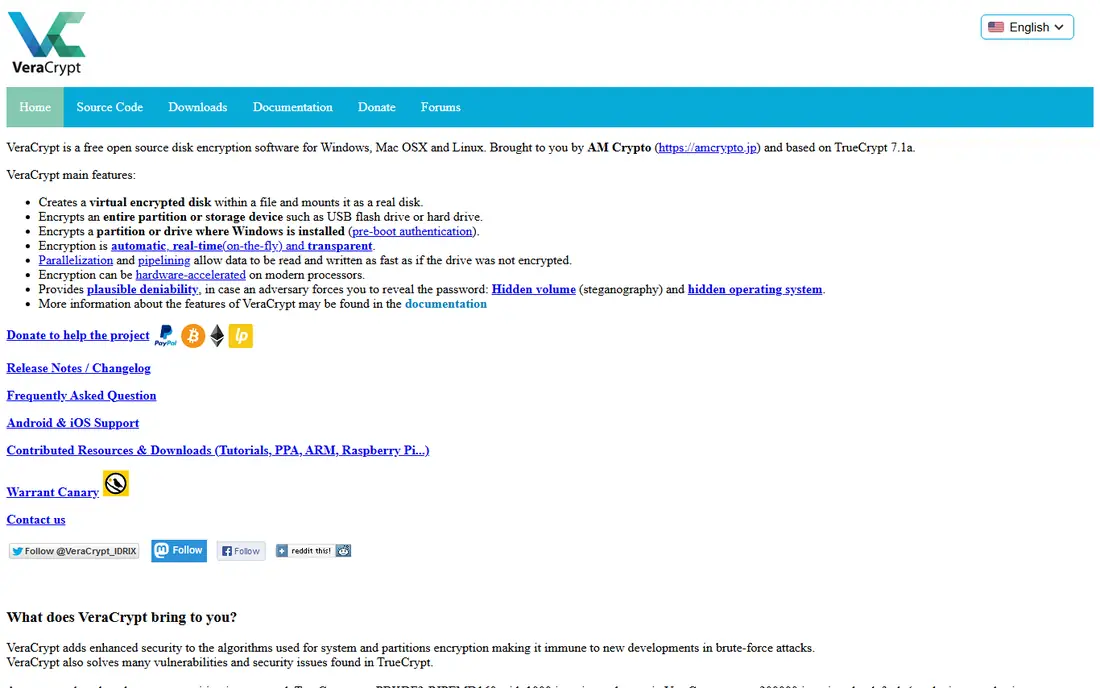
VeraCrypt is the strongest free encryption tool for people who want serious protection without a subscription. You can create an encrypted container that mounts like a drive, encrypt a partition, or encrypt a full Windows system drive, using AES and other ciphers. It runs on Windows, macOS and Linux, so one tool covers a mixed-device household or small team.
The trade-offs are usability and cloud sync. The interface is functional rather than friendly, and a large container must often re-upload in full when it changes, which makes cloud backup slower. VeraCrypt suits users who are comfortable with setup steps and who value open-source transparency over polish. For a lost laptop, it remains one of the best free answers available.
- Free and open source
- Cross-platform
- Supports encrypted containers and full-disk encryption on Windows
- Interface feels dated
- Whole containers can be slow to sync to cloud storage
- Setup takes care
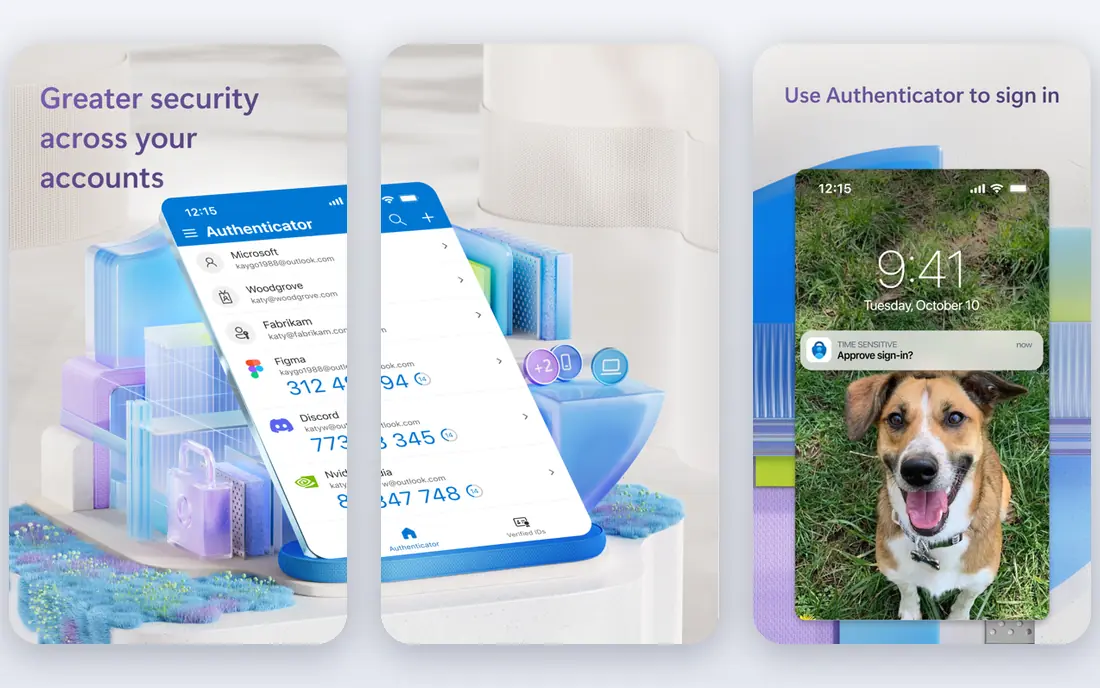
BitLocker is the first tool Windows users should turn on, because it is already there on Pro and Enterprise editions. It encrypts the whole drive, works with the TPM chip for secure startup, and can be managed centrally by IT teams with recovery keys stored in Active Directory or a Microsoft account. For a business fleet of Windows laptops, that manageability is the main advantage over a standalone tool.
The limits are edition and platform. Windows Home does not include full BitLocker, although device encryption may be available on some Home devices, and BitLocker does not help on a Mac. Save the recovery key somewhere separate from the laptop before you rely on it, since a lost key can lock you out of your own data. If you run Windows Pro, start here before buying anything else.
- Built into Windows Pro and Enterprise
- TPM-backed protection
- Centrally manageable for businesses
- Not included in Windows Home
- Recovery key management needs care
- Windows only
FileVault is the Mac equivalent of BitLocker, and it is just as simple: turn it on in System Settings and macOS encrypts the whole startup disk. It uses XTS-AES encryption and ties opening to your login, so a stolen Mac does not give up its files to a casual thief. There is no extra cost and no third-party app to maintain, which makes it the obvious first step for any Mac owner.
FileVault only protects the whole disk on that Mac. It does not encrypt individual files for sharing, and it does not protect files once they are copied to cloud storage in plain form. Store the recovery key safely, either with Apple or printed and kept apart from the Mac. Pair FileVault with Cryptomator if you also need protected cloud files.
- Built into macOS
- Simple to turn on
- Recovery key can be stored with Apple or locally
- Mac only
- Recovery key loss can lock out data
- No file-level sharing features
Cryptomator solves a specific problem well: your cloud provider should not be able to read your files. It creates an encrypted vault inside your usual cloud folder, and files are encrypted on your device before they upload. Dropbox, Google Drive and OneDrive then store only scrambled data, while you open the vault on any desktop to work with files normally.
The desktop app is free and open source, while mobile apps are paid, which is a fair split for a small project. Sharing is the weak point, since there is no built-in way to share a vault securely with another person beyond sharing the password separately. For personal cloud privacy, Cryptomator is our pick, and it pairs well with FileVault or BitLocker for device protection.
- Free desktop app and open source
- Encrypts files before cloud upload
- Works with Dropbox, Google Drive and OneDrive
- Mobile apps are paid
- No native secure sharing to other users
- Vault structure takes a minute to grasp
AxCrypt is the friendly middle ground between a full-disk tool and a manual archive. You can encrypt single files or folders with a click, share encrypted files with others using their AxCrypt identity, and keep cloud folders encrypted automatically. It uses AES-256 encryption on premium plans, and it runs on Windows, Mac, iOS and Android, which covers most personal devices.
The free tier covers basic use, while sharing, password management and business features sit on paid plans. There is no Linux desktop app, so Linux users should look at VeraCrypt or Cryptomator instead. AxCrypt suits people who want to protect documents and share them securely without learning a complex tool.
- Easy file encryption and sharing
- Integrates with cloud folders
- Available on Windows, Mac and mobile
- Premium features need a paid plan
- No Linux desktop app
- Key management needs care for shared files
NordLocker combines local file encryption with its own encrypted cloud storage, so you can lock files on your device and sync them securely without a separate cloud provider. The locker interface is simple: drag files in, and they are encrypted with AES-256 and modern key exchange methods. A free plan includes a small amount of cloud storage, which is enough to try the workflow.
Paid plans are needed for larger storage and more features, so check the current plan prices before committing to NordLocker as your main cloud store. It is less flexible than Cryptomator for use with your existing cloud provider, but it is simpler to set up. NordLocker suits users who want one app for both local encryption and secure cloud sync.
- Local encryption plus encrypted cloud storage
- Simple locker interface
- Cross-platform apps
- Paid plans needed for larger storage
- Cloud storage adds cost versus local-only tools
- Feature set is narrower than full suites
7-Zip is not a dedicated encryption suite, but it is a genuinely useful free tool for encrypting files to send or store. Create an archive, set AES-256 encryption and a strong password, and the files inside are protected until the password is entered. It costs nothing, runs on Windows, and is widely available, which makes it a practical choice for one-off secure sharing.
The limits matter. 7-Zip encrypts archives, not live folders, so editing a file means extracting, editing and re-encrypting. Passwords must be shared through a separate channel, and there is no key management for teams. Use 7-Zip for occasional protected archives, and use AxCrypt or Cryptomator when you need everyday folder protection.
- Free and open source
- AES-256 archive encryption
- Available on Windows with ports elsewhere
- Archive-based, not real-time folder encryption
- Password must be shared separately
- No cloud vault features
Folder Lock is a Windows tool for people who want to password-protect folders on a shared computer without encrypting a whole drive. You can lock files, folders and drives, hide them from casual browsing, and use extra tools for shredding deleted files and backing up locked data. For a family computer or a shared office PC, that quick lock is often enough.
Folder Lock is Windows only and paid, so Mac and Linux users should look elsewhere. Its broader feature set also includes tools that other apps handle better, so judge it on the core locking job rather than the extras. Folder Lock suits Windows users who want simple folder-level protection without full-disk setup.
- Locks folders, files and drives with a password
- Extra features such as shredding and backup
- Windows-focused
- Windows only
- Paid software
- Interface and feature set feel dated in places
How we picked these
We compared official feature and pricing pages, plus public reviews, and kept only tools that are live and actively maintained in October 2026. We covered full-disk, file, folder and cloud encryption, since no single tool fits every job. Where a price could not be verified on the vendor's own page, we wrote "See website" rather than guessing. We did not claim hands-on testing; our comparison rests on published features, pricing and platform support.
How to choose the right layer of encryption
Start with the device. Turn on BitLocker or FileVault so a lost laptop does not expose everything, since that is the most common real-world loss. Next, protect files that leave the device: use Cryptomator for cloud storage and AxCrypt or 7-Zip for files you share. That two-layer approach covers theft and cloud exposure without forcing you to manage one complex system for everything.
Protect your keys like your data
Write down recovery keys and store them apart from the encrypted device, for example in a password manager and on paper kept elsewhere. Test decryption on a copy before you delete originals, and never rely on a single password you cannot recover. Encryption that locks out its owner is a failure, not a success.
Frequently asked questions
What is the best encryption software?
VeraCrypt is the best free all-round choice for drive and container encryption, while BitLocker and FileVault are the best starting points on Windows and Mac. Cryptomator leads for cloud files, and AxCrypt leads for simple file sharing.
What is the best video encryption software?
Video files are best protected with the same tools as other files: encrypt the folder or drive with VeraCrypt, BitLocker or FileVault, or place videos in a Cryptomator vault before cloud upload. Dedicated video DRM tools exist for commercial streaming, but for personal and small business files, standard file encryption is the practical answer.
What is the best folder encryption software?
AxCrypt and Folder Lock are strong folder encryption choices on Windows, while Cryptomator is the best cross-platform vault option for folders synced to cloud storage. VeraCrypt containers also work well for a folder that needs strong protection on any platform.
Is free encryption software safe?
Yes, when it comes from a maintained project with a clear track record. VeraCrypt, Cryptomator, BitLocker, FileVault and 7-Zip are all widely used and actively maintained. Avoid abandoned tools, and always download from the official site rather than a third-party mirror.
Can encryption slow down my computer?
Modern full-disk encryption has a small performance effect on most current computers, since processors include hardware support for AES. Container and cloud encryption can feel slower with very large files, so test with your largest files before you commit to a workflow.
Sources we checked (8)

Online Jobs is an independent blog about careers, online work, learning new skills and the tools that help people earn. More about us.
Keep reading
All posts
Surfshark Alternatives
Looking for Surfshark alternatives? We compare 8 VPN services on price, privacy, streaming, and device limits to help you find a VPN that fits your needs.
NordPass Alternatives
We compared NordPass alternatives for families, solo users and teams, checking pricing, free plans, passkeys and sharing, so you can switch safely today.
LLM Tool Integration Security Best Practices
Learn LLM tool integration security best practices for 2026, with eight tools for guardrails, tool scoping, sandboxing, agent governance and audit logging.