Best Digital Art Software in 2026: 9 Apps Compared


All-round digital art · Starting price: $22.99 per month
How we put this together: we compare official feature and pricing pages, app store listings, privacy policies and public user reviews. Prices change, so check the provider's site before you pay.
Key takeaways
- Adobe Photoshop is our pick for artists who want one deep tool for painting, illustration, photo editing and compositing, with files that open almost anywhere.
- Procreate is the best value for iPad artists, with a one-time purchase, fast performance and a huge brush library, but it is iPad-only.
- Krita is the best free painting tool, with professional brushes, animation and CMYK support at no cost.
- Clip Studio Paint is the best choice for comics and manga, thanks to panel tools, screen tones and inking features built for that workflow.
- Affinity, now free, gives vector and photo tools at no cost, which makes it a strong companion to a dedicated painting app.
Quick comparison
| Name | Who it suits | Starting price | Free option | |
|---|---|---|---|---|
| Adobe Photoshop | All-round digital art | $22.99 per month | Free trial | Visit |
 Procreate Procreate | iPad painting | See website | No | Visit |
 Clip Studio Paint Clip Studio Paint | Comics and manga | See website | Free trial | Visit |
 Krita Krita | Free digital painting | Free | Yes | Visit |
 Affinity Affinity | Free vector and photo work | Free | Yes | Visit |
 Corel Painter Corel Painter | Traditional media simulation | See website | Free trial | Visit |
 Rebelle Rebelle | Watercolour and wet media | See website | Free trial | Visit |
 MediBang Paint MediBang Paint | Free comics and collaboration | Free | Yes | Visit |
 Autodesk Sketchbook Autodesk Sketchbook | Simple sketching | Free | Yes | Visit |
The best digital art software
We compared these tools on brushes, painting feel, layers, file compatibility, animation, platform support and pricing, with a focus on finished artwork rather than feature counts alone.
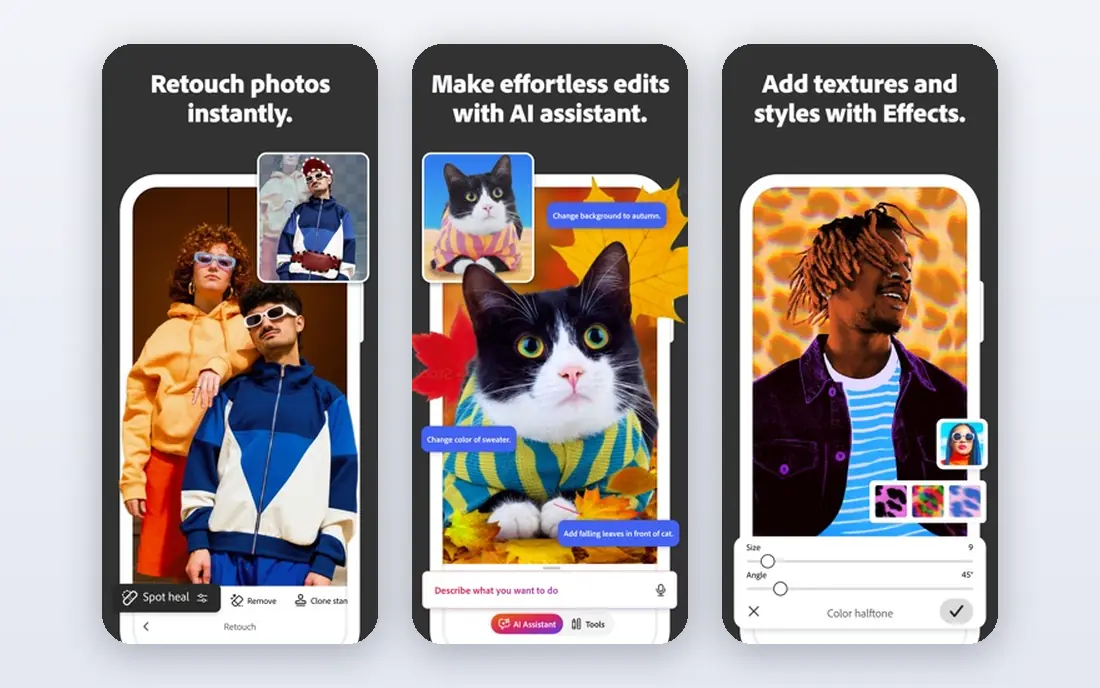
Photoshop does the most on this list. Painting, illustration, photo editing, compositing and design sit in one programme, with thousands of brushes, layer styles, masks and adjustment tools, and files that open in almost any studio workflow. Most tutorials, courses and client pipelines assume Photoshop, which means help is easy to find and finished files rarely cause compatibility problems. For artists who work across painting and photo-based work, that breadth is hard to replace.
The catch is the model and the learning curve. Photoshop is subscription-only, so the cost never stops, and beginners can feel lost among tools they will not use for months. Painters who want a simpler, painting-first interface may prefer Procreate or Krita for daily sketching, even if they keep Photoshop for finishing work. For one deep, professional tool, Photoshop remains our pick.
- Deepest toolset for painting, editing and compositing
- Industry-standard files
- Huge brush and plugin library
- Subscription-only pricing
- Sheer number of tools can overwhelm beginners
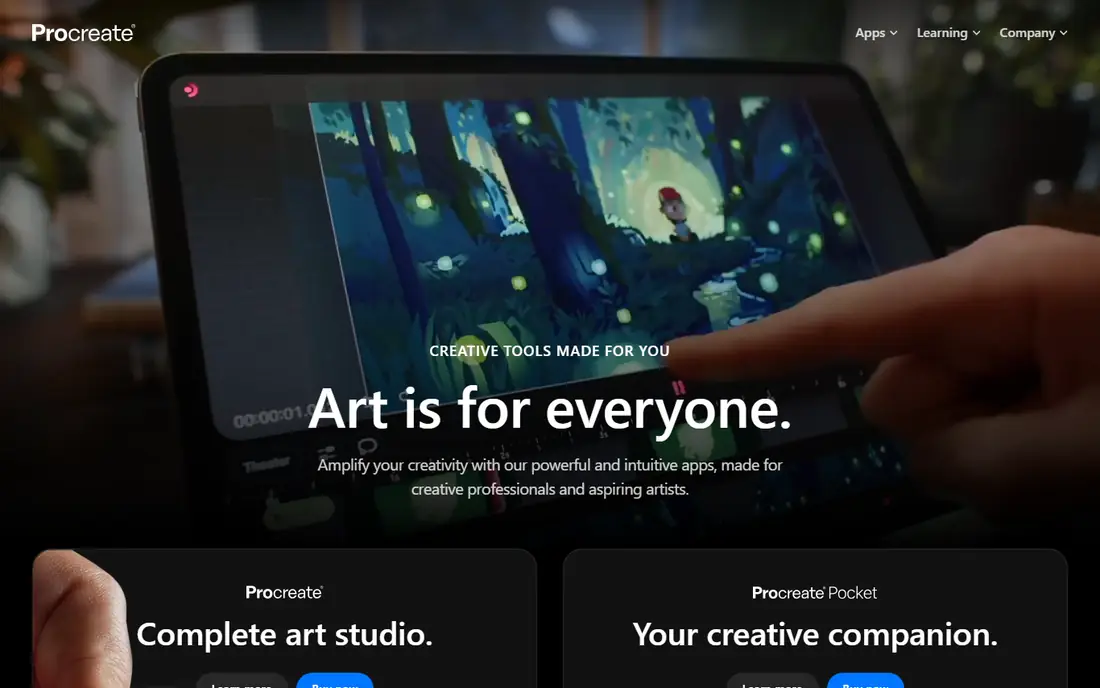
Procreate is the reason many artists buy an iPad and an Apple Pencil. It is fast, responsive and focused, with hundreds of brushes, a high layer count on recent iPads, and an automatic time-lapse recording of every artwork that is useful for sharing process videos. The one-time purchase, listed at $12.99 on the App Store in recent comparisons, makes it one of the cheapest professional tools here over time, since there is no monthly fee to keep using it.
The limit is platform. There is no desktop version, so Windows and Mac artists cannot use it, and animators who need a full timeline will outgrow its basic animation tools. For iPad artists, though, Procreate offers professional results at a price that is hard to argue with, and it pairs well with desktop tools for finishing and print work.
- Fast iPad performance
- Large brush library
- One-time purchase with no subscription
- Automatic time-lapse of every piece
- IPad-only, with no Windows, Mac or Android version
- Animation tools are basic compared with dedicated apps
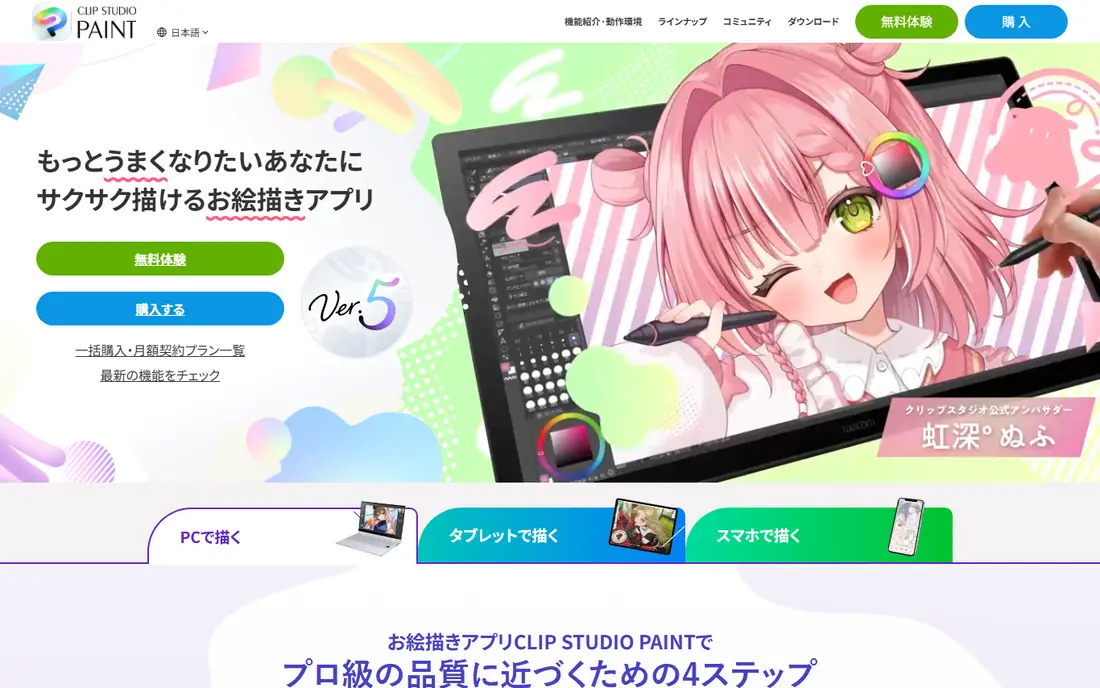
Clip Studio Paint is built for comics, manga and illustration, with panel creation, perspective rulers, inking brushes, screen tones and page management that general painting apps do not match. The animation timeline also suits short animated work, and the app runs on Windows, Mac, iPad, Android and Chromebook, so artists can move between devices. Many professional comic artists use it as their main tool, not just as a sketching app.
Buying needs a careful read, since Clip Studio Paint offers both one-time desktop licences and subscription plans depending on device and version, and prices have changed in recent years. Check the vendor pricing page for your device before buying. For comic and manga work, that extra care is worth it, since no other tool here matches its page workflow.
- Panel, inking and screen tone tools for comics
- Animation timeline
- Works across desktop, tablet and mobile
- Desktop licence and subscription options can confuse buyers
- Learning curve for comic-specific tools
Krita is a free, open source painting programme that rivals paid tools for digital painting, illustration and 2D animation. Brushes feel natural, layers and masks cover professional workflows, and CMYK support helps artists preparing work for print. The community around Krita also produces brushes, tutorials and updates, which keeps the tool growing without a subscription.
The trade-offs are modest for a free tool. Vector drawing is weaker than in dedicated vector apps, and very large canvases can strain older computers. Interface density can also intimidate first-time users, though the default layout covers most painting needs well. For artists on any budget, Krita is the first free tool to try, and many professionals keep it alongside paid apps.
- Completely free
- Strong brushes and painting engine
- Animation and CMYK support
- Runs on Windows, Mac and Linux
- Weaker vector tools than Affinity or Illustrator
- Can feel slow on older computers with large canvases
Affinity, from Canva, now offers its design suite free, covering vector design, photo editing and page layout in a set of apps that work together. That makes it a strong companion for digital artists who need logos, lettering, print layouts or photo finishing alongside painting, without paying for an Adobe subscription. Files and workflows suit professional use, and the iPad apps extend the same tools to tablet work.
Affinity is not a painting-first app. Brushes and painting feel are capable but less specialised than Krita, Procreate or Corel Painter, so painters should treat Affinity as a complement, not a replacement for a dedicated painting tool. As a free professional design suite, though, it removes a major cost barrier for illustrators and designers.
- Free since late 2025 in vendor comparisons
- Professional vector, photo and layout tools
- Runs on Windows, Mac and iPad
- Painting brush feel is less specialised than Krita or Procreate
- Workflow differs from Adobe apps
Corel Painter aims to feel like real paint, with brushes that mimic oils, watercolours, pastels and other traditional media, including texture, blending and drying behaviour. Artists who come from traditional painting often find Painter the most natural digital transition, since strokes behave more like physical media than the flatter brushes in general-purpose apps. The one-time purchase model also appeals to artists who dislike subscriptions.
The price is the main barrier, with a one-time cost far above Procreate or Krita, and the app benefits from a capable computer for large, textured canvases. The interface also takes time to learn. For painters whose work depends on a traditional media look, Painter remains a distinctive and worthwhile choice.
- Very convincing traditional media brushes
- Oil, watercolour and pastel simulation
- One-time purchase model
- Higher one-time price than most rivals
- Interface and performance need a capable computer
Rebelle, from Escape Motions, simulates watercolour and other wet media with unusual realism, including paint flow, wet edges, drying and paper texture. Watercolour artists in particular get results that look like real paint on real paper, with granulation and blending that general painting apps rarely match. A one-time purchase keeps long-term cost predictable, and the app runs on Windows and Mac.
Rebelle is a specialist. Photo editing, vector work and complex compositing sit outside its strengths, so most artists will use it for painting stages and finish work elsewhere. For watercolour, ink and wet media work, that specialism is the point, and Rebelle earns its place as the most realistic wet media tool on this list.
- Realistic watercolour, wet paint and drying simulation
- Pigment and paper behaviour
- One-time purchase
- Narrower general toolset than Photoshop or Krita
- Best as a specialist alongside another app
MediBang Paint is a free comic and illustration app that runs on Windows, Mac, iPad and Android, with panel tools, screen tones, cloud saving and collaboration features that suit teams and classroom use. Beginners find it approachable, and comic artists on a budget get a workable page workflow without paying for Clip Studio Paint. Cloud features also make it easy to start on one device and continue on another.
Advanced painting depth is the limit. Brushes, layer handling and animation are more basic than Krita or Clip Studio Paint, so professional painters may outgrow MediBang for finished illustration work. As a free, cross-platform comic tool, and as a starting point for young artists, it is an excellent choice.
- Free across desktop and mobile
- Comic panel and tone tools
- Cloud collaboration and shared work
- Fewer advanced painting features than Krita or Clip Studio Paint
- Some features need an account
Autodesk Sketchbook focuses on sketching, with a clean interface that stays out of the way and a brush set that covers pencil, pen, marker and paint styles for quick ideas and studies. That simplicity suits concept sketching, storyboarding and daily drawing practice, especially on tablets where a cluttered interface slows you down. The free price makes it an easy second app alongside a heavier painting tool.
The trade-off is depth. Sketchbook lacks the comic, animation and advanced layer workflows of Clip Studio Paint and Krita, so it works best for sketching and ideation rather than finished, complex illustration. For a free, fast sketchbook that you will actually open every day, it remains a solid pick.
- Free
- Clean, uncluttered sketching interface
- Runs on desktop and mobile
- Fewer illustration and comic tools than rivals
- Development pace is slower than larger apps
How we picked these
We compared vendor feature pages, pricing pages, app store listings and public reviews, and we required each product to support real digital painting or illustration work, not just photo filters or simple drawing. We weighted brush quality, painting feel, file compatibility, platform support and pricing, and we kept free, one-time and subscription options so different budgets are covered. Where a vendor did not publish a clear starting price, we wrote See website rather than repeating an unverified third-party figure.
How to choose digital art software
Start with your device and your output. iPad artists should start with Procreate, Windows and Mac painters should start with Krita or Photoshop depending on budget, and comic artists should start with Clip Studio Paint or MediBang Paint. The device you already own, and whether you need print, web or animation output, narrows this list faster than any feature comparison.
Test brushes and layers with your own work
Brush feel is personal, and a tool that suits one artist can frustrate another. Draw the same piece, or the same study, in two shortlisted apps, test pressure sensitivity, blending and layer limits at your usual canvas size, and export the result in the format your clients or printers need. That one test reveals performance, feel and file problems that feature lists hide.
Think about total cost over three years
Subscriptions look cheap monthly and add up over years, while one-time purchases look expensive once and then cost nothing. Compare Photoshop subscription cost over three years with Procreate, Krita, Affinity and Rebelle costs over the same period, and include any tablet or computer upgrade a tool might need. Free tools are not free if they slow your work, but paid tools are not better simply because they cost more.
Frequently asked questions
What is the best digital art software for beginners?
Krita is our pick for beginners on desktop, since it is free, capable and widely documented. Procreate is the best beginner pick for iPad users, while MediBang Paint suits younger artists and comic beginners. Start free where possible, and pay only when you know which features you actually use.
What is the best drawing software for iPad?
Procreate is the best drawing software for iPad, with fast performance, a large brush library and a one-time purchase. Affinity apps and Clip Studio Paint also run on iPad and suit vector work and comics, so iPad artists often use Procreate alongside one of those tools.
What is the best digital painting software for comics?
Clip Studio Paint is the best choice for comics and manga, thanks to panels, tones, inking and page management. MediBang Paint is a strong free alternative for simpler comic work, while Krita covers illustration and animation for artists who do not need comic page tools.
Is free digital art software good enough for professional work?
Yes, in many cases. Krita and Affinity cover professional painting, illustration and design workflows at no cost, and many freelancers use them for paid work. Photoshop and Corel Painter still offer advantages for studio pipelines and traditional media simulation, so free does not mean limited, but it does mean choosing tools that fit your pipeline.
What is the best software for digital painting on Windows?
Krita is the best free painting choice on Windows, while Photoshop suits artists who need photo editing and studio compatibility, and Corel Painter suits traditional media painters. Rebelle is the best specialist pick for watercolour on Windows.
Do I need a drawing tablet for digital art software?
A drawing tablet helps greatly, since pressure sensitivity controls brush size, opacity and blending in ways a mouse cannot match. Entry-level tablets from Wacom, Huion and XP-Pen cover most needs, and you should learn your software first, then upgrade the tablet once you know what limits your work.
Sources we checked (9)

Online Jobs is an independent blog about careers, online work, learning new skills and the tools that help people earn. More about us.
Keep reading
All posts
Zoom Alternatives
Zoom alternatives compared for 2026: Google Meet, Microsoft Teams, Webex, Jitsi and more for free calls, large meetings and webinars for teams and classrooms.
Top Rated Poster Maker Software
Top rated poster maker software compared for 2026: Canva, Adobe Express, VistaCreate, PosterMyWall and more for events, sales and classrooms for US users.
Surfshark Alternatives
Looking for Surfshark alternatives? We compare 8 VPN services on price, privacy, streaming, and device limits to help you find a VPN that fits your needs.