Best AI Video Upscaling Tools in 2026: 9 Tools Compared


Maximum quality on a strong PC · Starting price: $59 per month
How we put this together: we compare official feature and pricing pages, app store listings, privacy policies and public user reviews. Prices change, so check the provider's site before you pay.
Key takeaways
- Topaz Video AI leads on local quality, but it needs a strong GPU for sane render times.
- TensorPix and Pixop suit cloud work, while Video2X suits technical users who want it free.
- HitPaw VikPea and CapCut suit quick, simple jobs rather than long restoration projects.
- Test on the same real clip, since demo footage hides artifacts.
- Free tiers cap resolution or batch work, so price a full project before you start.
Quick comparison
| Name | Who it suits | Starting price | Free option | |
|---|---|---|---|---|
| Topaz Video AI | Maximum quality on a strong PC | $59 per month | Free trial | Visit |
 HitPaw VikPea | One-click desktop enhancement | See website | Free trial | Visit |
 AVCLabs Video Enhancer AI | Desktop all-rounder for enhance and repair | See website | Free trial | Visit |
 UniFab Video Enhancer AI | Upscaling bundled with conversion | See website | Free trial | Visit |
 TensorPix | Cloud upscaling on weak hardware | See website | Yes | Visit |
 Pixop | Broadcast and media company work | See website | Free trial | Visit |
 Remini | Fast phone and web enhancements | See website | Yes | Visit |
 Video2X | Free open-source upscaling | Free | Yes | Visit |
 CapCut | Short-form creators upscaling to 1080p | Free | Yes | Visit |
The best AI video upscaling tools
AI upscaling can turn soft, noisy footage into a much cleaner result, but it cannot invent detail that was never recorded. The best tool for you depends on source quality, hardware, and how often you upscale.
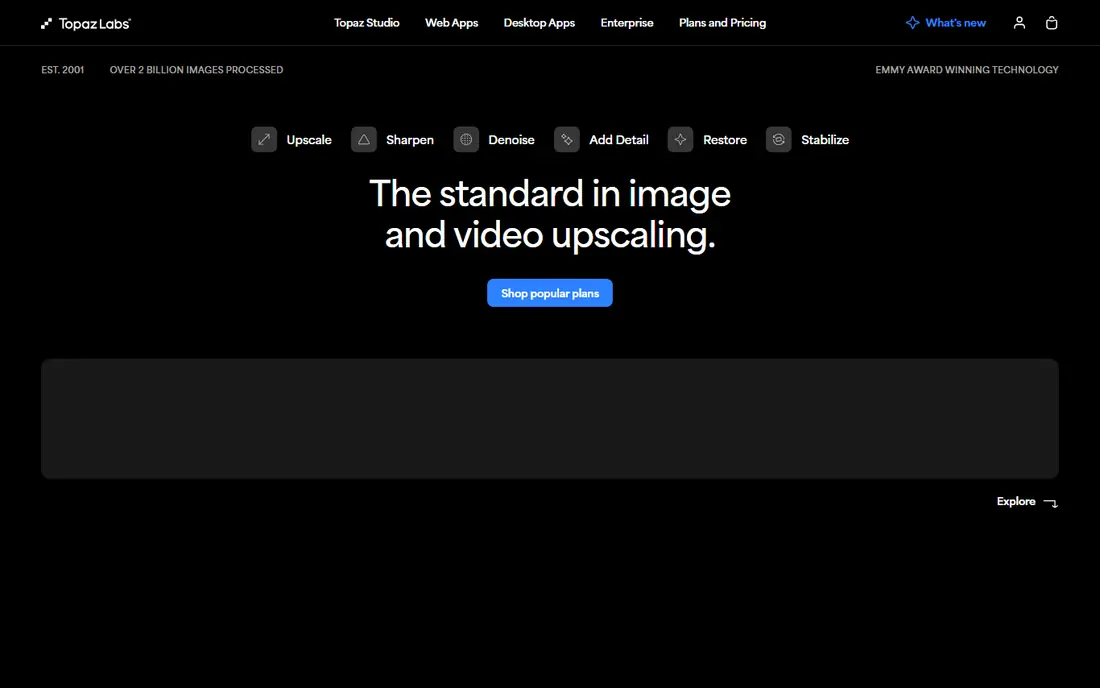
For creators who own a good GPU and want the best local quality, Topaz Video AI is a strong starting point. The core strength here is model choice, with separate models for general enhancement, faces, noise, and detail recovery. That combination makes it a sensible shortlist entry for buyers who want that specific strength without paying for a much larger platform.
The honest catch is that render times on a modest machine can be long, so test a short clip before committing to a long project. Check the current pricing page and free plan limits on your own device before you commit, since plans and limits change. We think it earns its place here because it solves a clear job well, even if it is not the right fit for every buyer.
- Wide model library for faces, noise, and detail
- Frame interpolation and stabilisation
- Unlimited local rendering on paid plans
- Needs a strong GPU
- Model choice can overwhelm beginners

If you need creators who want a simple desktop tool without tuning models, HitPaw VikPea deserves a close look. The main draw is simplicity, with a clear workflow that suits short clips and social content. That combination makes it a sensible shortlist entry for buyers who want that specific strength without paying for a much larger platform.
The honest catch is that it will not match Topaz on hard restoration jobs, so keep expectations tied to the source quality. Check the current pricing page and free plan limits on your own device before you commit, since plans and limits change. We think it earns its place here because it solves a clear job well, even if it is not the right fit for every buyer.
- Simple one-click workflow
- Face and general enhancement models
- Desktop app for Windows and Mac
- Quality varies by source
- Paid features need a licence
AVCLabs Video Enhancer AI
Who it suits: Desktop all-rounder for enhance and repair
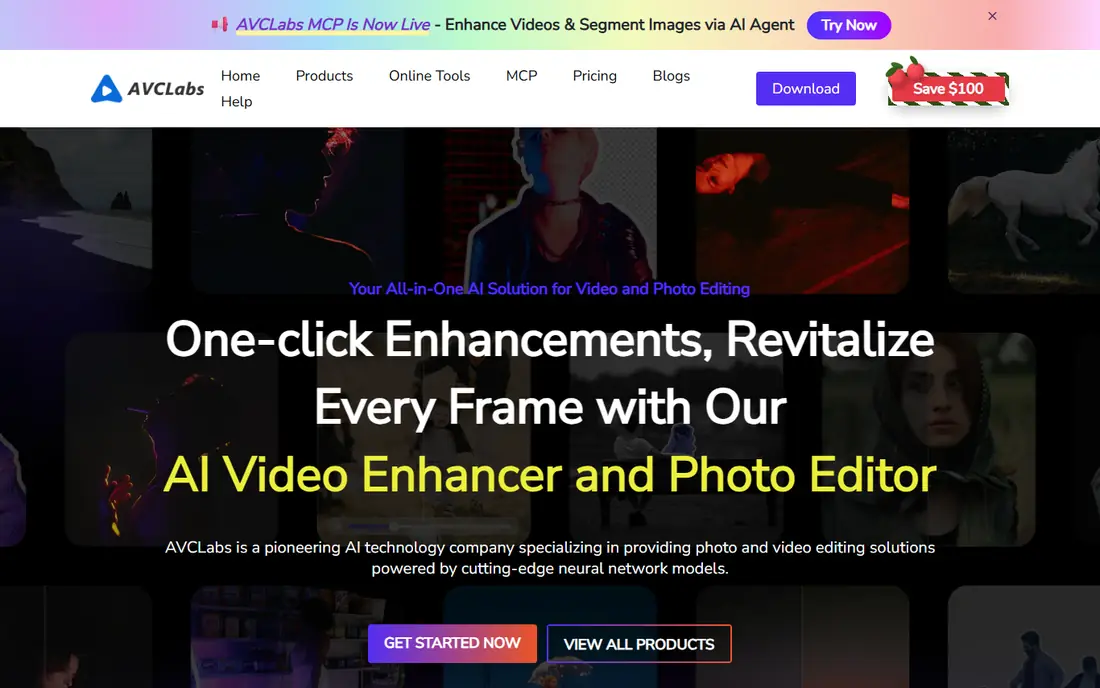
AVCLabs Video Enhancer AI fits users who want enhancement, repair, and batch work in one desktop app well, with a clear focus on what matters. In practice, buyers praise breadth, with upscaling, denoise, and repair tools in a single desktop workflow. That combination makes it a sensible shortlist entry for buyers who want that specific strength without paying for a much larger platform.
The honest catch is that batch jobs still need a capable machine, so check GPU guidance before buying. Check the current pricing page and free plan limits on your own device before you commit, since plans and limits change. We think it earns its place here because it solves a clear job well, even if it is not the right fit for every buyer.
- Upscaling plus denoise and colour work
- Batch processing
- Desktop control over output
- Needs a capable PC
- Interface is less polished than rivals
UniFab Video Enhancer AI
Who it suits: Upscaling bundled with conversion
Teams looking for users who also need conversion and light editing alongside upscaling will find UniFab Video Enhancer AI a practical choice. What keeps users with it is bundling, which covers conversion, editing, and enhancement without separate apps. That combination makes it a sensible shortlist entry for buyers who want that specific strength without paying for a much larger platform.
The honest catch is that if you only need upscaling, a focused tool may give better value. Check the current pricing page and free plan limits on your own device before you commit, since plans and limits change. We think it earns its place here because it solves a clear job well, even if it is not the right fit for every buyer.
- Upscaling plus conversion and editing tools
- Good for format changes
- Desktop workflow
- Upscaling is part of a larger suite
- Price depends on the bundle
When people with a weak PC who need occasional cloud upscaling is the priority, TensorPix stands out for a clear reason. What sets it apart is cloud processing that removes the GPU barrier for occasional jobs. That combination makes it a sensible shortlist entry for buyers who want that specific strength without paying for a much larger platform.
The honest catch is that heavy or frequent work can get costly in credits, so price a typical month before relying on it. Check the current pricing page and free plan limits on your own device before you commit, since plans and limits change. We think it earns its place here because it solves a clear job well, even if it is not the right fit for every buyer.
- Cloud processing, so your PC matters less
- Free previews
- Good for short clips
- Cloud credits can add up
- Upload and queue time for large files
Pixop is built around media teams and archives that need professional-grade output, and that focus shows in daily use. Where it earns its place is professional cloud pipelines built for broadcast and archive standards. That combination makes it a sensible shortlist entry for buyers who want that specific strength without paying for a much larger platform.
The honest catch is that pricing and workflow suit professional teams, so casual creators should start with a consumer tool. Check the current pricing page and free plan limits on your own device before you commit, since plans and limits change. We think it earns its place here because it solves a clear job well, even if it is not the right fit for every buyer.
- High-quality cloud processing for professional use
- Good for archives
- Team workflows
- Priced for professional use
- Not a casual consumer tool
For buyers who need phone users who want quick enhancements for social clips, Remini offers a direct route. Its clearest strength is speed on a phone, with quick enhancements that are easy to share. That combination makes it a sensible shortlist entry for buyers who want that specific strength without paying for a much larger platform.
The honest catch is that long-form video is not its strength, so use a desktop tool for full projects. Check the current pricing page and free plan limits on your own device before you commit, since plans and limits change. We think it earns its place here because it solves a clear job well, even if it is not the right fit for every buyer.
- Fast phone enhancements
- Easy sharing to social apps
- Free tier with ads where offered
- Short clips and photos suit it best
- Long video work is limited
If technical users who want a free tool and can handle setup matters most, Video2X is worth testing first. The standout feature is free access, with no subscription and no watermark on output. That combination makes it a sensible shortlist entry for buyers who want that specific strength without paying for a much larger platform.
The honest catch is that setup is technical, so beginners should try a cloud tool first. Check the current pricing page and free plan limits on your own device before you commit, since plans and limits change. We think it earns its place here because it solves a clear job well, even if it is not the right fit for every buyer.
- Free and open source
- No watermark
- Batch processing for technical users
- Command-line setup
- Needs a capable GPU for fast results
CapCut suits short-form creators who already edit in CapCut, with strengths that match that job. In daily use, the strength is convenience, with upscaling inside an editor many creators already use. That combination makes it a sensible shortlist entry for buyers who want that specific strength without paying for a much larger platform.
The honest catch is that the free cap and single-clip workflow limit it for long or high-volume work. Check the current pricing page and free plan limits on your own device before you commit, since plans and limits change. We think it earns its place here because it solves a clear job well, even if it is not the right fit for every buyer.
- Free tier for short clips
- Easy editing and export
- Wide creator community
- Free tier caps at 1080p in many cases
- Longer clips get tricky
How we picked these
We compared vendor pages, model lists, pricing, and free trial terms for each tool. We favoured tools with clear model choices, honest hardware guidance, and a free trial or free tier for testing. Prices below are entry prices from vendor pages in October 2026, and cloud credit costs can vary with clip length and output size.
We also weighed ease of setup, support quality, and how well each product fits its stated best use. A product that is strong in general but weak for the stated job did not make the list. Where a price or free tier could not be verified on a vendor page, we wrote See website rather than guessing a number.
How to get a clean upscale without wasting hours on settings
Test every shortlisted tool on the same 30-second clip from your real source, not a demo clip. Compare faces, text, motion, and noise at full screen, since small previews hide artifacts. Note render time and output size, and check whether the tool keeps frame rate and audio in sync. For long projects, price the full job in cloud credits or monthly cost before you start, and keep the original files untouched.
Make a short list of two or three options and test each one on a real task from your own work. Note setup time, daily friction, and total cost, including any paid tier you will actually need. The best choice is usually the one your team or household keeps using after the first week, not the one with the longest feature list.
Frequently asked questions
What is the best AI video upscaling software?
Topaz Video AI leads on local quality for creators with a strong GPU, while TensorPix suits weak PCs through cloud processing. HitPaw VikPea suits simple desktop jobs, and Video2X suits technical users who want a free tool. Test on your own footage, since source quality decides the result.
Are there free AI video upscaling tools?
Yes, Video2X is free and open source, CapCut offers a free tier for short clips, and TensorPix and Remini offer free previews or free tiers. Free tools often cap resolution, add ads, or limit batch work. Paid tools usually give better consistency and higher output sizes.
Can AI upscale video to 4K without losing quality?
AI can sharpen and clean footage and produce a 4K file, but it cannot restore detail that was never in the source. Good results look cleaner and sharper, especially for decent 720p or 1080p sources. Very low-resolution or heavily compressed clips will still show limits.
Do I need a powerful GPU for video upscaling?
Local tools such as Topaz and Video2X run fastest on a modern GPU, while cloud tools such as TensorPix and Pixop shift the work to remote servers. A weak PC can still upscale locally, but render times will be long. Choose cloud if you upscale rarely or lack a strong GPU.
Which tool is best for old home videos?
Topaz Video AI and AVCLabs suit old footage with noise, faces, and detail problems, thanks to separate models for each job. Test face handling carefully, since aggressive models can make faces look smooth or artificial. Keep the original and compare several settings on a short clip.
Sources we checked (5)

Online Jobs is an independent blog about careers, online work, learning new skills and the tools that help people earn. More about us.
Keep reading
All posts
ZoomInfo Alternatives
The best ZoomInfo alternatives in 2026, compared on price, free plans, data coverage, and which tool fits small teams or large sales teams best in detail.

Zoom Alternatives
Zoom alternatives compared for 2026: Google Meet, Microsoft Teams, Webex, Jitsi and more for free calls, large meetings and webinars for teams and classrooms.

Workday Alternatives
We compared the best workday alternatives for HR, payroll, and global hiring, from BambooHR and Gusto to Rippling, Deel, and HiBob for growing teams in 2026.