Best AI Text to Vector Tools in 2026: 8 Compared

How we put this together: we compare official feature and pricing pages, app store listings, privacy policies and public user reviews. Prices change, so check the provider's site before you pay.
Key takeaways
- Recraft leads for true text-to-vector generation, producing editable SVG files directly from a prompt.
- Vectorizer.ai and Vector Magic lead for tracing an existing image into a clean vector, rather than generating a new one.
- Kittl, Figma, and Adobe Illustrator suit designers who want vector output inside a wider design workflow.
- Check commercial rights, export formats, and credit use before choosing, because free tiers differ on licensing and downloads.
Quick comparison
| Name | Who it suits | Starting price | Free option | |
|---|---|---|---|---|
 Recraft Recraft | Text-to-vector generation | Free | Yes | Visit |
 Vectorizer.ai Vectorizer.ai | High-fidelity image tracing | See website | Yes | Visit |
 Vector Magic Vector Magic | Faithful tracing with cleanup | See website | Yes | Visit |
 Kittl Kittl | Vector work inside templates | See website | Yes | Visit |
 Adobe Illustrator Adobe Illustrator | Manual vector control | See website | Free trial | Visit |
 Figma Figma | Vectorising inside design files | See website | Yes | Visit |
 Inkscape Inkscape | Free manual vector editing | Free | Yes | Visit |
 Ideogram Ideogram | Prompt images for vector workflows | See website | Yes | Visit |
The best AI text to vector tools
We compared official feature pages, pricing pages, documentation, privacy policies, and public reviews to find the best AI text to vector tool for different design jobs. Text to vector can mean two different jobs: generating a new vector from a prompt, or tracing an existing raster image into vector paths. A tool that excels at one may be weak at the other, so we separate those jobs in each review.
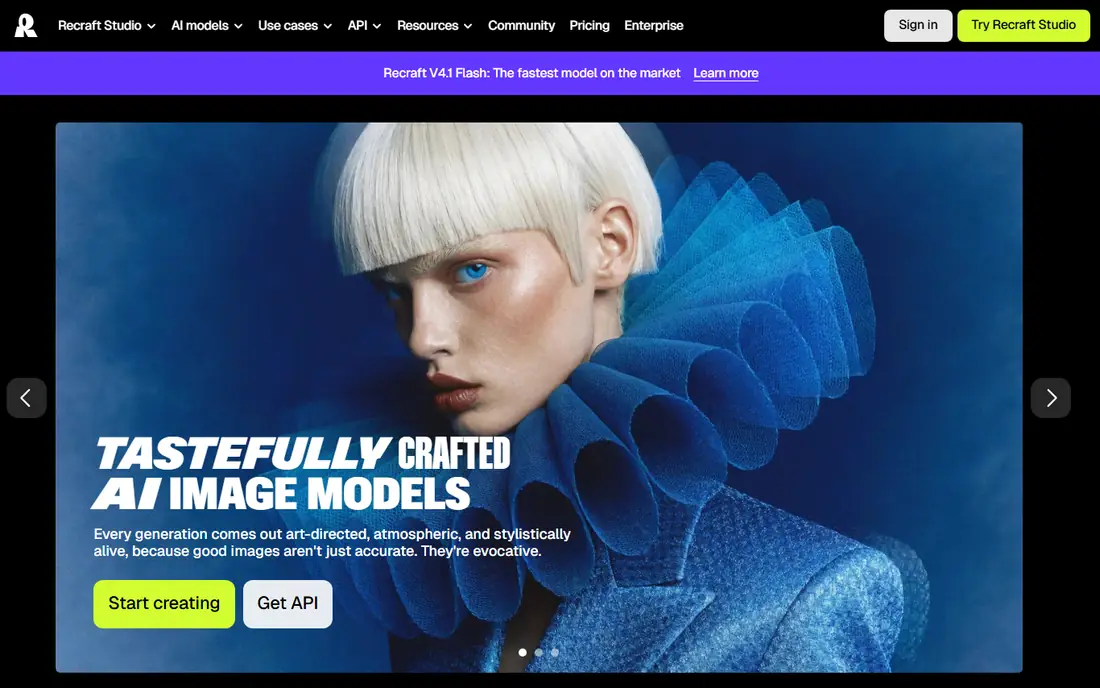
Recraft fits designers who need a logo, icon, or illustration as a real vector, not a traced raster image. Its V4 vector models generate SVG files with structured layers and clean geometry from a text prompt, so you can open the result in Figma or Illustrator and edit paths directly. That direct path saves the tracing and cleanup step that other AI image tools require. The catch is credits and rights. Vector output consumes more credits than standard images in some plans, and free plan commercial rights differ from paid plans in vendor listings. Check the current pricing page for credits, commercial use, and private generation before using Recraft for client work.
- Native SVG generation from prompts
- Editable layers
- Image vectorizer in the same studio
- Credit use varies by model
- Free plan limits commercial rights in some listings
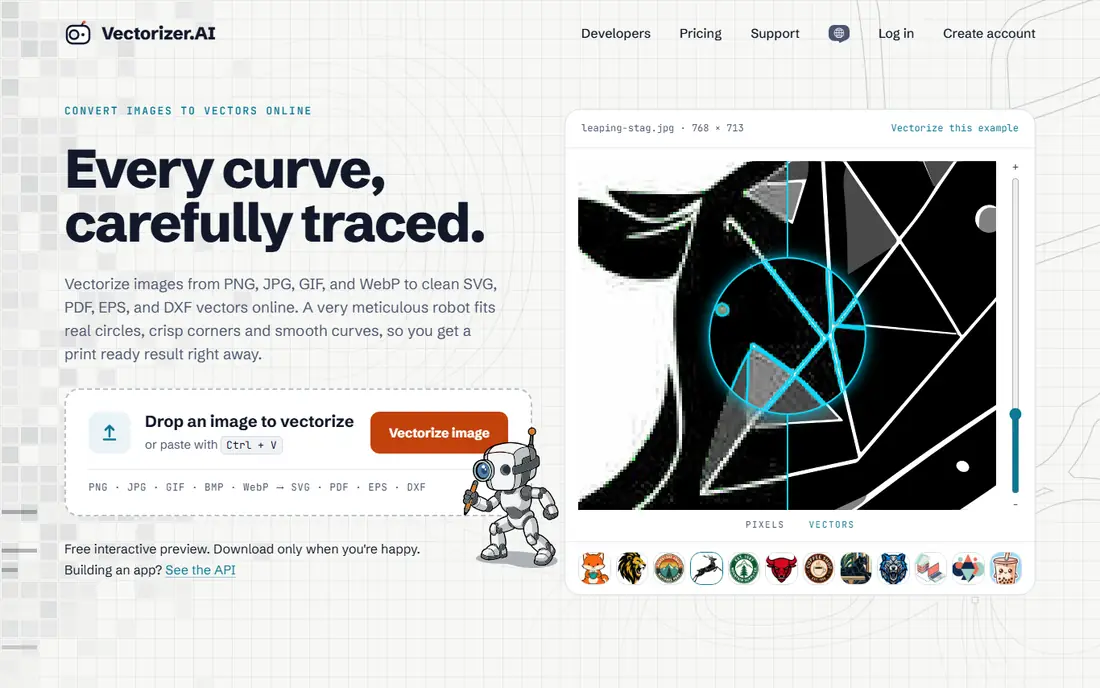
Vectorizer.ai fits designers who already own an image and need a faithful vector version. Its tracing handles full colour, symmetry, and clean corners better than many basic tracers, with output in SVG, PDF, EPS, and DXF. That makes it useful for logos, artwork, and print files that must scale without blur. The honest limit is that previewing is free, but downloading needs a subscription. Vectorizer.ai also does not generate a vector from a prompt, so it pairs well with Recraft or another generator when you need both new art and traced art. For tracing alone, it is a strong specialist pick.
- Detailed full-colour tracing
- SVG, PDF, EPS, and DXF output
- Clean curves
- No text-to-vector generation
- Downloads need a paid plan
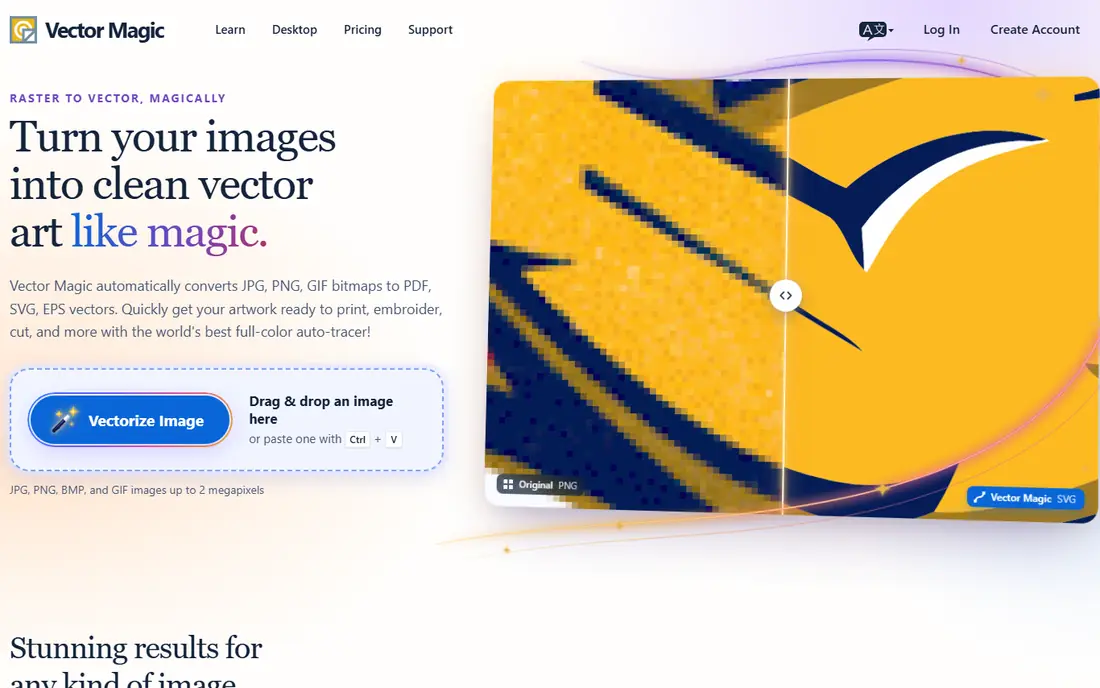
Vector Magic fits users who want control over a traced result, not just an automatic conversion. It offers tools to adjust colours, smoothing, and details, with desktop and web versions for different workflows. That control helps when a logo has small text, fine lines, or colour regions that automatic tracers fragment. The trade-off is that the free web version is preview only, so a usable download needs a paid plan or desktop licence. Source quality also matters: a low-resolution or noisy image will still need cleanup, even with good tracing tools. For important logos, start with the highest quality source you own.
- Careful tracing
- Hands-on cleanup tools
- Desktop and web options
- Preview only on the free web version
- Tracing quality depends on the source image
Kittl fits creators who design merch, posters, and social graphics and want vector output inside a template system. It combines text effects, illustrations, and layout tools with vector export on paid plans, so a design can move from idea to print-ready file without switching apps. That suits small brands and print-on-demand sellers. The catch is export limits. The free plan allows design work, but vector export is locked behind a paid plan in vendor listings. Kittl is also template-led, so designers who want full manual path control may prefer Illustrator or Inkscape for final artwork.
- Vector tools inside a template platform
- Merch and print workflows
- Text effects
- Vector export is limited on the free plan
- Template-first workflow
Adobe Illustrator fits professional designers who need precise control over every anchor, curve, and colour. Its Image Trace tool converts raster images into vectors, and its pen, shape, and path tools allow full manual editing. That control matters for brand logos, packaging, and print work where small errors are visible. The honest limit is generation. Illustrator does not generate a new vector from a text prompt in the way Recraft does, so prompt-led designers must generate elsewhere and refine in Illustrator. The subscription cost also makes it a weaker pick for occasional users who only need a few vectors a year.
- Full manual path control
- Image Trace for existing art
- Industry standard file support
- No native text-to-vector generation
- Subscription cost
- Steep learning curve
Figma fits product and brand teams who already design in Figma and want vector work without leaving a file. Vector tools, plugins, and AI features allow quick vectorising of sketches and textures, with results that stay editable in the same design system. Collaboration and version history add value for teams. The trade-off is specialisation. Figma vectorising suits quick in-file work, but it does not match Vectorizer.ai for faithful full-colour tracing, nor Recraft for prompt-led SVG generation. Use Figma when vector work is part of a wider product design workflow, and a specialist when tracing or generation is the main job.
- Vector tools inside design files
- Plugins for vectorising
- Team collaboration
- AI vector features use credits
- Not a dedicated tracing specialist
Inkscape fits designers who want free, full vector editing without a subscription. It opens and edits SVG files natively, offers a Trace Bitmap tool for converting raster images, and supports layers, paths, and text on paths. That makes it a strong companion to Recraft, because you can generate in Recraft and refine for free in Inkscape. The catch is generation and polish. Inkscape does not generate vectors from prompts, and its interface feels less polished than Illustrator or Figma. For manual refinement, file conversion, and free SVG work, though, it remains one of the best free tools available.
- Free and open source
- Trace Bitmap tool
- Full SVG editing
- No AI text-to-vector generation
- Interface feels dated to some users
Ideogram fits designers who start with a prompt and need strong text rendering in the first image. Its models handle words inside images better than many rivals, which helps for posters, logos with text, and editorial art. You can then trace the result in Vectorizer.ai, Illustrator, or Inkscape to create a vector file. The honest limit is format. Ideogram produces raster images, not native SVG vectors, so it is not a true text-to-vector tool on its own. Treat it as a strong first step in a two-step workflow, and judge the final vector by the traced result, not by the raster preview alone.
- Strong text rendering in prompt images
- Useful starting art for tracing
- Free tier
- Output is raster, not native SVG
- Needs tracing for true vector files
How we picked these
We compared official feature pages, pricing pages, documentation, and privacy policies, then checked public reviews for output quality, editability, and export options. We gave weight to whether a tool generates native SVG from a prompt, traces faithfully, exports usable formats, and states commercial rights clearly. We did not claim hands-on testing, and we treated raster-to-vector tracing and prompt-to-vector generation as separate jobs throughout.
How to choose an AI text to vector tool
Start with your starting point. If you have only words, pick Recraft for native SVG generation. If you have an image, pick Vectorizer.ai or Vector Magic for tracing. If you have a design file, use Figma or Illustrator to refine, and Inkscape when you want a free editor.
Check editability, not just appearance
Open the SVG in Illustrator, Figma, or Inkscape and check layers, paths, and anchor counts. A vector that looks clean as a preview but contains hundreds of fragmented shapes will be hard to recolour, resize, or edit for print. Clean geometry matters more than a pretty first render.
Confirm rights and export before client work
Check whether your plan allows commercial use, private generation, and SVG, PDF, or EPS export. Free tiers often limit one of those three, and a client project needs all of them confirmed in writing on the vendor pricing page before delivery.
Frequently asked questions
What is the best AI text to vector tool?
Recraft is our pick for true text-to-vector work, because it generates editable SVG files directly from a prompt. Vectorizer.ai is a better pick when you already own an image and need to trace it faithfully into a vector.
Can AI turn text into a vector logo?
Yes, Recraft can generate SVG logos and icons from a prompt, with editable layers for later refinement. You should still review letterforms, spacing, and colour, and refine the result in Illustrator, Figma, or Inkscape before final use.
What is the difference between tracing and text-to-vector generation?
Tracing converts an existing raster image into vector paths, while generation creates a new vector from a text prompt with no source image. Tracing is judged on fidelity to the original, while generation is judged on design quality and editability.
Is there a free AI text to vector tool?
Recraft offers a free plan for evaluation, and Inkscape offers free manual vector editing. Free plans often limit commercial rights, credits, or exports, so check the current pricing page before using free output for client work.
What file format should a vector tool export?
SVG is the standard for web and design tools, while PDF and EPS suit print workflows, and DXF suits some machining uses. Choose a tool that exports the format your printer, developer, or client actually needs, not just a preview image.
Do I still need Illustrator if I use Recraft?
Not always, but Illustrator or Inkscape helps for final refinement, colour control, and print preparation. Recraft covers generation, while a full editor covers the detailed path, typography, and export work that client projects often need.
Sources we checked (8)

Online Jobs is an independent blog about careers, online work, learning new skills and the tools that help people earn. More about us.
Keep reading
All posts
Zoom Alternatives
Zoom alternatives compared for 2026: Google Meet, Microsoft Teams, Webex, Jitsi and more for free calls, large meetings and webinars for teams and classrooms.
Top Rated Poster Maker Software
Top rated poster maker software compared for 2026: Canva, Adobe Express, VistaCreate, PosterMyWall and more for events, sales and classrooms for US users.
Surfshark Alternatives
Looking for Surfshark alternatives? We compare 8 VPN services on price, privacy, streaming, and device limits to help you find a VPN that fits your needs.