Best AI Presentation Software for Education in 2026: 8 Tools Compared

K-12 teachers and classes · Starting price: Free
How we put this together: we compare official feature and pricing pages, app store listings, privacy policies and public user reviews. Prices change, so check the provider's site before you pay.
Key takeaways
- Canva for Education is the best overall pick for eligible K-12 teachers, because it is free for schools and covers design, video, and classroom activities.
- Gamma is the fastest way for a student to turn notes into a presentable first draft.
- Google Slides with Gemini suits schools already on Google Workspace, because no new file format is needed.
- Curipod is the best pick for live classroom interaction, with polls and student responses built into the lesson.
- Always check facts in an AI-generated deck before presenting, because AI tools can invent dates, quotes, and details that sound plausible.
Quick comparison
| Name | Who it suits | Starting price | Free option | |
|---|---|---|---|---|
| Canva for Education | K-12 teachers and classes | Free | Yes | Visit |
 Gamma | Fast student first drafts | Free | Yes | Visit |
 Beautiful.ai | Clean, consistent slides | See website | Free trial | Visit |
 Google Slides with Gemini | Google Workspace schools | See website | No | Visit |
 Prezi | Zoomable concept lessons | See website | Yes | Visit |
 SlidesAI | Notes to Google Slides | See website | Yes | Visit |
 Curipod | Live interactive lessons | See website | No | Visit |
 Plus AI | AI inside Slides and PowerPoint | See website | Free trial | Visit |
The best AI presentation software for education
AI presentation tools help education in a specific way: they turn a lesson outline or a set of notes into a structured deck quickly, so a teacher can spend more time on explanation and checking understanding, and a student can spend more time on research and revision. They do not replace subject knowledge, and every AI deck needs a fact check before it reaches a class. We compared official feature pages, pricing pages, education offers, and public reviews, and we favoured tools with classroom-friendly exports, collaboration, and privacy terms.
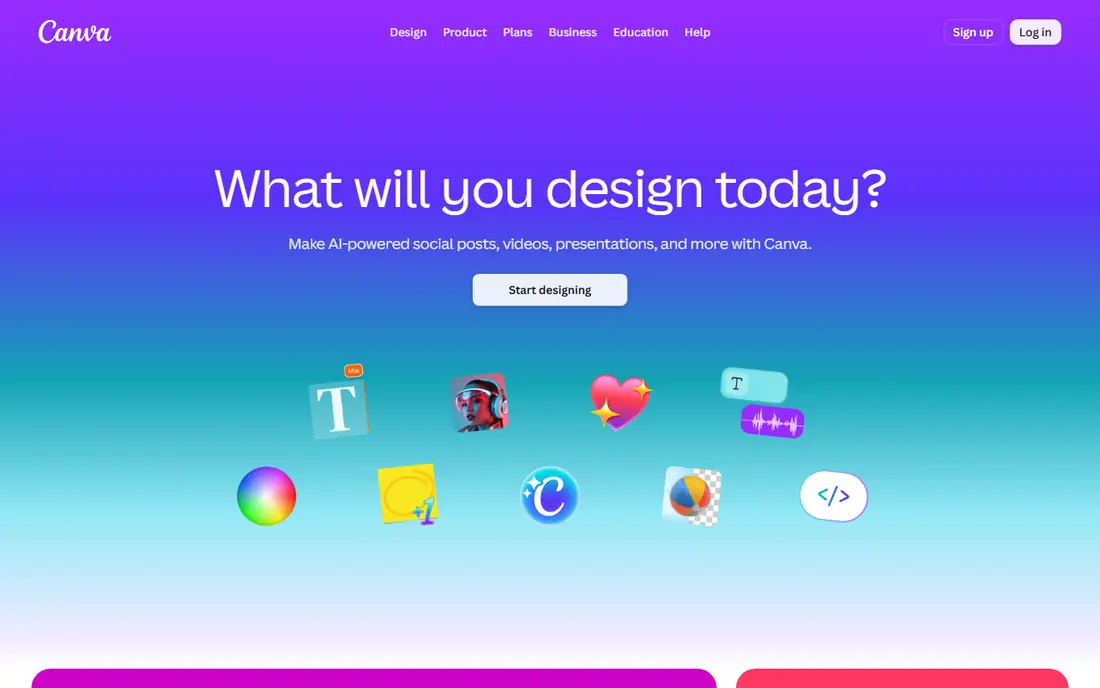
Canva for Education is the strongest all-round education pick, because Canva states its K-12 education offering is free and includes presentations plus AI tools, whiteboards, and video. A teacher can build a lesson deck, a classroom poster, and a short video from the same account, and students can collaborate on a shared design without learning a new tool for each task.
The key check is eligibility: Canva for Education is for verified K-12 teachers and their students, not for every adult learner, so confirm your school qualifies before you plan around it. AI limits also vary, so test a full lesson deck, including export to PowerPoint if your school needs that format, before you rely on it for a whole term. For eligible classrooms, it is hard to beat on breadth and price.
- Free for eligible K-12 teachers and students
- Huge template and design library
- Presentations, whiteboards, and video in one place
- Eligibility checks apply
- AI usage limits vary by plan
- General Canva lacks education privacy terms by default
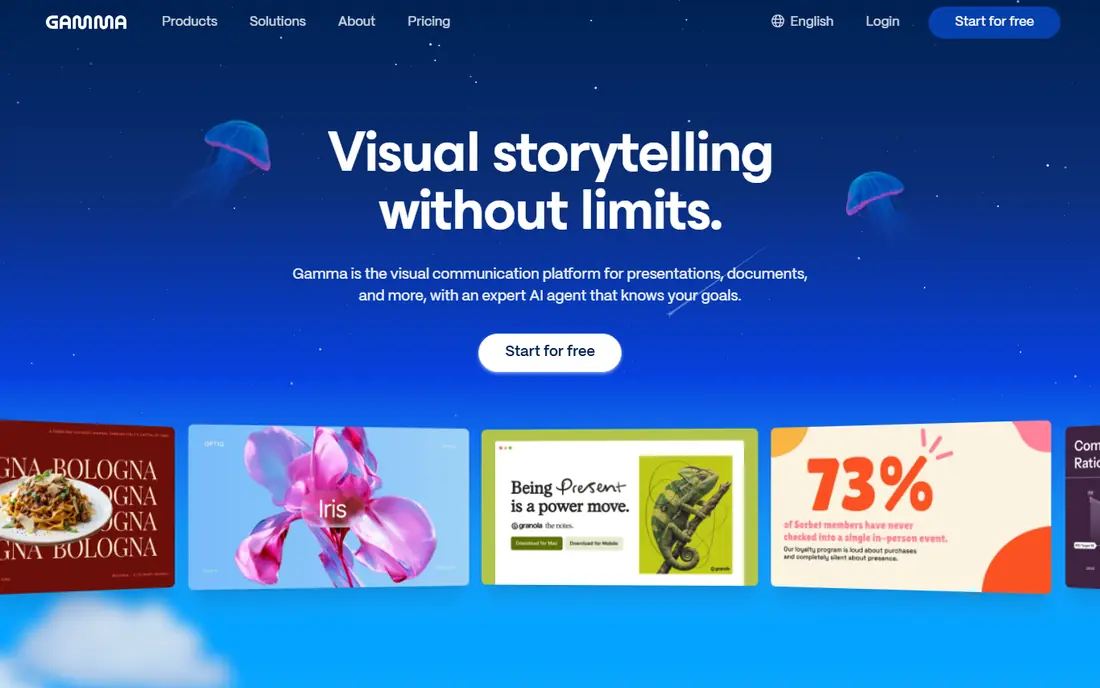
Gamma is the fastest tool on this list for turning a prompt or a set of notes into a deck that looks presentable. A student can paste an outline, get a structured presentation in about a minute, and then spend the saved time editing the argument, adding sources, and fixing any AI errors. That speed makes Gamma ideal for a first draft, a group project outline, or a revision summary.
Free credits do run out, and the best export and branding options sit on paid plans, so check the current free allowance before a deadline week. Gamma decks also need the same fact check as every AI tool here: dates, names, and statistics can be wrong even when they read smoothly. Use Gamma to start fast, then edit like a human author.
- Very fast prompt-to-deck generation
- Clean modern layouts
- Free credits to start without a card
- Free credits limit how many decks you can make
- Advanced export options sit on paid plans
- AI text needs fact checking
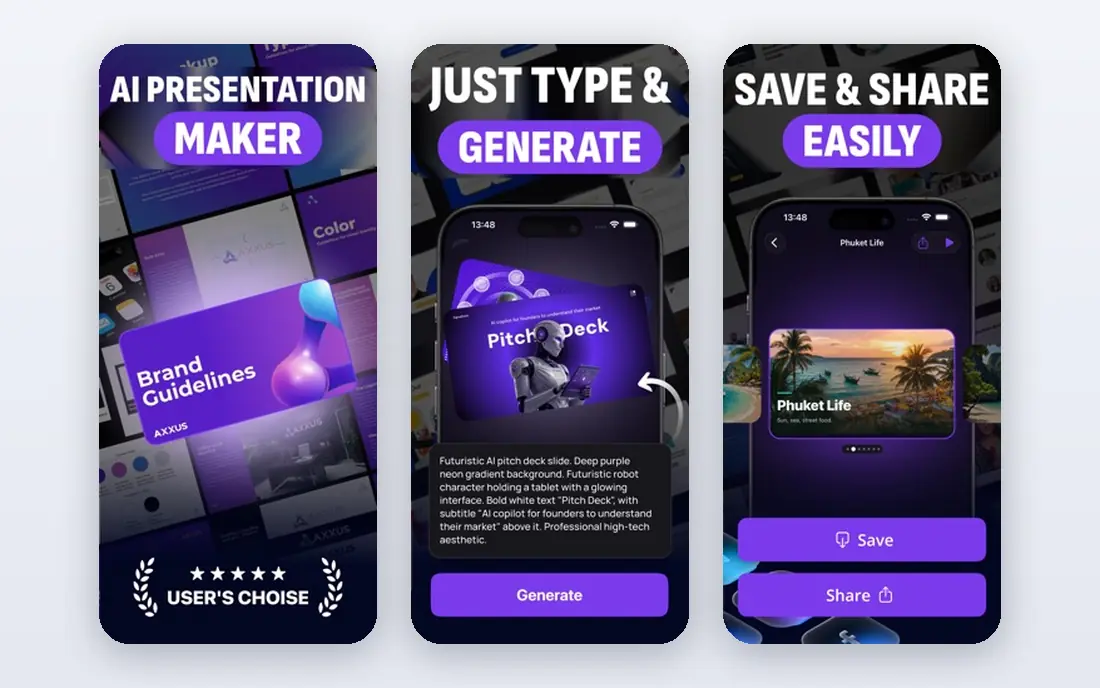
Beautiful.ai is built around one idea: you add content, and the design adjusts itself, keeping alignment, spacing, and layout consistent without manual fiddling. That is a real help for students and staff who want a polished deck but do not want to spend an evening nudging text boxes. The result looks professional even when the author has no design training.
The catch for education is price: Beautiful.ai has no permanent free plan, only a trial, so a student cannot rely on it all term without paying or using an education offer where available. It also lacks classroom-specific templates and live interaction features. Choose Beautiful.ai when consistent, polished slides matter most, and use Canva or Gamma when a free education plan matters more.
- Slides format themselves automatically
- Consistent layouts across a whole deck
- Good for student portfolios and staff decks
- No permanent free plan, only a trial
- Less classroom-specific content
- Education discount needs checking
Google Slides with Gemini is the least disruptive AI option for a Google Workspace school. Teachers and students already know Slides, files already live in Drive, and Classroom sharing already works, so AI help arrives inside a familiar workflow instead of a new app with a new export step. That matters in a school, where every new login and file format is a support request waiting to happen.
Gemini access is the variable: availability and features depend on the school's Workspace plan and rollout, so a feature a colleague has may not yet appear in your account. The design output is also more restrained than Gamma or Canva. If your school already pays for eligible Workspace plans, Slides with Gemini is the sensible, low-friction choice. If not, do not buy a whole Workspace plan just for this feature.
- Native Google Slides files
- Works with Classroom and Drive
- No new format to learn
- Gemini access depends on school plan and rollout
- AI features vary by account
- Less visual flair than Gamma or Canva
Prezi suits lessons where relationships matter more than a linear list of slides. A teacher can start with a big picture, zoom into a detail, and zoom back out to show how it fits, which helps for topics like ecosystems, historical causes, or systems in science. That spatial view is something a standard slide deck cannot easily copy.
The format is also its risk: a zooming presentation can distract if every move is dramatic, and some schools need a standard PowerPoint file for submission or sharing, so check export options first. Prezi offers education plans and a limited free tier, so test one real lesson before committing a whole unit to the canvas format. Used sparingly, it is a strong teaching tool.
- Zoomable canvas shows how ideas connect
- Good for concept maps and big-picture lessons
- Education plans available
- Non-standard format can confuse some viewers
- Motion can distract if overused
- Export and offline use need checking
SlidesAI is the simplest bridge from notes to slides for a Google Slides school. Paste a lesson outline or a block of text, choose a style, and receive a Slides deck you can edit in the normal Google editor. That direct route to an editable file is valuable, because the teacher keeps full control after generation, instead of being locked into a separate editor.
The free tier limits how many presentations you can make in a period, so a teacher planning a full term of AI decks will likely need a paid plan. Designs are also plainer than Canva or Gamma, which is fine for a lesson but less impressive for a showcase deck. For turning existing notes into a usable lesson deck quickly, SlidesAI is a practical, low-learning-curve pick.
- Turns text or a topic into Google Slides or PowerPoint
- Simple workflow for lesson outlines
- Free tier for testing
- Free tier limits presentations per period
- Design is plainer than Canva
- Output needs editing and fact checking
Curipod is different from the other tools here, because it is built for a live lesson, not just a static deck. A teacher can generate a lesson, add polls, open questions, and drawing prompts, and then run it live so students respond from their devices and results appear in the lesson flow. That interaction supports retrieval practice, discussion, and quick checks for understanding in a way a normal slide deck cannot.
Curipod needs reliable classroom connectivity and a paid plan for full use, and a Curipod lesson is not a simple substitute for a printable handout. If your goal is a lively, interactive lesson with built-in student responses, Curipod is the best education-specific pick here. If you only need a deck to present and share, Gamma or Canva will be simpler.
- Live polls, questions, and student responses built in
- Lesson flow designed for classroom interaction
- Teacher-paced delivery
- Paid plans for full classroom use
- Less suited to a static handout deck
- Needs reliable classroom connectivity
Plus AI adds AI generation directly inside Google Slides or PowerPoint, so you never leave the presentation app your school already uses. You can generate a deck from a prompt, rewrite a slide, or reformat content without exporting to a third-party editor and back again. For staff decks, training materials, and older students working in PowerPoint, that native workflow is a clear advantage.
There is no permanent free plan, only a trial, so education users should test it during the trial and check pricing before a term starts. Higher tiers include the best features, and schools should check data and privacy terms before uploading student material. If your school standardises on Slides or PowerPoint and wants AI inside that app, Plus AI is the most direct option.
- AI generation inside Google Slides and PowerPoint
- Keeps your existing file format
- Useful for staff and older students
- No permanent free plan, only a trial
- Best features sit on higher tiers
- School privacy terms need checking
How we picked these
We compared official feature pages, pricing pages, education offers, and public reviews, and we favoured tools that export to a format schools actually use, support collaboration, and offer a clear education path. We left out presentation tools that shut down in 2025, even though older guides still list them, and we noted where a free plan is really a trial. We also weighed classroom interaction separately from design, because a beautiful static deck and a live interactive lesson solve different teaching problems.
How to use AI presentation tools well in education
Start with your learning goal, not the tool. Write the lesson objective, the key points, and one check for understanding before you generate anything, then use the AI deck as a draft that serves that plan. A deck generated from a vague prompt will be vague, no matter how polished it looks.
Next, fact check every slide. AI tools can invent dates, quotations, and statistics, and an error in a classroom deck teaches the wrong fact to a whole class. Check names, dates, and numbers against your course sources, and add source notes where a claim matters. Teach students to do the same with their own AI decks, because that checking skill matters more than the deck itself.
Finally, check privacy and submission rules. Do not upload student names, grades, or sensitive course material to a general AI tool without checking its data policy, and confirm whether your school allows AI-assisted work for a given assignment. For K-12 work, education-specific offers like Canva for Education carry clearer classroom terms than general consumer plans.
Frequently asked questions
What is the best AI presentation software for teachers?
Canva for Education is the best overall pick for eligible K-12 teachers, because it is free for schools and covers presentations, whiteboards, and video with AI help. Teachers in Google Workspace schools should also consider Google Slides with Gemini, while teachers who want live interaction should look at Curipod.
What is the best AI presentation software for students?
Gamma is the best student pick for a fast first draft, thanks to its free credits and clean layouts. Canva's free plan is the best choice for design-heavy subjects, while SlidesAI suits students who must submit in Google Slides format.
Are AI presentation tools free for education?
Some are, with conditions. Canva for Education is free for eligible K-12 teachers and students, Gamma and Canva offer free tiers, and Prezi and SlidesAI offer limited free plans. Beautiful.ai and Plus AI offer trials rather than permanent free plans, so check the current terms before you rely on them for a term.
Can students use AI presentation tools for assignments?
That depends on your school or teacher's rules, and you should ask before you submit AI-assisted work. Even where it is allowed, students should edit the deck, check every fact, and be able to explain the content themselves, because an AI deck is a draft, not a finished assignment.
Do AI presentation tools make accurate slides?
Not always. AI tools can produce plausible but wrong dates, quotes, and statistics, and they can oversimplify complex topics. Always check the content against trusted sources before presenting, especially for assessed work or classroom teaching.
Which tool exports best to PowerPoint?
Canva's free plan exports to PowerPoint, and Plus AI works natively inside PowerPoint, which makes both strong choices for PowerPoint submission. Gamma's PowerPoint export sits on paid plans in some tiers, so check the current plan details if PowerPoint export is a requirement for your school.
Sources we checked (8)

Online Jobs is an independent blog about careers, online work, learning new skills and the tools that help people earn. More about us.
Keep reading
All posts
Best Tools for Virtual Tutoring
Compare the best tools for virtual tutoring, from one-to-one tutor marketplaces to free self-paced learning, with pricing, subjects and honest limits.
Best Study Apps for Young Children
Compare the best study apps for young children in 2026, from Khan Academy Kids and ABCmouse to Reading Eggs, Starfall, Duolingo ABC and PBS Kids, with prices.
Best Study Apps for Kids
Looking for the best study apps for kids? We compare Khan Academy Kids, ABCmouse, Prodigy, IXL and more on age, safety, price and subjects for home learning.