Best AI-Powered Design Tools for Presentations in 2026: 9 Tools Compared

How we put this together: we compare official feature and pricing pages, app store listings, privacy policies and public user reviews. Prices change, so check the provider's site before you pay.
Key takeaways
- Gamma is the best all-round pick for fast, editable decks from a prompt, outline, or pasted text.
- Beautiful.ai suits teams that need every deck to stay on brand with consistent layouts and charts.
- Canva suits visual teams that want design, images, and presentations in one familiar workspace.
- PowerPoint with Copilot and Google Slides with Gemini suit teams already paying for those suites.
- SlidesAI and Plus AI suit Google Slides and PowerPoint users who want AI help without switching tools.
Quick comparison
| Name | Who it suits | Starting price | Free option | |
|---|---|---|---|---|
 Gamma | Fast all-round decks | Free | Yes | Visit |
 Beautiful.ai | On-brand team decks | See website | Free trial | Visit |
 Canva | Visual design and decks | Free | Yes | Visit |
 PowerPoint with Copilot | Microsoft 365 teams | See website | No | Visit |
 Google Slides with Gemini | Google Workspace teams | See website | No | Visit |
 SlidesAI | Google Slides add-on | Free | Yes | Visit |
 Plus AI | Slides and PowerPoint add-on | See website | Free trial | Visit |
 Decktopus | Simple prompt-to-deck | Free | Yes | Visit |
 Pitch | Collaborative team decks | Free | Yes | Visit |
The best AI-powered design tools for presentations
AI presentation tools now do more than pick a template. They draft an outline, write slide text, choose layouts, and suggest images, then let you edit the result. The tools below differ on design control, brand tools, and export options, so the right pick depends on where you already work.
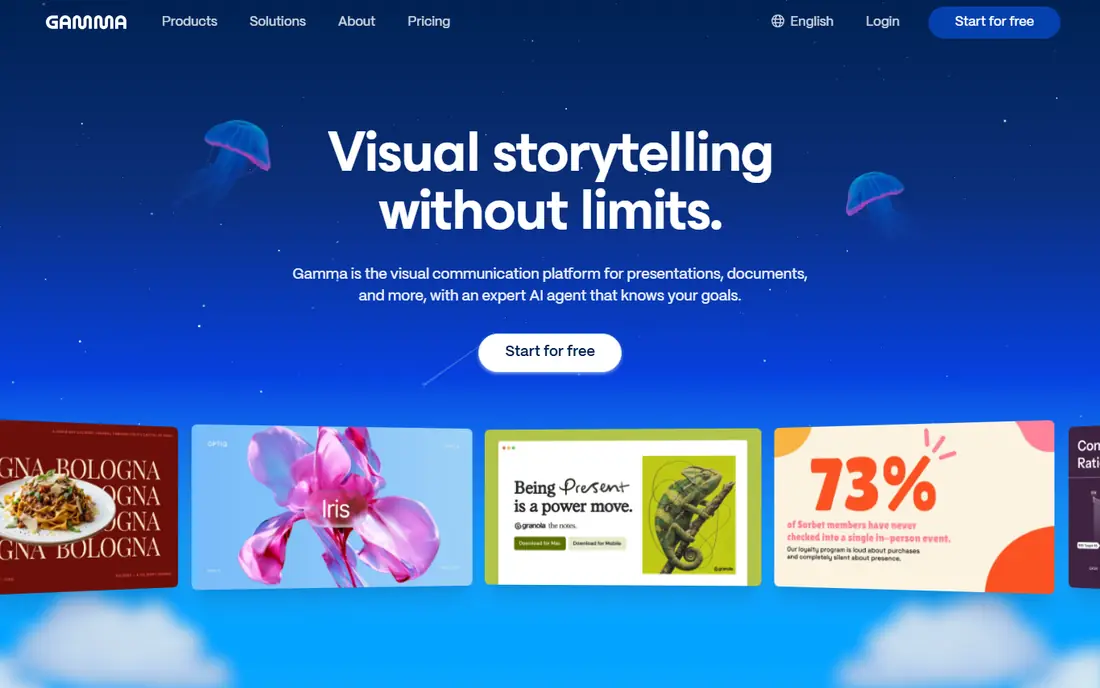
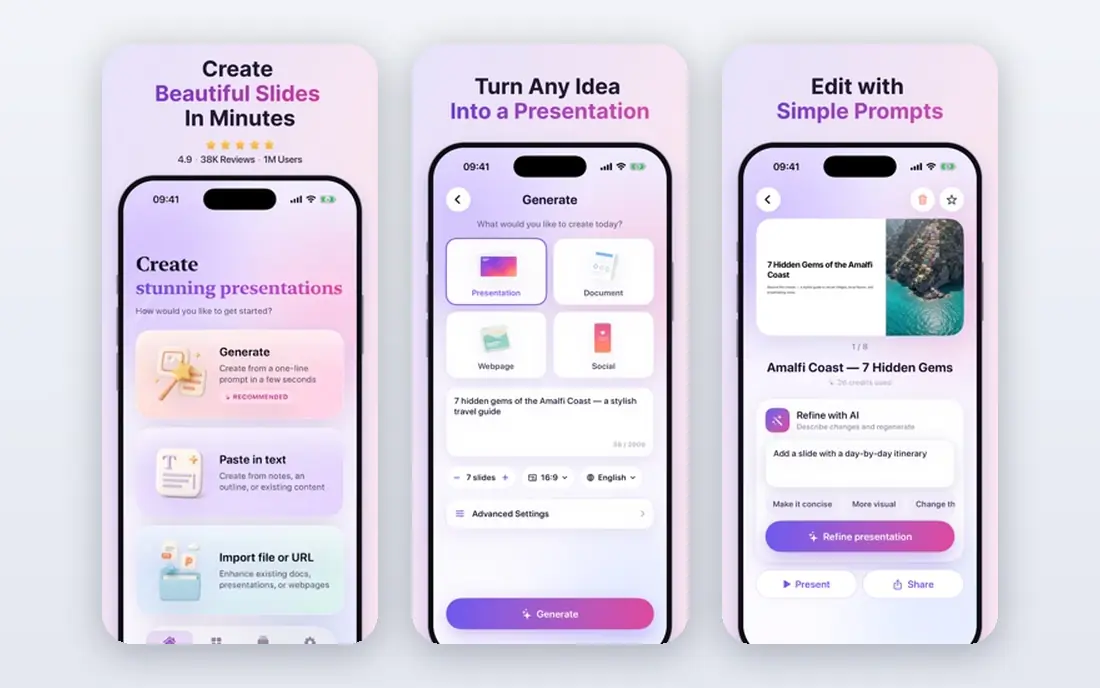
Gamma turns a prompt, outline, or pasted document into a full deck with layouts, images, and structure in minutes. The card-based editor makes it easy to reorder content, change themes, and adjust text without breaking the design. Export to PDF and PowerPoint covers most sharing needs. Gamma is the safest default for most users because the free plan is genuinely usable for testing. Heavy users will need a paid plan for more credits and features. If you want speed plus editing freedom, start with Gamma and compare it with one brand-focused tool.
- Fast prompt-to-deck generation
- Flexible card editing
- Web, PDF, and PowerPoint export
- Free credits limit heavy use
- Web-first design may need reformatting for print
Beautiful.ai uses smart slides that adjust as you edit, so text and charts stay balanced without manual nudging. That design control helps teams produce decks that look consistent, even when many people contribute slides. Brand colours, fonts, and logos can be locked in on team plans. The trade-off is flexibility. Beautiful.ai is less free-form than Canva, and it is built for business decks rather than highly visual creative work. For consulting, sales, and corporate teams, that consistency is a clear benefit. Test the trial with your brand kit before committing.
- Smart slides keep layouts balanced
- Brand controls for teams
- Strong charts
- No permanent free plan
- Less free-form design than Canva
Canva is a full design platform, so presentations sit alongside social graphics, documents, and video. Its AI tools can draft slide content, suggest layouts, and generate images, while the template library covers almost every business and classroom need. Sharing by link, PDF, or PowerPoint is simple. Canva requires more manual structure than Gamma for a long narrative deck. The AI draft is a starting point, not a finished argument. For visual teams that already use Canva daily, though, keeping presentations in the same workspace saves time and keeps brand assets close.
- Huge template range
- Strong image and video tools
- Easy sharing
- AI features sit mainly on paid plans
- Deck structure needs more manual work
PowerPoint with Copilot lets Microsoft 365 users draft, rewrite, and summarise slides inside the PowerPoint they already know. It can build a deck from a document, suggest layouts, and help rewrite dense slides into clearer points. The output stays in native PowerPoint format, which matters for corporate sharing. Access depends on your Microsoft 365 plan and Copilot licence, so check what your organisation already includes. AI usage limits may also apply. For teams that must deliver PowerPoint files, working inside PowerPoint avoids export and formatting problems.
- Native PowerPoint files
- Works with existing decks
- Microsoft 365 links
- Copilot access depends on plan
- AI limits apply on some plans
Google Slides with Gemini brings AI help into Google Workspace, including deck generation from a prompt and help with slide content. Because it works with Drive files, teams can pull in documents and data without leaving the workspace. Real-time collaboration remains a core strength of Google Slides. Availability depends on the Workspace plan, so check your current tier before assuming full deck generation is included. For Google-first teams, the native format and sharing controls are strong reasons to try Gemini before adding a separate deck tool.
- Native Google Slides files
- Drive links
- Easy collaboration
- Deck generation depends on Workspace plan
- AI depth varies by plan
SlidesAI is an add-on that turns pasted text into Google Slides, which suits teachers, students, and small teams that live in Google Workspace. The flow is simple: paste text, pick a theme, and get an editable deck. That simplicity is the main appeal. The free plan limits how many presentations you can make, and design options are lighter than a full deck platform. For occasional decks inside Google Slides, SlidesAI is a low-friction choice. For frequent or brand-critical decks, compare it with Gamma or Beautiful.ai.
- Works inside Google Slides
- Simple text-to-deck flow
- Free plan to test
- Free plan limits presentations
- Design control is lighter than Gamma
Plus AI adds AI deck generation to Google Slides and PowerPoint, so users do not need to learn a new editor. You can edit the outline before generation, which helps the AI produce a better structure. Brand themes and templates help teams keep a consistent look. Like all AI deck tools, Plus AI output needs a human edit for accuracy, tone, and flow. Pricing is per user, so larger teams should check the total cost. For teams that want AI help inside their existing slide software, Plus AI is a practical middle path.
- Works in Google Slides and PowerPoint
- Outline editing
- Brand themes
- Pricing is per user
- AI output still needs editing
Decktopus turns a short prompt into a full deck with slides, images, and structure, which suits beginners and solo users who need a fast first draft. The interface is simple, and the learning curve is low. Export options cover PDF and PowerPoint for sharing and further editing. Design depth is lighter than Gamma or Beautiful.ai, and the free plan has limits. Decktopus is best as a quick drafting tool, not as a full brand system. For a class project, a pitch outline, or a first draft, it does the job with little setup.
- Simple prompt flow
- Quick first draft
- Useful for beginners
- Less design depth than leaders
- Free plan limits apply
Pitch is built for teams that create and share decks together. Shared libraries, templates, and comments help a team keep one version of a deck, rather than many emailed copies. Analytics on shared decks show which slides get viewed, which helps sales and marketing teams refine their pitch. Pitch AI features are useful, but they are lighter than the generation-first approach of Gamma. Teams that need the fastest prompt-to-deck flow may prefer Gamma. Teams that need collaboration, version control, and sharing analytics will find Pitch a strong fit.
- Strong collaboration
- Shared libraries
- Analytics on shared decks
- AI features are lighter than Gamma
- Paid plans needed for larger teams
How we picked these
We reviewed vendor feature pages, pricing pages, and app listings, and we kept only tools that are live and offer AI presentation help in October 2026. We compared deck generation quality, editing control, brand tools, collaboration, and export options. We also weighed free plans and trials, and we mixed standalone deck tools with add-ons and suite tools, since many users prefer AI inside software they already pay for.
How to get a good deck from AI
AI gives you a draft, not a finished presentation. Start with a clear outline, a single main message per deck, and the facts you need on each slide. Paste source text where you can, rather than asking the tool to invent details. Then edit for accuracy, remove repetition, and check every number and name.
Keep brand and format in mind
If your team has brand colours, fonts, and logo rules, test them in the tool before you build a real deck. Check export quality too: a deck that looks good on the web may need fixes in PowerPoint or PDF. Build one test deck end to end, from prompt to exported file, before you rely on a tool for a client presentation.
Edit for the audience, not the tool
Shorten slide text, keep one idea per slide, and move detail to speaker notes where it belongs. Read the deck aloud as if you were presenting it, and cut any slide that does not support your main message. AI can speed up layout work, but the argument and the story still need human judgement.
Frequently asked questions
What is the best AI-powered presentation design tool?
Gamma is the best all-round pick for most users, thanks to fast generation, flexible editing, and a usable free plan. Beautiful.ai suits brand-focused teams, while Canva suits visual teams. PowerPoint with Copilot and Google Slides with Gemini suit teams already paying for those suites.
What are the best AI-powered presentation design tools for teams?
Beautiful.ai and Pitch suit teams that need brand control, shared libraries, and consistent layouts. Gamma also works well for teams, with sharing and export options. Choose based on whether brand consistency or fast generation matters more to your team.
Are there free AI presentation tools?
Yes, Gamma, Canva, SlidesAI, Decktopus, and Pitch all offer free plans, with limits on credits, presentations, or features. Free plans are good for testing and occasional decks. Paid plans suit frequent users who need more credits, brand tools, or export options.
Can AI tools replace PowerPoint or Google Slides?
No, most AI tools work alongside them or export to them. Gamma, Canva, and Pitch export to PowerPoint, while SlidesAI and Plus AI work inside Google Slides or PowerPoint. The final file often still needs a human edit in PowerPoint or Slides before it is presented.
How do I avoid errors in an AI-generated deck?
Check every fact, number, and name against your source material, and do not let the tool invent statistics or quotes. Keep slides short, add sources in speaker notes where needed, and have a colleague review the deck before a client or classroom presentation.
Sources we checked (9)

Online Jobs is an independent blog about careers, online work, learning new skills and the tools that help people earn. More about us.
Keep reading
All posts
n8n Alternatives
n8n alternatives compared for 2026, with Zapier, Make, Activepieces, and more, covering visual builders, code steps, self-hosting, and pricing models.
iPhone Alternatives
Looking for iPhone alternatives in 2026? Compare 9 Android phones from Samsung, Google, OnePlus, and more, with cameras, battery life, and honest trade-offs.

eBay Alternatives
Looking for ebay alternatives? We compared 9 marketplaces for sellers on fees, buyer reach, categories and ease of listing, to help you sell with confidence.