Best AI Image to Video Tools in 2026: 10 Tools Compared

How we put this together: we compare official feature and pricing pages, app store listings, privacy policies and public user reviews. Prices change, so check the provider's site before you pay.
Key takeaways
- Kling and Runway offer the most practical balance of motion quality, controls and credit value for regular creators.
- Google Veo through Flow stands out for realistic clips with synced audio, but access depends on your Google plan.
- Pika and PixVerse suit short social clips where speed and fun effects matter more than long scenes.
- Credit systems differ widely, so compare cost per finished clip rather than the headline monthly price.
- Free tiers are useful for testing, but watermarks, limits and commercial terms vary and should be checked first.
Quick comparison
| Name | Who it suits | Starting price | Free option | |
|---|---|---|---|---|
 Runway Runway | Directed shots and editing | See website | Free trial | Visit |
 Kling Kling | Realistic motion at good value | See website | Yes | Visit |
 Google Veo Google Veo | Realistic clips with audio | See website | No | Visit |
 Pika Pika | Short social effects | See website | Yes | Visit |
 Luma Dream Machine Luma Dream Machine | Camera moves and restyling | See website | Yes | Visit |
 Hailuo Hailuo | Expressive character motion | See website | Yes | Visit |
 PixVerse PixVerse | Fast social clips | See website | Yes | Visit |
 Adobe Firefly Video Adobe Firefly Video | Brand safe video work | See website | Yes | Visit |
 Kaiber Kaiber | Stylised music visuals | See website | No | Visit |
 Haiper Haiper | Simple image animation | See website | Yes | Visit |
The best AI image to video tools
We focused on tools that truly animate a still image, not only text to video generators. Each pick below handles motion, faces and camera movement differently, so the right choice depends on your clips, budget and tolerance for retries.
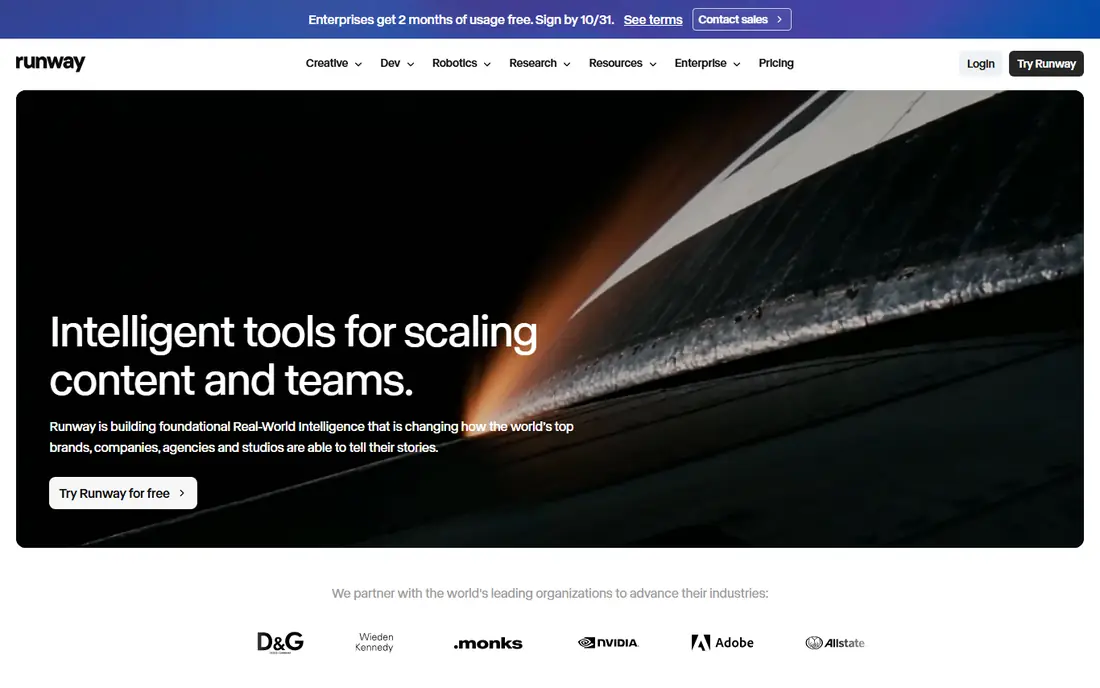
Runway suits creators who want to direct a shot rather than accept whatever the model produces first. You can guide motion, adjust camera movement and then extend or restyle a clip without moving to another editor. That workflow matters when a single image must become a usable scene for a project, not just a fun test.
The downside is cost control. Credits are spent on every attempt, including failed ones, so a careful prompt and a short test clip will save money. The free credit allowance is limited, and paid plans differ in how many clips they cover. If you value control and editing in one place, Runway is worth the learning curve.
- Strong camera and motion controls
- Editing tools in the same workspace
- Wide model range
- Credits run out quickly on longer work
- Pricing and credit maths can confuse new users
Kling has become a favourite for creators who need believable movement without paying a premium price for every clip. Faces, walking and hand motion often look more natural here than on cheaper tools, and the daily credit system lets you test ideas regularly. It also handles start and end frames well, which helps when you need a specific transition.
Queue times and model availability can change with demand, so a clip that renders quickly one day may take longer the next. Higher quality modes and audio features may also need a paid plan. For regular short scenes and product shots, Kling offers a practical mix of quality and cost.
- Realistic human motion
- Daily credits on free access
- Good value per clip
- Queue times can vary
- Some advanced features sit on higher tiers
Google Veo, reached through Flow and Google AI plans, is the pick for realism. Clips often look like filmed footage rather than animated images, and generated audio can match movement in a way that saves editing time. Prompt understanding is also strong, so detailed scene descriptions tend to produce closer results.
The limits are access and length. You need an eligible Google plan, and each generation covers only a few seconds, so longer scenes need stitching. That makes Veo best for hero shots and short ads rather than long sequences. If realism and audio matter more than volume, it is a strong choice.
- Realistic footage with synced audio
- Strong prompt understanding
- Google Flow workflow
- Access is tied to Google plans
- Clip length is short per generation
Pika is built for social content. Effects, transformations and playful motion are easy to apply, and the workflow suits creators who post daily and need quick results. The free plan lets you learn the tool before paying, and paid plans add resolution and credit allowances.
Realism is not its main strength. Faces and complex body motion can warp on longer or more detailed prompts, and clips tend to stay short. That is fine for memes, product teasers and effect driven posts, but less ideal for a polished brand film. Pick Pika when speed and style matter more than cinematic realism.
- Fast and fun effects
- Easy mobile friendly workflow
- No watermark on some plans
- Shorter and more stylised clips
- Realism trails the top models
Luma Dream Machine is known for camera work. Orbits, pushes and tracking style moves often look smooth, which helps product shots and scene reveals feel more professional. It also supports restyling existing footage, so a plain clip can gain a new look without a full reshoot.
Pricing is the catch. Paid plans start higher than Kling or Pika, and the number of finished clips per plan depends on resolution and length. Free access is limited, so you should test with a representative image before subscribing. For camera led work, Luma is still a compelling option.
- Smooth camera movement
- Useful restyling tools
- Clear credit pricing on paid plans
- Paid plans start higher than some rivals
- Free access is limited
Hailuo, from MiniMax, suits character led content. Facial expression, gesture and lip style motion often feel lively, which helps story clips, avatar style posts and short animations. The interface is simple enough for new users, and trial credits let you judge motion quality on your own images.
Consistency is the issue. The same prompt can produce different results, and complex scenes may need several tries. That makes credit planning important if you work to a deadline. If your clips centre on a person or character, Hailuo deserves a test alongside Kling and Runway.
- Expressive faces and gestures
- Good for character led clips
- Trial credits to test
- Output can vary between prompts
- Commercial terms need checking on your plan
PixVerse is a volume tool for social creators. Templates, effects and fast rendering help you turn many images into clips in a short session, which suits daily posting and trend led content. The free tier and lower paid tiers make it accessible when budget is tight.
Fine control is more limited than Runway or Kling, and realistic human motion can look less natural. Regional feature differences also mean the version you see may differ from reviews written elsewhere. Use PixVerse when you need many usable clips quickly and can accept a more stylised look.
- Quick generation
- Many templates and effects
- Low cost entry for social work
- Realism and fine control lag behind leaders
- Some features vary by region
Adobe Firefly Video fits teams that already work in Adobe apps and need clearer commercial terms. Generated video can move into Premiere Pro and Express for editing, titles and finishing, which saves time on brand work. Content credentials also help teams show how an asset was made.
The pricing model can feel broad for video only users, since credits are shared across image, video and audio tools in some plans. Free generations are limited, and the most polished results may need a paid plan. If brand safety and Adobe workflow matter, Firefly Video is the practical pick.
- Commercially focused training approach
- Adobe app integration
- Clear content credentials
- Paid plans bundle many Adobe features
- Video credits are shared across tools
Kaiber has a clear niche in music visuals. It turns images into stylised, rhythmic clips that suit tracks, lyric videos and social teasers, with styles that go beyond a simple pan or zoom. The storyboard flow helps creators plan a sequence around a song rather than generating isolated clips.
It is not a general purpose realistic video tool, and there is no permanent free plan, so you will need a trial or paid plan to test it fully. For musicians and visual artists who want a distinctive look, Kaiber offers something the realistic models do not. For product or documentary style work, look elsewhere.
- Strong stylised looks for music
- Audio reactive options
- Simple storyboard flow
- No permanent free plan
- Realism is not the focus
Haiper is a good first tool for anyone new to image to video. The prompt workflow is simple, generation is fast, and the free tier lets you animate a photo without learning a complex editor. That makes it useful for testing an idea, a social post or a school project.
Advanced control is limited, and complex scenes with several people or fast motion can break down. Paid plans add credits and quality options, but the tool still feels aimed at simple animation rather than film production. Start here if you want quick results, then move to Kling or Runway when you need more control.
- Simple prompt workflow
- Fast tests
- Free tier for basic animation
- Shorter clips and fewer controls
- Quality varies on complex scenes
How we picked these
We compared official feature pages, pricing pages, app store listings, privacy policies and public reviews for each tool. We focused on true image to video support, motion quality, camera control, audio options, credit costs and commercial terms. We did not claim hands-on lab testing, and we noted where vendor credit maths differs from independent reviews.
We also checked free access and watermarks, since those decide whether a tool is useful for testing. A tool with a generous free tier but a watermark may still fail for client work, while a paid tool with clear commercial terms may suit a team even at a higher price. Always confirm current pricing on the official page before you buy, since credit systems change often.
How to choose the right tool for your clips
Start by defining the clip you need. A five second product spin needs different motion from a ten second character scene, and a music visual needs a different style from a realistic ad. Test the same image on two or three tools with the same prompt, then judge faces, hands, background stability and camera movement rather than the first impressive frame.
Next, work out cost per finished clip. Divide the monthly price by the number of usable clips you expect, and allow for failed attempts. A cheaper plan can cost more if half the generations need redoing, while a higher priced tool may save money on a deadline project. Check commercial use terms, watermark rules and whether downloads keep your resolution.
Prompts that work better
Describe the subject, the action and the camera in separate short phrases. Name what should stay still, such as the face or product label, and keep motion to one main action per clip. Short prompts often beat long lists of adjectives, and a second generation with a small change is usually better than rewriting the whole prompt.
Rights and privacy checks
Do not animate photos of other people without permission, and check each tool for rules on likeness, minors and commercial use. Read the privacy policy for how uploaded images are stored and whether they train models. For client work, keep a record of the tool, plan and licence terms for each final clip.
Frequently asked questions
What is the best image to video AI app for beginners?
Haiper and Pika are good starting points because they are simple and offer free access for basic clips. Kling is the next step when you want more realistic motion and are ready to learn camera and frame controls. Test the same photo on each tool before you pay.
Which is the best image to ai video tool for realistic motion?
Kling and Google Veo are the strongest picks for realistic motion in this list. Kling offers better value for regular use, while Veo adds synced audio and very film like results on short clips. Runway is better if you also need editing and shot control.
Are there best ai image to video apps with a free plan?
Yes, Kling, Pika, Luma, Hailuo, PixVerse, Adobe Firefly Video and Haiper offer free access or trial credits with limits. Free clips may carry watermarks, lower resolution or non commercial terms, so check the official plan page for the tool you choose.
How much does a finished clip really cost?
It depends on resolution, length and how many attempts you need. Divide the plan price by your expected number of usable clips, and add a margin for retries. Credit based tools can look cheap until failed generations use up the allowance, so track your first month closely.
Can I use AI video clips for commercial work?
Often yes on paid plans, but terms differ by tool and plan. Check the licence, watermark rules and any limits on likeness or branded content before using a clip for a client or ad. Keep the plan details with your project files in case a client asks.
What is the best ai image to video tool for social media?
Pika and PixVerse suit fast social posting with effects and templates, while Kling suits more polished product and character clips. If you post daily, speed and credit value matter more than cinematic realism, so pick the tool that gives you the most usable clips per week.
Sources we checked (10)

Online Jobs is an independent blog about careers, online work, learning new skills and the tools that help people earn. More about us.
Keep reading
All posts
Surfshark Alternatives
Looking for Surfshark alternatives? We compare 8 VPN services on price, privacy, streaming, and device limits to help you find a VPN that fits your needs.
Spotify Alternatives
Looking for Spotify alternatives? We compare 8 music services on price, sound quality, free tiers, and catalogs to help you find a good alternative to Spotify.
NordPass Alternatives
We compared NordPass alternatives for families, solo users and teams, checking pricing, free plans, passkeys and sharing, so you can switch safely today.