Best 2FA App in 2026: 8 Apps Compared

How we put this together: we compare official feature and pricing pages, app store listings, privacy policies and public user reviews. Prices change, so check the provider's site before you pay.
Key takeaways
- Google Authenticator and Microsoft Authenticator are free, widely supported, and the simplest starting points for most people.
- Ente Auth and 2FAS are the best open-source picks, with encrypted sync and export options that reduce lock-in.
- 1Password and Bitwarden suit users who want a password manager and authenticator in one place, with a small subscription for the full manager.
- Authy still works for multi-device sync, but exporting codes is harder than with open-source rivals.
- Save recovery codes at setup and test backup before you need it, because losing a phone without a backup can lock you out.
Quick comparison
| Name | Who it suits | Starting price | Free option | |
|---|---|---|---|---|
 Google Authenticator | Simple free codes | Free | Yes | Visit |
 Microsoft Authenticator | Microsoft account users | Free | Yes | Visit |
 Authy | Multi-device sync | Free | Yes | Visit |
 1Password | Password manager plus 2FA | $2.99 per month | Free trial | Visit |
 Bitwarden | Open password manager plus 2FA | Free | Yes | Visit |
 Ente Auth | Encrypted cross-device sync | Free | Yes | Visit |
 2FAS | Open-source code manager | Free | Yes | Visit |
 Aegis Authenticator | Android-only open control | Free | Yes | Visit |
The best 2FA apps
A two-factor authenticator app generates a six-digit code that changes every thirty seconds, based on a secret set up once with each account. The code works offline, it cannot be intercepted like an SMS code, and most major services support it. Our pick for most people is Google Authenticator for simplicity, with Ente Auth as the upgrade for users who want encrypted sync and easy export.
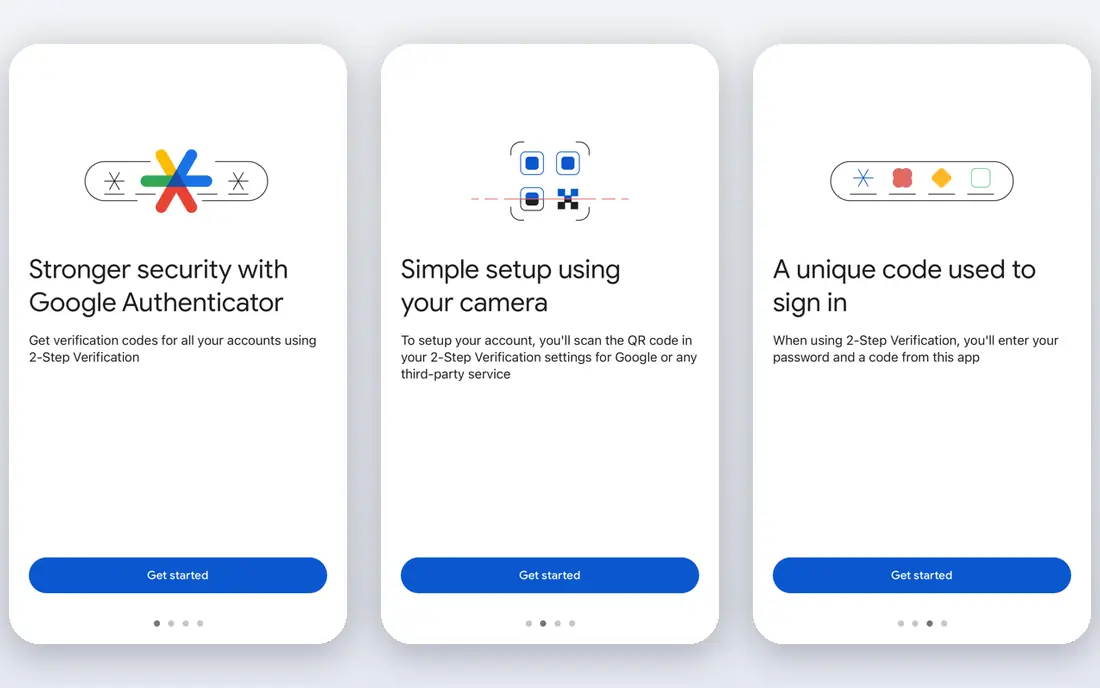
Google Authenticator is the default authenticator for millions of users, and its strength is simplicity. Scan a QR code when you turn on two-factor authentication for an account, and the app shows a code that changes every thirty seconds. No account is needed for basic use, and the app works offline once accounts are added.
Cloud sync, when enabled, lets codes move to a new phone, but check that sync encryption is turned on. Users who switch devices often, or who want full export control, may prefer Ente Auth or 2FAS. For a first authenticator, though, Google Authenticator is hard to beat for ease and support.
- Free and widely supported
- Simple setup by QR code
- Cloud sync for codes when enabled
- Sync and export options are less flexible than open-source rivals
- Tied to a Google account for sync
Microsoft Authenticator is the natural pick for people who use Microsoft accounts, Office, or Azure services. It supports standard time-based codes for third-party accounts, and it adds push approvals for Microsoft sign-ins, so you can approve a login with a tap instead of typing a code. Cloud backup helps when you move to a new phone.
Third-party account backup is less flexible than with Ente Auth, and the smoothest experience stays inside Microsoft services. If your work or school life runs on Microsoft accounts, this app is the obvious choice. If you use a mix of services, compare it with Google Authenticator and Ente Auth first.
- Free and widely supported
- Push approvals for Microsoft accounts
- Cloud backup for Microsoft account users
- Best experience is inside the Microsoft ecosystem
- Third-party account backup is less straightforward
Authy built its name on multi-device sync. Set up an account on one device, and it can appear on another device using the same Authy account, with backups protected by a password that Authy does not store. For users who switch phones often, that sync was a major advantage over early versions of Google Authenticator.
The trade-off is lock-in. Exporting codes from Authy to another authenticator is not straightforward, and desktop support has narrowed, so Authy is now mainly a mobile app. New users who value export freedom should start with Ente Auth or 2FAS instead, while existing Authy users with a working setup have no urgent reason to move.
- Free multi-device sync
- Backup with an encryption password
- Works on phone and desktop in supported forms
- Exporting codes to another app is difficult
- Desktop support has narrowed in recent years
1Password suits users who want one secure home for logins and codes. The app stores passwords, generates one-time codes for accounts that support it, and syncs across phones, computers, and browsers. That combination reduces the number of apps you manage, and family plans extend the same protection to a household.
The cost is the main consideration. Individual plans are listed at $2.99 per month, with a trial to test the service first. Security also depends on your master password, since passwords and codes sit in the same vault. Use a strong, unique master password and a recovery plan, and 1Password becomes a convenient and safe authenticator.
- Passwords and one-time codes in one vault
- Sync across devices and browsers
- Strong security and family plans
- Full use needs a paid subscription
- Putting passwords and codes together needs a strong master password
Bitwarden is the open-source password manager many security-minded users choose. The free tier covers password storage and sync, while Premium adds built-in authenticator codes and other features at a low annual price. The code is public, which lets independent reviewers check how it handles your data.
Authenticator codes in Bitwarden need Premium, so free users still need a separate authenticator app. If you already pay for Bitwarden Premium, using its built-in codes is convenient. If you want a free standalone authenticator, Ente Auth or 2FAS will serve you better.
- Free password manager with open-source code
- Authenticator codes in Premium
- Sync across devices
- Built-in authenticator needs Premium
- Interface is more functional than polished
Ente Auth is our pick for users who want control without giving up sync. It is open source, it syncs codes with encryption across phones and desktop, and it makes export and local backup straightforward. That combination solves the two main problems of older authenticators: losing codes with a phone, and being unable to move codes to another app.
The user base is smaller than Google or Microsoft, and a few users report setup bugs on some devices. For most users, though, Ente Auth offers the best balance of security, sync, and freedom in this list, and it costs nothing for the core authenticator.
- Open-source code
- Encrypted sync across phone and desktop
- Easy export and local backup options
- Smaller user base than Google or Microsoft
- Some users report occasional setup bugs
2FAS is another open-source authenticator that treats your codes as your property. It needs no account, it is free on Android and iOS, and it offers backup and export options that make switching apps or phones far easier than with locked-in rivals. The interface is clear, and setup by QR code takes seconds.
Sync is the detail to plan. Because 2FAS does not force an account, your backup method matters, so set up encrypted backup and store it safely at the start. Users who do that get a free, private authenticator with real control. Users who skip backup risk the same lockout problem as any local-only app.
- Open-source and free
- No account needed
- Backup and export options on Android and iOS
- Sync depends on the backup method you choose
- Fewer integrations than password managers
Aegis Authenticator is the Android-only pick for users who want full control. It stores codes in an encrypted vault, supports groups and custom icons, and offers strong backup and export options. Android users who value open-source software and local control often choose Aegis over any commercial authenticator.
The limit is platform. There is no iPhone version, so Apple users need Ente Auth, 2FAS, or a password manager instead. Android users who want a free, private, and fully controlled authenticator will find Aegis hard to fault, provided they set up encrypted backup from day one.
- Open-source and free
- Encrypted vault with strong backup options
- Full control over codes and groups
- Android only
- No iPhone version
How we picked these
We compared official product pages, app store listings, and current authenticator roundups checked in October 2026, and we kept apps that generate standard time-based codes and are actively maintained. Backup, sync, export, and open-source status mattered as much as code generation, because those factors decide whether you can recover from a lost phone. Apps that only send SMS codes, or that had stopped working, did not make the list.
How to set up two-factor authentication safely
Turn on two-factor authentication for email first, because email resets most other accounts. Add each account by scanning its QR code, then immediately save the recovery codes that service offers in a safe place separate from your phone, such as a password manager or a printed copy in a secure location. Test one code before you close the setup screen.
Next, set up backup in the authenticator itself. Turn on encrypted cloud sync or export an encrypted backup, and confirm you can restore it on a second device if your app supports that. Do this on a calm day, not after a phone is lost, because backup set up after a loss cannot recover codes that were never backed up.
Avoid SMS when an app code is available
SMS codes are better than no second factor, but they can be intercepted through SIM swapping, and they fail when you have no signal. An authenticator code works offline and does not travel over the phone network, so choose the app option whenever a service offers it. Keep SMS only for services that offer no app or security key option.
Plan for a lost phone now
Write down what you will do if your phone is lost: which recovery codes you have, where backups live, and which accounts need support contact. Keep a second device or a printed backup for your most important accounts if your authenticator supports it. That short plan turns a stressful loss into a routine restore.
Frequently asked questions
What is the best 2FA app?
Google Authenticator is the best 2FA app for most people, because it is free, simple, and widely supported. Ente Auth is the best choice for users who want encrypted sync and easy export, while Microsoft Authenticator suits Microsoft account users. The best app is the one you set up with backup, since an unbacked authenticator can lock you out.
Is Google Authenticator free?
Yes, Google Authenticator is free, with no subscription for generating codes. Microsoft Authenticator, Authy, Ente Auth, 2FAS, and Aegis are also free for core code generation. You should not need to pay anyone just to show a six-digit code, though password managers such as 1Password charge for the full manager that includes codes.
What is the best multi-factor authentication app?
Microsoft Authenticator is strong for Microsoft accounts with push approvals, while Ente Auth and 2FAS are strong open-source multi-factor options for many services. 1Password and Bitwarden combine passwords and codes in one manager. The best multi-factor app depends on whether you want push approvals, open-source control, or a combined password manager.
Can I transfer 2FA codes to a new phone?
Yes, if you set up backup or export before you switch. Google and Microsoft offer cloud sync or backup, Ente Auth and 2FAS offer encrypted sync and export, and Aegis offers encrypted vault backup. Authy syncs across devices but exporting to another app is harder. Set up backup early, and test a restore before you rely on it.
Is SMS two-factor authentication safe enough?
SMS is better than no second factor, but it is weaker than an authenticator app, because SIM swapping can redirect SMS codes. Use an authenticator app whenever a service offers it, and keep SMS only as a fallback where no app or security key option exists. Save recovery codes for every important account regardless of method.
Sources we checked (8)

Online Jobs is an independent blog about careers, online work, learning new skills and the tools that help people earn. More about us.
Keep reading
All posts
Surfshark Alternatives
Looking for Surfshark alternatives? We compare 8 VPN services on price, privacy, streaming, and device limits to help you find a VPN that fits your needs.
NordPass Alternatives
We compared NordPass alternatives for families, solo users and teams, checking pricing, free plans, passkeys and sharing, so you can switch safely today.
LLM Tool Integration Security Best Practices
Learn LLM tool integration security best practices for 2026, with eight tools for guardrails, tool scoping, sandboxing, agent governance and audit logging.