Best Free Caption Apps for YouTube Videos in 2026: 8 Apps Compared


Creators who publish on YouTube and want built-in captions · Starting price: See website
How we put this together: we compare official feature and pricing pages, app store listings, privacy policies and public user reviews. Prices change, so check the provider's site before you pay.
Key takeaways
-
- YouTube Studio is the safest free starting point for toggleable captions on published videos.
-
- CapCut and Submagic suit styled, burned-in captions for Shorts and short clips.
-
- VEED and Kapwing suit browser editing and subtitle file export when you work on more than one computer.
-
- Descript suits talk-heavy videos because you can edit the video by editing the transcript.
-
- Always proofread automatic captions, since names, terms and quiet speech are the usual errors.
Quick comparison
| Name | Who it suits | Starting price | Free option | |
|---|---|---|---|---|
| YouTube Studio | Creators who publish on YouTube and want built-in captions | See website | Yes | Visit |
 CapCut | Short-form creators who want styled captions fast | See website | Yes | Visit |
 VEED | Browser-based creators who want captions plus editing | See website | Yes | Visit |
 Kapwing | Teams and creators who edit together in the browser | See website | Yes | Visit |
 Descript | Podcasters and creators who edit video from a transcript | See website | Yes | Visit |
 Submagic | Short-form creators who want animated captions | See website | No | Visit |
 Captions | Mobile creators who record and caption on a phone | See website | Yes | Visit |
 Clipchamp | Windows and browser creators who want simple captions | See website | Yes | Visit |
The best free caption apps for YouTube videos
Captions help viewers who watch muted, viewers who need text, and viewers who speak another language. The tools below cover two different jobs: toggleable captions that YouTube can show as a track, and burned-in captions that stay visible in the video itself. We compared them on free access, caption accuracy, styling, subtitle export and how well each one fits Shorts versus longer videos.
YouTube Studio
Who it suits: Creators who publish on YouTube and want built-in captions
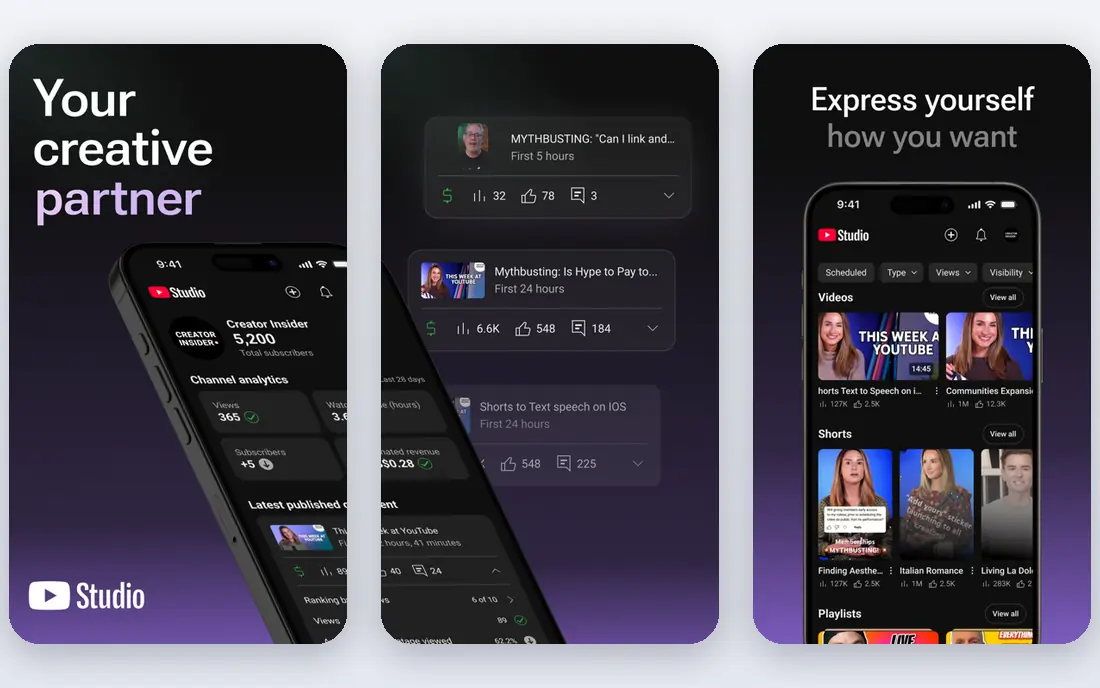
We start with YouTube Studio because it is already part of the publishing workflow for most YouTube creators. it can generate automatic captions and lets you edit timing and wording before a video goes live, which keeps the caption track under your control. It fits creators who want toggleable captions that viewers can turn on or off. Automatic captions still miss names, brand terms and quiet speech, so a proofread pass matters. Upload a clean audio track, edit the automatic draft in the editor, and check the result on a phone before you publish. In practice, the right test is a small, realistic job rather than a long feature list, because daily use shows where a tool helps and where it slows you down.
- Built into YouTube at no extra cost
- Editable caption tracks
- Supports multiple languages
- Limited styling for burned-in captions
- Automatic captions need careful checking
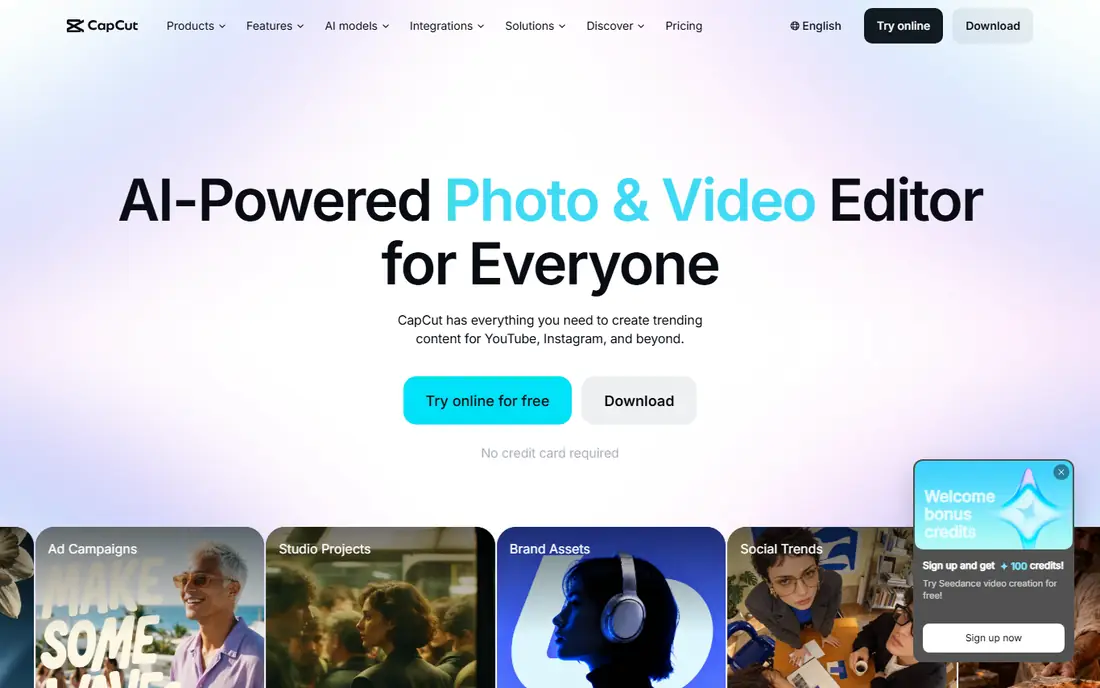
For many readers, CapCut is the first option worth a close look, since its free auto captions cover a large share of short-form work. it turns speech into timed text in a few steps and offers styles that suit Shorts, Reels and TikTok clips. It fits creators who publish often and want captions that match the look of short video. Styled captions can distract when the text is too large or too fast, so keep one style across a series. Pick a readable font size, test the clip muted, and keep captions inside the safe area for vertical video. In practice, the right test is a small, realistic job rather than a long feature list, because daily use shows where a tool helps and where it slows you down.
- Free auto captions
- Many animated caption styles
- Easy vertical video export
- Free exports and features change over time
- Long-form caption editing is less focused
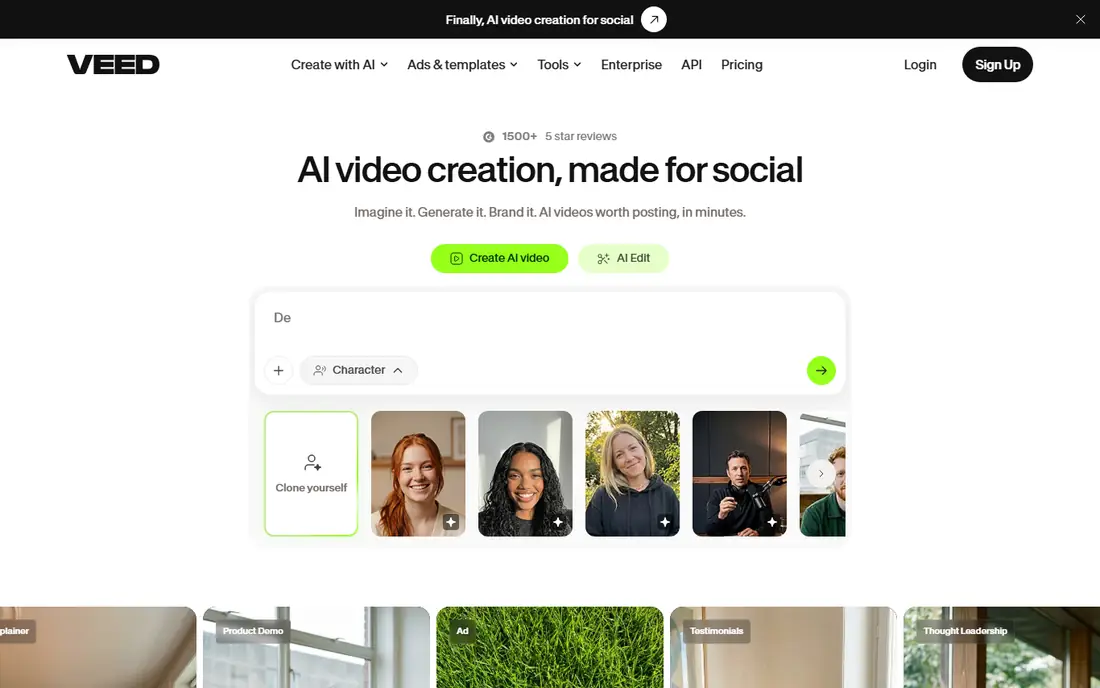
Consider VEED when it works in the browser and covers captions, editing and export in one place. it generates subtitles from speech, lets you adjust style and timing, and exports video or subtitle files for reuse. It fits creators who move between computers and do not want to install software. Browser tools depend on connection speed and file size, so very long videos take longer to process. Try a short clip first, confirm the subtitle file opens in YouTube Studio, and keep the original project file. In practice, the right test is a small, realistic job rather than a long feature list, because daily use shows where a tool helps and where it slows you down.
- Browser editing with no install
- Subtitle files and styling controls
- Translation options
- Free exports may carry limits or a watermark depending on the current plan
A good place to begin is Kapwing, where it pairs auto subtitles with shared editing. it creates timed subtitles from audio, lets collaborators comment and edit, and exports SRT, VTT or TXT files in many workflows. It fits small teams and classrooms that review captions together. Shared links need care when a video is not yet public, so check sharing settings before you send a draft. Name the project clearly, lock the final caption file, and store it with the published video. In practice, the right test is a small, realistic job rather than a long feature list, because daily use shows where a tool helps and where it slows you down.
- Collaborative browser editing
- Auto subtitles
- Subtitle file export
- Free plan limits and watermarks may apply to exports on some plans
We include Descript here because it treats the transcript as the editing surface. it transcribes speech, lets you cut video by deleting text, and produces captions that follow the edited words. It fits talk-heavy videos, interviews and podcasts published to YouTube. Transcript editing can hide a useful pause or reaction, so watch the cut video, not only the text. Edit in short passes, restore any cut that changes meaning, and export captions for a final check. In practice, the right test is a small, realistic job rather than a long feature list, because daily use shows where a tool helps and where it slows you down.
- Transcript-based editing
- Caption export
- Strong tools for spoken content
- Free plan has limited media minutes
- Full features need a paid plan
Next up is Submagic, a choice that stands out because its animated styles are built for short clips. it adds word-by-word captions with emphasis styles that are common in Shorts and Reels. It fits creators whose main goal is a punchy, readable short video. Heavy animation suits some topics and hurts others, especially tutorials that need calm, clear text. Use one template per channel, keep emphasis words few, and check readability at small screen sizes. In practice, the right test is a small, realistic job rather than a long feature list, because daily use shows where a tool helps and where it slows you down.
- Animated caption templates
- Word-by-word highlighting
- Fast short-form workflow
- Free use is limited to trials on some plans
- Focused on short clips rather than long videos
Turning to Captions, we find it is designed around phone recording and fast captioning. it adds automatic captions to clips, offers a wide set of styles, and keeps the path from recording to posting short. It fits creators who film, caption and publish from one device. Small-screen editing makes long caption fixes slower than on a desktop editor. Do the first caption pass on the phone, then review timing on a larger screen for longer clips. In practice, the right test is a small, realistic job rather than a long feature list, because daily use shows where a tool helps and where it slows you down.
- Mobile-first caption workflow
- Many caption styles
- Quick sharing to social apps
- Some styles and exports need a paid plan
- Desktop editing is more limited
Another strong option is Clipchamp, where it gives many Windows users a caption tool without a new install. it adds auto captions to a timeline, lets you trim and style text, and exports video for YouTube. It fits beginners and office creators who want a plain, guided editor. Its caption styling is plainer than specialist caption apps, so brand-heavy channels may want another tool. Keep captions short per line, avoid covering faces or lower-third graphics, and test the export before upload. In practice, the right test is a small, realistic job rather than a long feature list, because daily use shows where a tool helps and where it slows you down.
- Free with a Microsoft account for many users
- Auto captions
- Timeline editing
- Some premium filters, stock and exports need a paid plan
How we picked these
We looked for tools that are genuinely available in a free tier or at no cost, that produce captions for YouTube videos, and that offer editing or export rather than a demo only. We favoured tools with subtitle file export, clear free limits, and a workflow that a solo creator can repeat. We did not rank on claimed accuracy alone, since audio quality changes results so much. Where a free plan had limits, we noted the limit instead of calling the tool fully free.
How to choose a free caption app for YouTube
Choosing starts with the caption type. If you want viewers to toggle captions on and off, you need a subtitle file such as SRT or a YouTube caption track. If you want captions visible in every share, including clips reposted elsewhere, burned-in captions are the better choice. Many creators use both: a clean SRT for YouTube and a styled burned-in version for Shorts. Next, check the free limit against your volume. A tool that is free for a few short clips each month works for a weekly Short, but it will not carry a daily channel. Look at monthly minutes, export resolution, watermarks and whether subtitle export is included. Those four limits decide the real cost more than the headline price. Accuracy also depends on your recording. A quiet room, a close microphone and slower, clearer speech help every tool on this list. Names, product terms and numbers still need a manual check. Build a short proofread step into publishing, and keep a glossary of terms you repeat so corrections get faster over time.
Frequently asked questions
What is the best free caption app for YouTube videos?
YouTube Studio is the best free starting point for most creators, because it is free, built into publishing, and produces editable caption tracks. CapCut is a strong free choice for styled Shorts captions. The best pick depends on whether you need toggleable captions or burned-in text.
Can free caption apps export SRT files for YouTube?
Many of them can. VEED, Kapwing and Descript support subtitle file export in their usual workflows, and YouTube Studio accepts SRT uploads. Always open the exported file after download and check that timing and line breaks look right before you publish.
Are automatic captions accurate enough to publish without checking?
No. Automatic captions work well on clear, slow speech, but they still miss names, technical terms and overlapping voices. A short proofread pass catches most errors and protects viewers who rely on captions. Treat the automatic draft as a starting point, not a finished track.
Should I use burned-in captions or YouTube caption tracks?
Use caption tracks for long videos, since viewers can turn them on or off and change their size. Use burned-in captions for Shorts and clips that may be shared outside YouTube, since the text stays visible. Some creators publish both versions for different uses.
Do free caption apps add a watermark?
Some do, and the rule depends on the tool and plan. Browser tools and animated caption apps are the most likely to watermark free exports. Check the export preview before you spend time on a full edit, and keep a note of which plan removes the watermark.
Sources we checked (8)

Online Jobs is an independent blog about careers, online work, learning new skills and the tools that help people earn. More about us.
Keep reading
All posts
Best YouTube Alternatives
Compare the best YouTube alternatives for creators and viewers, from Vimeo and Twitch to Rumble, Nebula, and PeerTube, with honest trade-offs for 2026.
Best Video Upscaler Tool
Looking for the best video upscaler tool in 2026? We compare 8 AI upscalers for 4K and 8K video, old footage, faces, and free desktop options. Compare first.
Best Face Swap Video Tools
Compare the best face swap video tools in 2026 for consent-based creative work, from mobile apps to desktop editors, with prices, free plans, and safety notes.