Best Tool to Fix Blurry Videos in 2026: 9 Tools Compared


Serious restoration and upscaling · Starting price: See website
How we put this together: we compare official feature and pricing pages, app store listings, privacy policies and public user reviews. Prices change, so check the provider's site before you pay.
Key takeaways
- The best tool to fix blurry videos depends on the cause: low resolution, compression, noise, motion blur, or poor focus each need a different fix.
- Topaz Video AI is the strongest dedicated choice for serious restoration, while DaVinci Resolve is the best free starting point for editors.
- AI tools can sharpen and rebuild detail, but they cannot fully recover a frame that was never sharp in the first place.
- Always test on a short clip first, because the wrong model can waste hours and make footage look artificial.
- Desktop tools need a capable GPU, while browser tools suit short clips and weaker computers.
Quick comparison
| Name | Who it suits | Starting price | Free option | |
|---|---|---|---|---|
| Topaz Video AI | Serious restoration and upscaling | See website | Free trial | Visit |
 Aiarty Video Enhancer | Efficient desktop enhancement | See website | Free trial | Visit |
 HitPaw Video Enhancer | One click beginner fixes | See website | Free trial | Visit |
 AVCLabs Video Enhancer AI | Face and batch enhancement | See website | Free trial | Visit |
 DaVinci Resolve | Free editor with enhancement tools | Free | Yes | Visit |
 Adobe Premiere Pro | Enhancement inside a full edit | See website | Free trial | Visit |
 CapCut | Quick social video fixes | Free | Yes | Visit |
 VideoProc Converter AI | All round conversion and enhancement | See website | Free trial | Visit |
 UniFab Video Upscaler AI | Automated upscaling | See website | Free trial | Visit |
The best tool to fix blurry videos
Blurry video is not one problem. A clip can be soft because it was shot at low resolution, compressed for upload, filmed in low light, or blurred by motion. The tools below handle those causes differently, so start by naming the problem in your footage before you buy anything. That diagnosis saves more time than any single preset.
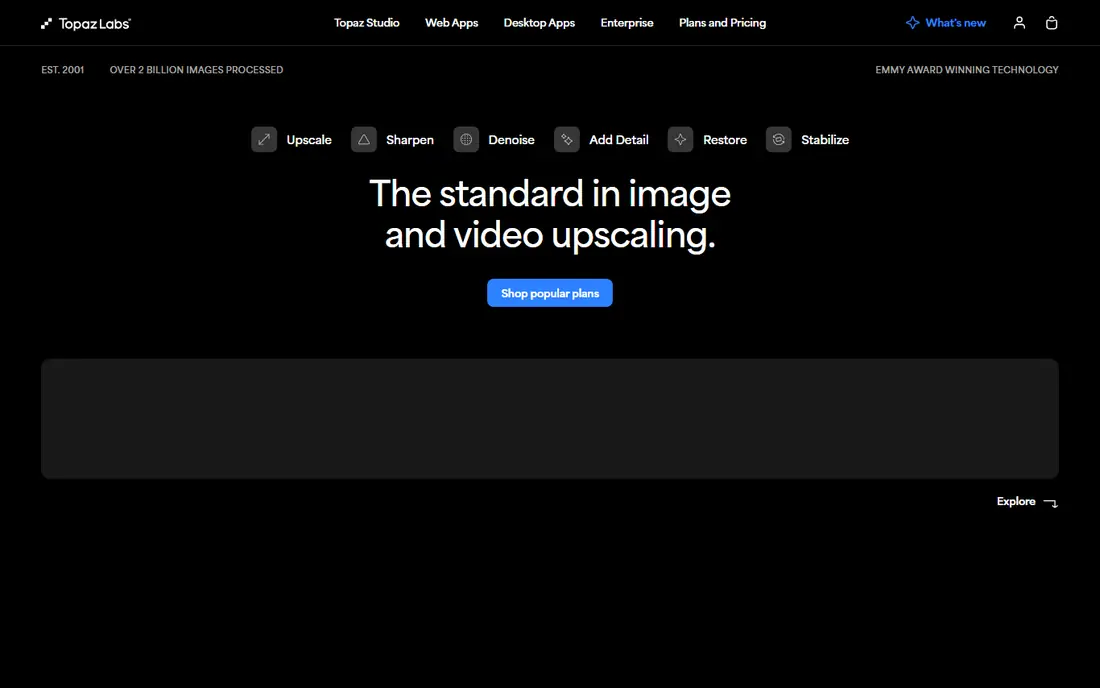
Topaz Video AI remains the reference tool for fixing blurry footage when quality matters most. Its different models target compression artefacts, face restoration, and upscaling separately, so you can match the model to the fault in your clip rather than applying one generic sharpen filter. For old footage, archival work, and client projects, that control is worth the learning time. The cost is time and hardware. Processing is slow without a modern GPU, and a wrong model choice can produce a clean but artificial look. Cut a ten second sample from your worst section, try two models, compare them on a large screen, and only then process the full file.
- Multiple AI models for different problems
- Strong upscaling to 4K
- Detailed control over output
- GPU intensive and slow on weaker machines
- Subscription pricing needs checking

Aiarty Video Enhancer is a good middle ground for creators who want AI enhancement without a steep learning curve. It handles blur, noise, blockiness, and pixelation in one pass, and it is less demanding on hardware than the heaviest restoration tools. That makes it practical for everyday footage, old camcorder clips, and downloaded videos that need a lift. It will not match Topaz on the hardest restoration jobs, where model choice and fine tuning matter. Use Aiarty for the bulk of your clips, and reserve a specialist tool for the few shots that need manual attention. Check the export settings carefully, because a high resolution export from a poor source can still look soft if the bitrate is too low.
- One click enhancement for blur, noise, and low resolution
- Faster on modest hardware than heavier tools
- 4K output
- Fewer model choices than Topaz
- Face detail can soften on very low quality sources
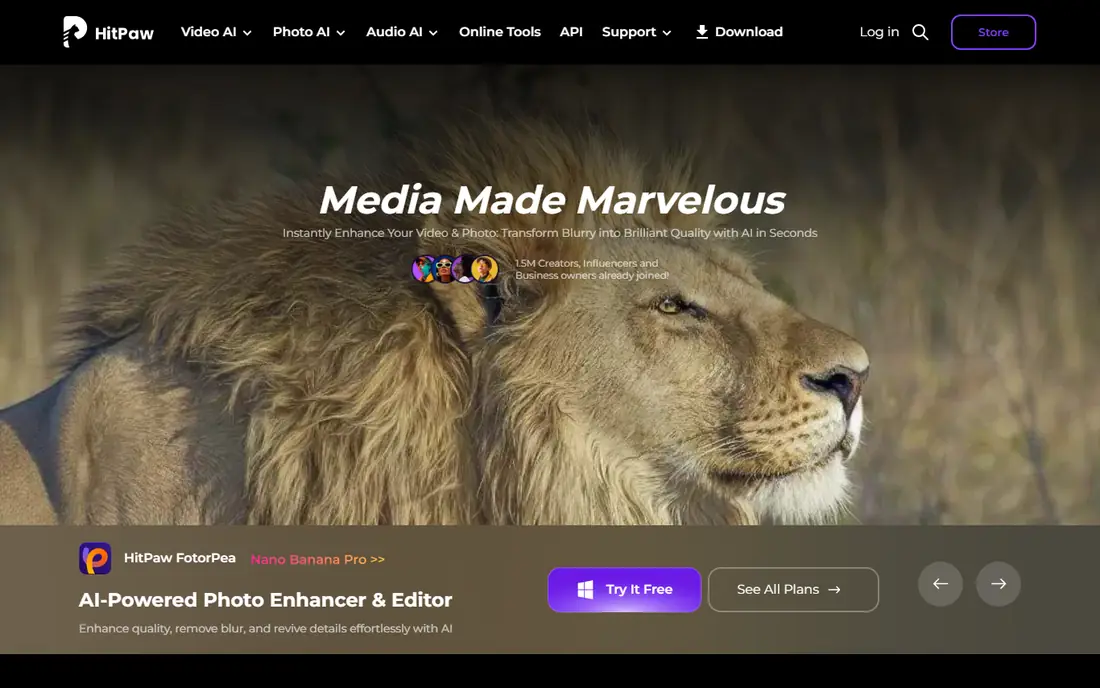
HitPaw Video Enhancer is built for people who want a fix without learning video theory. Pick a preset, process the clip, and export the result. That simplicity suits social creators, family archivists, and small businesses that need a quick improvement for a single video. The limit is control. When a preset over sharpens skin or creates artefacts around text, you have fewer ways to correct it than in Topaz or DaVinci Resolve. Treat HitPaw as a fast first pass, and check faces, text, and edges at full size before you publish.
- Very simple interface
- Presets for common problems
- Good for short clips
- Subscription cost adds up
- Less control for advanced users
AVCLabs Video Enhancer AI suits creators with many similar clips, such as interviews, vlogs, and training videos. Its face model helps when the subject is the main focus, and batch processing lets you queue several files rather than babysitting each one. That workflow matters when you have a backlog. As with other AI tools, results depend on the source. Faces that are small in frame, partly hidden, or moving fast are harder to restore than a steady close up. Test one clip from each shooting condition, and keep the originals so you can reprocess if a better model appears later.
- Face enhancement for talking head clips
- Batch processing
- Upscaling and denoising in one tool
- Monthly pricing for regular use
- Processing time varies with clip length
DaVinci Resolve is the best free route into fixing blurry video, especially if you already edit. Its sharpening, noise reduction, and colour tools can lift soft footage a long way, and because enhancement happens inside the edit, you avoid round tripping files between apps. For many creators, that is enough, and it costs nothing to learn. It is not a one click AI enhancer. You need to understand sharpening strength, noise thresholds, and export bitrate, and the free version limits some advanced noise tools. Start with a short test, use masks to sharpen only the subject where needed, and export at a high bitrate so compression does not undo your work.
- Free version is genuinely capable
- Noise reduction, sharpening, and colour tools in one editor
- No subscription for the base app
- Learning curve is steep
- The best noise reduction sits in the paid Studio version
Premiere Pro suits editors who need a modest fix without leaving their project. Unsharp mask, sharpen effects, and third party plugins can improve soft footage, and you can apply them only to the shots that need help. That targeted approach keeps the rest of the edit untouched and avoids long AI renders for the whole timeline. For severe blur, Premiere alone is limited. It sharpens existing detail rather than rebuilding it, so a very low resolution clip will still look soft. Use it for light fixes and finishing, and send only the problem shots to a dedicated AI enhancer when the footage truly needs rebuilding.
- Sharpening, upscaling, and effects inside your timeline
- Strong plugin ecosystem
- Good for professional workflows
- Subscription cost
- AI enhancement is less specialised than Topaz
CapCut is the right tool when speed matters more than perfection. A short social clip that looks soft after compression can often be improved with its enhancement and sharpening tools in minutes, on a phone or in a browser. That is enough for many TikTok, Reels, and Shorts posts, where viewers watch on small screens. Do not expect it to rescue old or very low quality footage. The tools are general purpose, not restoration models, and heavy sharpening can create halos around edges. Use CapCut for quick social fixes, and move to a desktop AI tool when the clip will be shown large or kept as a long term archive.
- Free and fast for short clips
- Enhancement and sharpening in a familiar mobile and desktop editor
- Easy sharing
- Quality ceiling is lower than desktop AI tools
- Free exports may carry limits
VideoProc Converter AI
Who it suits: All round conversion and enhancement
VideoProc Converter AI is useful when fixing blur is part of a wider job, such as converting an old format, trimming a clip, and improving quality in one pass. Its AI tools handle upscaling, denoising, and stabilisation, and the conversion features help when a file will not play cleanly in your editor. That breadth suits archivists and creators with mixed file types. The trade off is depth. For a single hard restoration, a specialist tool gives more control. For a batch of mixed files that also need converting, VideoProc saves steps. Always compare the enhanced export with the original at full size, because conversion settings can soften a clip even after enhancement.
- Combines enhancement with conversion and compression tools
- Useful for old and downloaded footage
- Clear interface
- AI quality varies by source
- Less specialised than Topaz for hard cases
UniFab Video Upscaler AI is a straightforward choice for upscaling old videos and animation, where the goal is a larger, cleaner file without manual tuning. Its automated models suit users who do not want to choose between many settings, and batch processing helps with a library of clips rather than a single file. Automation is also its limit. Live action footage with complex motion, and animation with flat colours, need different handling, and a single preset may not suit both. Test one clip from each type in your library, check faces and fine lines at full size, and keep the original files for any clip you may want to reprocess later.
- Automated AI upscaling for old videos and animation
- Simple workflow
- Batch friendly
- Automation limits fine control
- Results vary with animation versus live action
How we picked these
We compared official feature pages, pricing pages, app store listings, privacy policies, and public reviews, and we kept only tools that are still available and clearly able to improve blurry video in October 2026. We looked for a stated enhancement or upscaling function, a trial or free version where possible, and a workflow that a normal creator can complete. We did not rank tools on claimed quality scores, because those scores depend on test footage and are not comparable across vendors. We also weighed honesty about limits. No AI tool can invent true detail that was never recorded, and heavy enhancement can create artefacts that look worse than mild softness. Our picks therefore include free editors and light tools alongside specialist AI software, so you can match effort and cost to the value of the footage.
How to get the best result from any tool
Diagnose the blur before you enhance
Pause on a detailed frame and check whether the problem is low resolution, compression blocks, noise, or motion blur. Low resolution suits upscaling, compression suits a denoise model, and motion blur is the hardest to fix. A tool that helps one cause may do little for another, so name the cause first.
Test short, compare large, then commit
Cut a ten second sample from the worst section, process it with two settings, and compare the results on the largest screen you have. Check faces, text, and edges, not only the overall impression. Only process the full file once the sample looks natural, and keep the original safe.
Export at a high bitrate
Enhancement is wasted if the export compresses the result back into blocks. Use a high bitrate, a modern codec, and the resolution your platform actually shows. For archives, keep a high quality master separate from the smaller file you upload.
Frequently asked questions
Can AI really fix a blurry video?
It can improve many blurry videos, by sharpening edges, reducing noise, and rebuilding plausible detail. It cannot fully restore a frame that was badly out of focus or extremely low resolution. Expect a clear improvement on mild to moderate blur, and a partial improvement on severe blur.
What is the best app to fix blurry video on a phone?
CapCut is the easiest phone option for short social clips. For a phone clip that matters, transfer it to a desktop and use DaVinci Resolve for a free fix, or Aiarty and Topaz for stronger AI enhancement. Phone screens hide artefacts that a larger screen will show.
How long does AI video enhancement take?
It depends on clip length, resolution, GPU, and model. A short clip may take minutes, while a long 4K upscale can take hours on a modest computer. That is why testing a short sample first matters, and why overnight processing suits long projects.
Will upscaling to 4K make a blurry video sharp?
Upscaling alone only makes a soft image larger. AI upscaling rebuilds detail as it enlarges, which can look sharper, but it cannot create true detail that was never recorded. A 1080p upscale from a clean source often looks better than a 4K upscale from a poor source.
Should I sharpen before or after colour correction?
Do basic colour and exposure correction first, then sharpen or enhance, then check the result again. Heavy sharpening before colour work can exaggerate noise, and colour changes after enhancement can reveal artefacts. Keep the order consistent across a project.
Is free software enough to fix blurry video?
For mild blur, yes. DaVinci Resolve and CapCut cover sharpening, noise reduction, and basic enhancement without cost. Paid AI tools earn their price on severe blur, old footage, and large batches, where free tools reach their limit.
Sources we checked (9)

Online Jobs is an independent blog about careers, online work, learning new skills and the tools that help people earn. More about us.
Keep reading
All posts
Best YouTube Alternatives
Compare the best YouTube alternatives for creators and viewers, from Vimeo and Twitch to Rumble, Nebula, and PeerTube, with honest trade-offs for 2026.
Best Video Upscaler Tool
Looking for the best video upscaler tool in 2026? We compare 8 AI upscalers for 4K and 8K video, old footage, faces, and free desktop options. Compare first.
Best Free Caption Apps for YouTube Videos
Compare the best free caption apps for youtube videos, with auto captions, SRT export and styling notes to help you pick the right tool for YouTube today.