Best AI App to Make Videos for Free in 2026: 8 Compared

How we put this together: we compare official feature and pricing pages, app store listings, privacy policies and public user reviews. Prices change, so check the provider's site before you pay.
Key takeaways
- CapCut is the best free mobile-first pick for social clips, with captions, effects, and 1080p exports.
- Canva suits business and marketing videos, with templates, branding, and Magic Media inside designs.
- InVideo AI and Pictory suit turning a script or blog post into a full video with voiceover and captions.
- Clipchamp suits Windows users who want a free editor with AI features and no watermark on core exports.
- Runway and Luma Dream Machine suit testing generative text-to-video clips before paying for a pro plan.
Quick comparison
| Name | Who it suits | Starting price | Free option | |
|---|---|---|---|---|
 CapCut | Free social clips on mobile and desktop | Free | Yes | Visit |
 Canva | Marketing videos and branded designs | Free | Yes | Visit |
 InVideo AI | Turning a script into a YouTube video | Free | Yes | Visit |
 Clipchamp | Free Windows video editing with AI tools | Free | Yes | Visit |
 Pictory | Turning blog posts and scripts into video | See website | Free trial | Visit |
 Runway | Generative cinematic clips from prompts | Free | Yes | Visit |
 Luma Dream Machine | Realistic motion from text and images | Free | Yes | Visit |
 VEED | Captions, talking-head, and interview video | Free | Yes | Visit |
The best ai apps to make videos for free
Free AI video tools split into two kinds. Editors such as CapCut, Canva, and Clipchamp help you cut, caption, and polish footage you already have. Generators such as Runway and Luma create new clips from a text prompt. Script tools such as InVideo and Pictory sit between the two, turning words into a finished video. The eight apps below cover all three jobs.
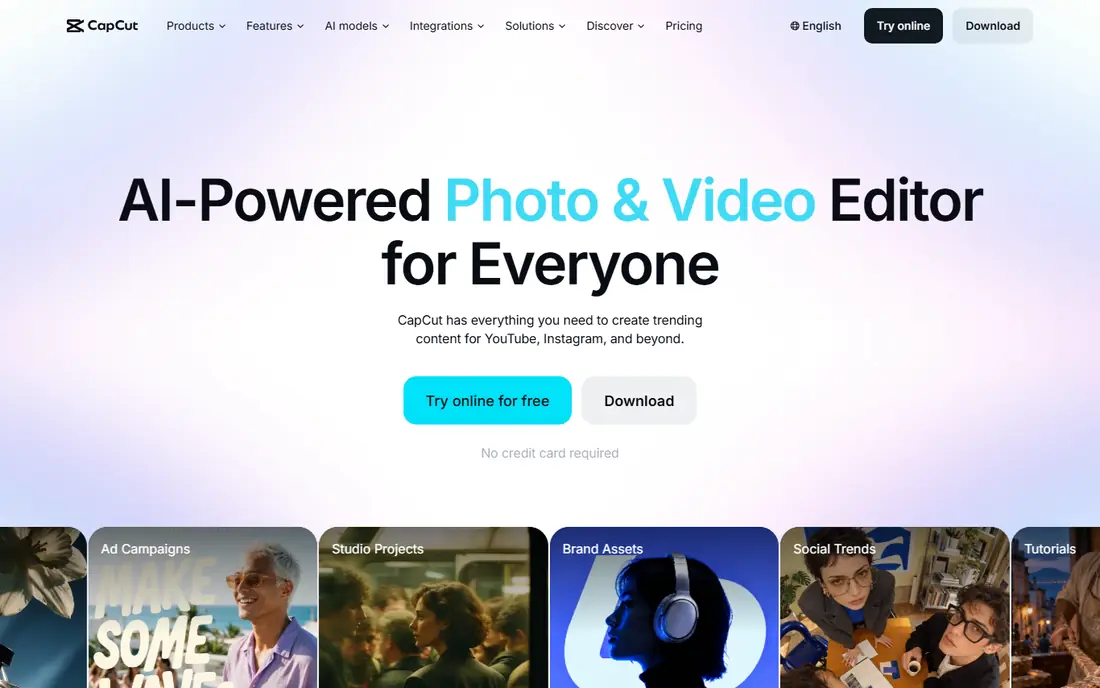
CapCut is the best free starting point for short-form video. The mobile app offers AI captions, auto-cuts to music, trend templates, and ready-made layouts for TikTok and Reels, while the desktop app covers longer edits. For a beginner, that combination removes most of the learning curve.
Exports are a key strength. Core free exports at 1080p without a watermark on many features make CapCut genuinely usable for publishing, not just testing. That is rare among free video tools, where watermarks often force an upgrade.
The limit is originality and depth. Heavy template use can make videos look alike, and some pro AI features sit behind a paid plan. For social clips, though, CapCut gives the most free value with the least friction.
- Free editing with AI captions, effects, and templates
- 1080p exports on core features
- Strong for TikTok and Reels
- Some advanced AI features need a paid plan
- Templates can look similar across creators
- Desktop and mobile features differ
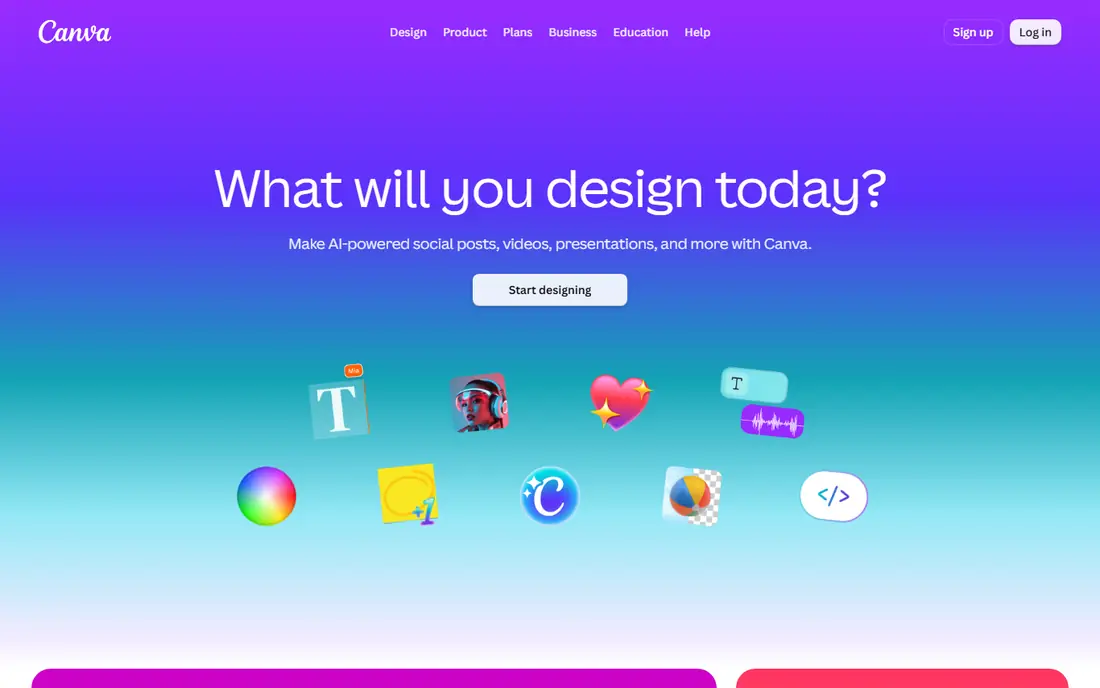
Canva suits creators who need a video to match a brand. You can start from a template, add your logo, colors, and fonts, drop in a Magic Media clip, and export a polished marketing video without learning a timeline editor. That workflow suits product announcements, social ads, and presentations.
Magic Media generates short clips from a prompt inside your design, which saves time when you lack footage. Stock video, music, and text animations fill the rest, so a complete video can come together in under an hour.
Free AI generation is limited, so heavy users will need a paid plan for more clips. Timeline control is also simpler than a dedicated editor. For on-brand marketing videos, Canva is still the fastest free path.
- Templates, branding, and Magic Media in one place
- Easy text, layouts, and stock clips
- Good for teams and small businesses
- AI video generation has limits on free plan
- Less precise timeline editing than CapCut or Clipchamp
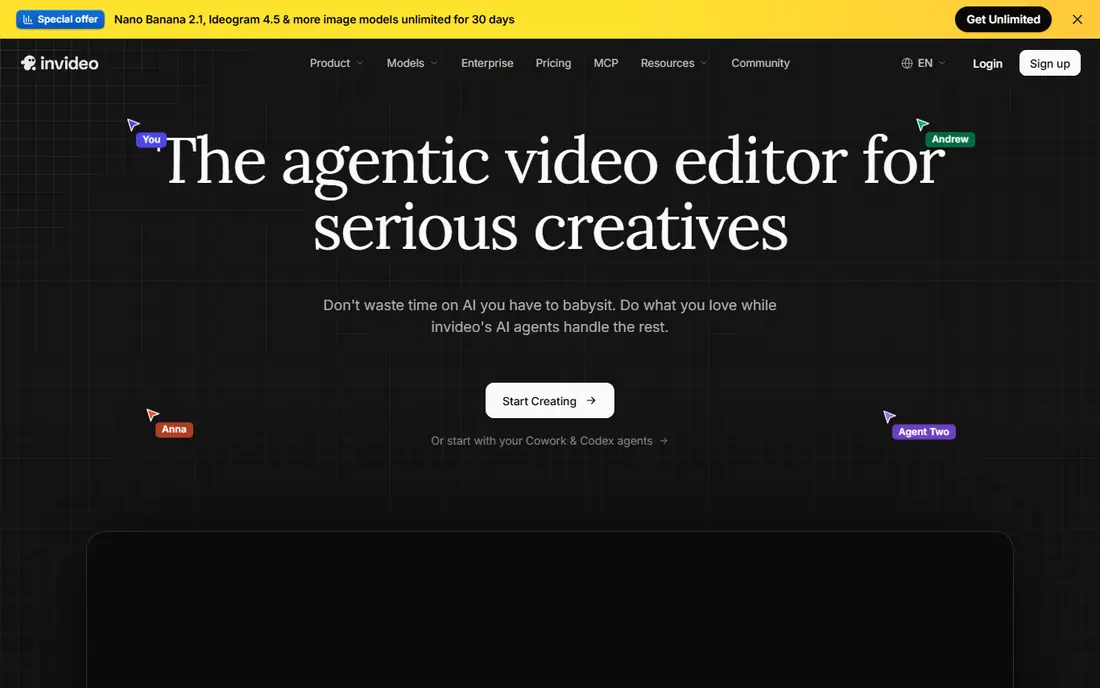
InVideo AI is built for creators who start with words. Type a topic or paste a script, and the tool drafts scenes, picks stock footage, adds a voiceover, and places captions. That pipeline suits faceless YouTube channels, explainers, and marketing videos where filming is not practical.
The strength is speed for long-form content. A script that would take a day to film and edit can become a first draft in minutes, leaving you to fix scene choices, wording, and pacing. Voice options and caption styles help the result feel finished.
Free use has limits, and you should check current export terms, since watermark and resolution rules change by plan. AI scene choices also need a human pass, especially for factual topics. Treat InVideo as a draft maker, not a publish-and-forget tool.
- Script-to-video workflow with voiceover and captions
- Stock footage matched to scenes
- Good for faceless YouTube channels
- Free exports have limits and watermarks on some plans
- AI choices need editing for accuracy
- Longer videos take review time
Clipchamp is Microsoft's free video editor, and it suits Windows users who want a solid editor without installing heavy software. The browser-based editor offers trimming, text, transitions, captions, and AI-assisted features, with templates for social, business, and education videos.
Core free exports without a watermark make it practical for real publishing, not just practice. That matters for students, small businesses, and creators who need clean exports on a budget.
Premium stock, filters, and some AI features need a paid plan, and performance depends on your browser and computer. For mobile-first social creators, CapCut is faster. For Windows desktop editing, Clipchamp is a strong free choice.
- Free editor with templates, captions, and AI features
- No watermark on core free exports
- Works in a browser on Windows
- Some stock and premium features need a paid plan
- Browser performance depends on your computer
- Less mobile-focused than CapCut
Pictory suits bloggers, marketers, and educators who already have written content. Paste an article or script, and Pictory breaks it into scenes, adds captions, picks stock footage, and adds a voiceover. That repurposing workflow turns one blog post into a video for YouTube, social, or a course.
Caption styles are clear and readable, which helps for silent viewing on social feeds. You can edit scenes, swap footage, and adjust text before export, so the result does not have to look fully automated.
Pictory is a trial-first tool rather than a free ongoing app, so check current trial terms on the vendor site. It also creates videos from existing text, not new generative footage from a prompt. For repurposing, it is efficient. For pure text-to-video generation, Runway or Luma fit better.
- Converts articles and scripts into captioned videos
- Stock footage and voiceovers built in
- Good for repurposing content
- No free ongoing plan, only a trial
- AI scene matching needs review
- Less suited to generative clips from prompts
Runway is a leading generative video tool for creators who want new footage from a prompt. Its models can turn text into short cinematic clips, animate a still image, or extend a scene with camera movement. For filmmakers, advertisers, and social creators testing ideas, that creative range is exciting.
Controls for motion, camera, and style help you steer a clip beyond a random result. Short clips work well for b-roll, backgrounds, and concept visuals, even if they are not yet a replacement for full filmed scenes.
Free credits run out quickly, and free exports have resolution and watermark limits that change by plan. Treat Runway as a testing and concept tool on free, and pay only when generative clips become a regular part of your work.
- Strong text-to-video and image-to-video models
- Motion and camera controls
- Good for creative and film-style clips
- Free credits are limited
- Exports on free tier have limits
- Best results need prompt practice
Luma Dream Machine is known for realistic motion in generated clips. Text prompts and image inputs can become short videos with natural movement, which suits product shots, character clips, and social visuals. For creators testing generative video, Luma offers a good balance of quality and free access.
Image-to-video is a practical strength. Upload a product photo or illustration, describe the motion, and get a short clip that would take far longer to animate by hand. That suits ads, social posts, and storyboards.
Free generations are limited, and complex scenes with hands, faces, or fast action can still look strange. Use Luma for short, simple motions, review each clip, and keep expectations realistic for free generative video.
- Realistic motion and physics in short clips
- Image-to-video works well
- Free generations to test
- Free generations are limited per day or month
- Longer clips need paid plans
- Motion can still look odd on complex scenes
VEED suits creators who film themselves or interview others. Auto-captions are accurate enough to save hours of manual work, and the browser editor makes it easy to cut silences, add text, and export for social. That focus on talking-head video sets VEED apart from pure generative tools.
AI features such as eye-contact correction, background removal, and translation on paid plans help polish a simple recording into a professional clip. For coaches, teachers, podcasters, and businesses, that polish matters more than generative footage.
The free plan has limits, including watermarks on some exports, so check current terms before publishing. For caption-heavy editing, VEED is still worth testing free, especially for interview and tutorial content.
- Strong auto-captions and subtitle tools
- Browser editing with AI features
- Good for interviews and talking-head content
- Free plan has export limits and watermarks on some features
- Generative video is limited compared with Runway
How we picked these
We compared official feature pages, pricing pages, and app store listings for AI video tools with a free tier or trial still available in October 2026. We favored tools with usable free exports, a clear job such as editing, script-to-video, or generation, and an official homepage. We left out tools that had shut down, tools with no free access, and tools that only offered paid generative video with no trial.
What to look for before you choose
Start with your source material. If you have footage, pick an editor such as CapCut, Canva, or Clipchamp. If you have a script, pick InVideo or Pictory. If you have only an idea, pick Runway or Luma for generative clips.
Check free export terms carefully. Watermarks, resolution caps, and credit limits differ widely, and a tool that looks free can become unusable for publishing if exports are watermarked. Test one full export before building a workflow around a tool.
Finally, review AI output before publishing. Generated scenes, voices, and captions can contain errors, odd motion, or mismatched footage. A short human edit pass protects your credibility far more than any extra AI feature.
Frequently asked questions
What is the best free app to make AI videos?
CapCut is our pick for most free creators, with mobile editing, AI captions, and 1080p exports. Canva suits branded marketing videos, and Clipchamp suits Windows desktop editing.
What is the best app to make AI videos free without a watermark?
CapCut and Clipchamp offer no watermark on core free exports, while Canva free also offers clean exports for many designs. Generative tools such as Runway and Luma often add limits or watermarks on free tiers, so check current terms.
What is the best free AI tool to make videos from text?
InVideo AI suits script-to-video for YouTube, and Pictory suits turning blog posts into captioned videos. Runway and Luma suit generating new clips from a short text prompt.
Can I make a full YouTube video for free with AI?
Yes, with limits. InVideo and Pictory can draft a full video from a script, CapCut can edit and caption it, and Canva can add branding. Review the draft, fix errors, and check export terms before publishing.
What is the best free AI video generator with no sign-up?
Most useful free tools need an account for exports and credits. CapCut and Canva offer free accounts with generous free features, which is the practical path for regular use.
Which free AI video app is best for beginners?
CapCut is the easiest start for social video, and Canva is the easiest start for branded marketing video. Both use templates and plain prompts, so you can publish a first video in under an hour.
Sources we checked (8)

Online Jobs is an independent blog about careers, online work, learning new skills and the tools that help people earn. More about us.
Keep reading
All posts
Best YouTube Alternatives
Compare the best YouTube alternatives for creators and viewers, from Vimeo and Twitch to Rumble, Nebula, and PeerTube, with honest trade-offs for 2026.
Best Video Upscaler Tool
Looking for the best video upscaler tool in 2026? We compare 8 AI upscalers for 4K and 8K video, old footage, faces, and free desktop options. Compare first.
Best Face Swap Video Tools
Compare the best face swap video tools in 2026 for consent-based creative work, from mobile apps to desktop editors, with prices, free plans, and safety notes.