Best Photo Collage Apps in 2026: 8 Apps Compared

How we put this together: we compare official feature and pricing pages, app store listings, privacy policies and public user reviews. Prices change, so check the provider's site before you pay.
Key takeaways
- Canva is the best all-round collage app, with the widest template library and a free plan that covers most social posts.
- PicCollage is the fastest route to a simple grid, while PhotoGrid adds video collages for Reels and TikTok.
- Free plans usually include ads or watermarks on some exports, so check the export preview before you spend time on a design.
- If you plan to print a collage, check export resolution first: phone apps on free plans may cap it, while paid plans and desktop tools export larger files.
- A dedicated collage app beats a general design app when you only want a quick grid, but Canva wins when you also need text, branding, and scheduling.
Quick comparison
| Name | Who it suits | Starting price | Free option | |
|---|---|---|---|---|
 Canva Canva | All-round templates and design | Free | Yes | Visit |
 PicCollage PicCollage | Fast grids for social posts | Free | Yes | Visit |
 Adobe Express Adobe Express | Polished templates with Adobe assets | Free | Yes | Visit |
 Fotor Fotor | Browser collages with photo editing | Free | Yes | Visit |
 BeFunky BeFunky | Simple browser collages for beginners | Free | Yes | Visit |
 PhotoGrid PhotoGrid | Video collages and social templates | Free | Yes | Visit |
 Picsart Picsart | Creative edits, stickers, and effects | Free | Yes | Visit |
 Photovisi Photovisi | Cheap watermark-free high-resolution exports | $4.99 per month | Yes | Visit |
The best photo collage apps
A good collage app should get photos into a grid in minutes, not force you through a full design course. We compared official pricing pages, app store listings, and public reviews for apps that are actively maintained in 2026, and we favored apps with a usable free plan, clear watermark rules, and templates sized for the places people actually post.
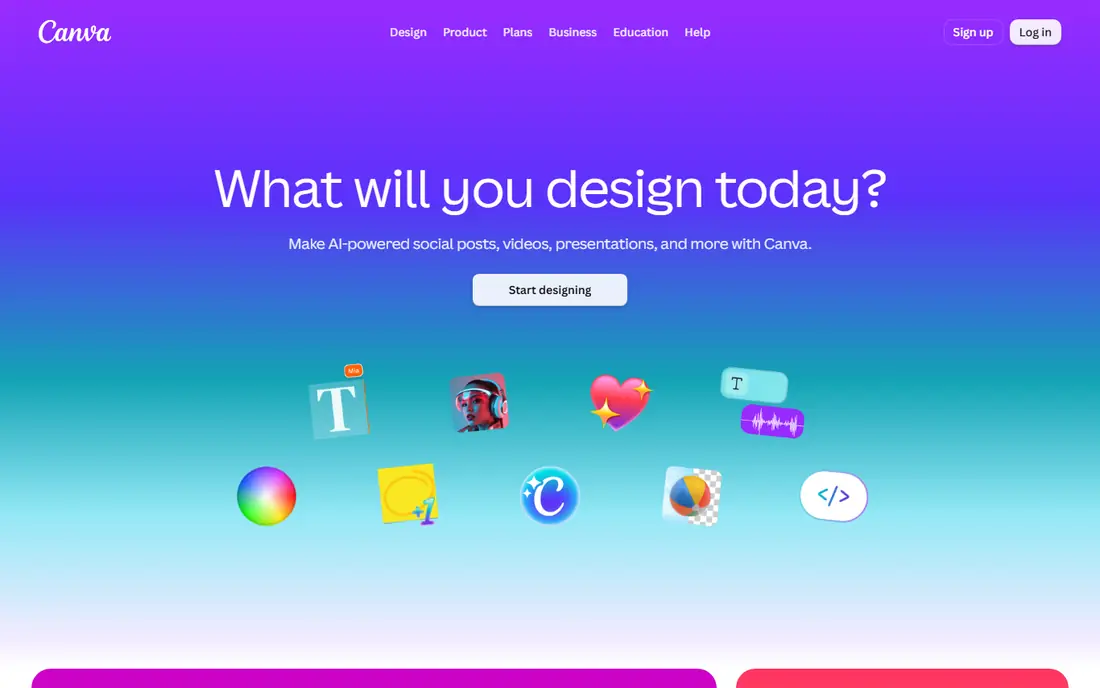
Canva is the right starting point if you are unsure which collage app to install. Its template library covers grids, Instagram layouts, birthday cards, and posters, all pre-sized, and its text tools, including font pairing and spacing, are stronger than any dedicated collage app here. Because it runs on the web as well as phones, you can start a collage on a laptop and finish it on a phone.
The catch is scope. If you only want a quick two-by-two grid, browsing thousands of templates feels slow next to PicCollage, and some templates include premium elements that reveal themselves at export. Collages built only from free elements can export without a Canva watermark, so check the element tags before you finalize a design if you plan to stay free.
- Huge template library for feeds, stories, and cards
- Real typography and layout tools
- Works on phone, tablet, and web
- Template browser can overwhelm a quick grid job
- Some templates include premium elements that need Pro at export
- Pro subscription is the priciest here for collage-only use
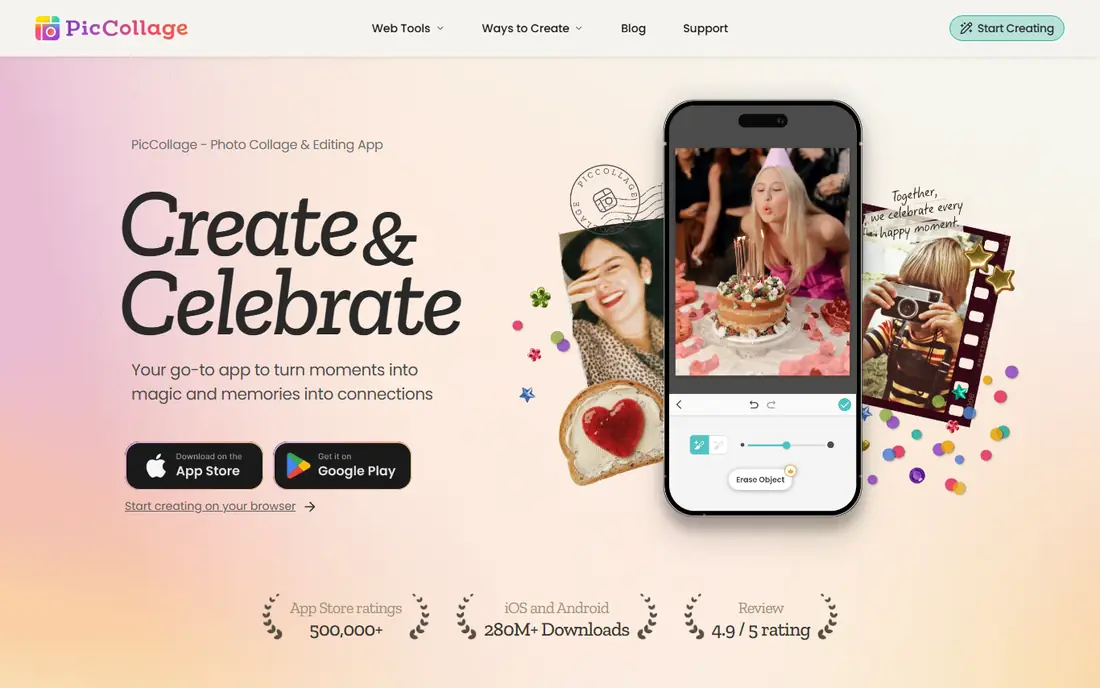
PicCollage is the app to open when you have photos and thirty seconds. It recognizes the format you are heading for, such as a feed post, story, or reel, and suggests grids to match, and its freeform canvas mode lets you scatter photos scrapbook-style when a rigid grid feels too formal. Stickers, backgrounds, and text overlays are plentiful, and sharing straight to social apps is built in.
The free tier carries ads, and VIP is needed to remove watermarks and open up all stickers, templates, and fonts, with a free trial available. If you make collages weekly for social posts, VIP is worth pricing, but casual users can stay free and accept ads, provided they check each export for premium elements.
- Fastest tap-to-grid flow here
- Grid and freeform canvas modes
- Strong stickers, text, and story-sized templates
- Free tier includes ads
- Premium content and watermark removal need VIP
- Typography is weaker than Canva or Adobe Express
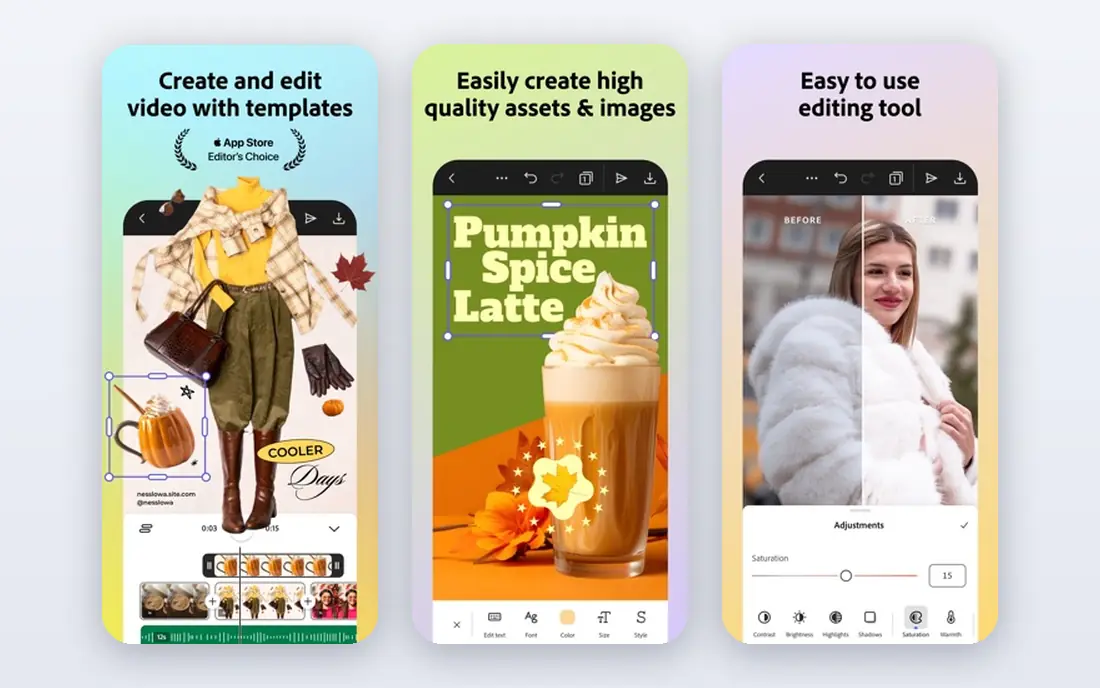
Adobe Express suits people who want collages that look designed rather than assembled. Its templates are clean, its stock library and fonts are strong, and it runs in the browser, so you can build a collage without installing anything. For small businesses and creators who already use Adobe tools, it fits naturally into a wider content workflow.
Its limits are focus and cost. It is a general design tool, not a collage-only app, so a quick grid takes more taps than in PicCollage, and premium templates and assets need a paid plan. Use the free tier for simple, polished collages, and upgrade only if you regularly need premium stock or brand features.
- Clean, professional templates
- Good stock photos and fonts
- Works in browser and on phones
- Full feature set needs a paid plan
- Less single-minded than PicCollage for quick grids
- Some exports need a subscription for premium assets
Fotor is a good browser choice for people who want to edit photos and build a collage in one place. Upload photos, adjust brightness and color, pick a layout, and download the result without installing an app, which suits shared computers and school or work machines. Its Pro plan, aimed at yearly subscribers, is among the cheaper paid options in this list.
The free tier is usable but not unlimited: some templates and exports carry restrictions, so preview the download before you commit to a layout. If you mainly make collages on a phone for social posts, a mobile-first app will feel faster, but for desktop work, Fotor's editing-plus-collage combination is convenient.
- Runs in the browser with no install
- Combines collage layouts with photo editing
- Paid Pro plan is affordable for yearly users
- Free exports may carry limits or watermarks on some templates
- Interface is busier than a phone-only app
- Advanced AI tools are paid
BeFunky is the simplest browser collage maker here, and that simplicity is its appeal. Pick a layout, drop photos in, adjust spacing and backgrounds, and download, all without learning a design tool. It suits beginners, quick greeting cards, and anyone who makes a collage only a few times a year.
Its limits show with regular use. The free tier restricts some features and export options, and its social template range is narrower than Canva's. If you make collages weekly, you will likely outgrow it, but for occasional, no-fuss collages, it does the job with the least learning curve.
- Very easy browser collage maker
- Good layout and pattern options
- No install needed for basic collages
- Free tier limits some features and exports
- Fewer social templates than Canva
- Premium plan needed for full access
PhotoGrid is the pick when your collage includes video. It builds video grids for short-form social posts, with trimming and effects alongside still-photo layouts, and it takes up to 16 photos in a single still grid. For creators who post mixed photo and video content, that combination saves switching between two apps.
The trade-off is clutter for still-only users. Video timelines, marketing templates, and AI tools sit in the way of a simple grid, and the free version includes ads, with newer AI features metered. If you never make video collages, PicCollage or Canva will feel cleaner, but for video-first creators, PhotoGrid earns its place.
- Video collages for Reels, TikTok, and Shorts
- Up to 16 photos in a grid
- Strong social templates and effects
- Free version carries ads
- Newest AI tools are metered or paid
- Video tools add clutter if you only want still collages
Picsart suits collage makers who want to edit heavily before arranging photos. Its filters, stickers, cutouts, and effects let you stylize each photo first, then drop the results into a grid, and its community features offer remix ideas when you are stuck. For playful, expressive collages rather than clean grids, it has the deepest creative toolkit here.
That depth comes with noise. The app is busy, ads appear on the free tier, and AI tools sit behind a paid plan. A user who wants a plain family grid in a minute will find PicCollage faster, but a user who wants a bold, sticker-covered collage for social posts will enjoy Picsart's range.
- Large sticker, filter, and effect library
- Collage grids plus full photo editing
- Strong community and remix features
- Free tier includes ads and limits some tools
- AI features need a paid plan
- Interface is busy for a quick grid
Photovisi is the budget pick for printed collages. Its free tier lets you build and download collages with a small watermark in one corner, while Premium, at 4.99 dollars per month, removes the watermark and gives 4K resolution downloads. For a framed gift, a poster, or any print job, that high-resolution export matters more than a large template library.
Its limits are breadth and editing. Template choices are narrower than Canva's, and photo editing tools are lighter than Fotor's or Picsart's. Use Photovisi when the end product is a print, and use Canva or PicCollage when the end product is a social post that needs templates and text.
- Premium removes watermark and gives 4K downloads
- Low monthly price for print-quality exports
- Simple, focused collage layouts
- Smaller template range than Canva
- Free downloads carry a small watermark
- Less editing depth than Fotor or Picsart
How we picked these
We compared official pricing pages, app store listings, and public reviews for collage apps that are actively maintained in 2026, and we favored apps with a usable free tier, clear watermark rules, and templates for common social sizes. We included browser tools alongside phone apps, because many people make collages on a computer, and we kept a print-focused option for users whose collages end up on a wall rather than a feed. Where pricing varied by store or billing term, we wrote the starting free tier or the vendor's stated monthly price, and noted where premium elements affect exports.
Getting a clean export every time
Check the watermark before you design
Build with free elements first if you plan to stay free, and preview the export before adding text or stickers you cannot remove. A collage that looks free in the editor can still ask for payment at download if one element is premium.
Match the size to the destination
Use feed, story, and print sizes from the start, rather than cropping a finished collage later. Social apps crop automatically, and a grid designed for a square post will lose edges in a story format. Most apps here offer pre-sized templates, so pick the destination before you pick photos.
Export at the largest size offered
For prints, export at the highest resolution your plan allows, and check the file size before sending it to a print shop. Free plans may cap resolution, so a collage that looks sharp on a phone can look soft at poster size. Photovisi Premium and paid plans on other apps remove that cap.
Keep the original photos
Save the finished collage and the original photos separately. If a platform compresses your upload, or you later want a print version, you can rebuild from originals at full quality instead of enlarging a compressed social post.
Frequently asked questions
What is the best free photo collage app?
Canva's free plan is the best all-round free option, with a wide template range and no watermark on collages built only from free elements. PicCollage and PhotoGrid are strong free phone options, while Fotor and BeFunky cover free browser collages. Check each export for premium elements before you rely on the free tier.
Can I make a photo collage without downloading an app?
Yes. Canva, Fotor, BeFunky, and Adobe Express all run in the browser with free tiers. Upload photos, arrange them in a layout, and download the result without installing anything, which suits shared computers and occasional use.
Which photo collage app is best for Instagram?
PicCollage and PhotoGrid are built for mobile social sharing, with templates sized for feeds and stories, and PhotoGrid adds video collages. Canva also offers Instagram-sized templates plus scheduling on paid plans, so creators who plan posts ahead may prefer it.
Can I print a collage I make online?
Yes, but check export resolution first. Paid plans and desktop tools export at higher resolutions suited to printing, while free phone plans may cap size. Photovisi Premium, at 4.99 dollars per month, is a low-cost route to watermark-free 4K downloads for prints.
Do collage makers add watermarks?
Most free tiers do, with Canva as a partial exception for collages built only from free elements. Fotor, BeFunky, PicCollage, and PhotoGrid watermark or limit some free exports, while paid plans generally remove watermarks. Always preview the export before sharing or printing.
How many photos can I put in one collage?
It varies by app: PhotoGrid takes up to 16 photos in a grid, while some dedicated collage makers take far more, and Canva layouts vary by template. If you plan a large photo wall, check the app's limit before you start, since splitting a big collage across two images changes the design.
Sources we checked (8)

Online Jobs is an independent blog about careers, online work, learning new skills and the tools that help people earn. More about us.
Keep reading
All posts
Discord Alternatives
We compared the best Discord alternatives for gaming, communities and teams, checking official pricing, free plans and honest limits before ranking nine apps.

Best Twitter Alternatives
Looking for the best Twitter alternatives? We compared 9 platforms for short posts, from Bluesky and Threads to Mastodon, so you can find your new home.

Best Social Media Management Tools
Compare the best social media management tools for small teams, creators and agencies, with pricing, free plans, features and honest trade-offs. in 2026.